How to Store Passwords Offline on iPhone, Without the Cloud
Keep everyday logins in a password manager and a few secrets on one phone.
Published November 17, 2026

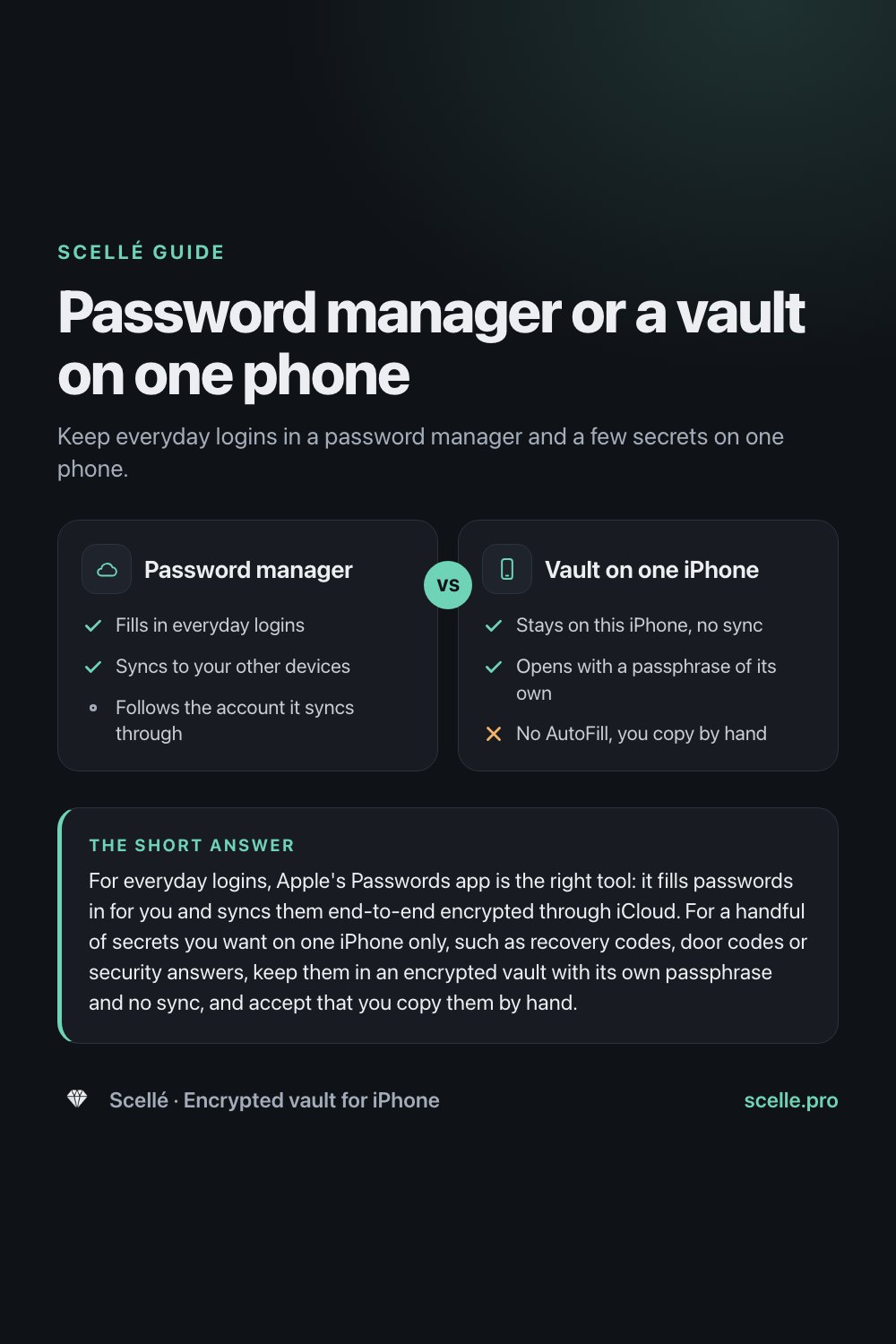
For everyday logins, Apple's Passwords app is the right tool: it fills passwords in for you and syncs them end-to-end encrypted through iCloud. For a handful of secrets you want on one iPhone only, such as recovery codes, door codes or security answers, keep them in an encrypted vault with its own passphrase and no sync, and accept that you copy them by hand.
Why keep some passwords off the cloud
Syncing passwords is convenient: save a login once and it appears on your iPad and Mac too. It also means the password lives on every device signed in to your Apple Account and follows that account wherever it goes. For most logins that is a fair trade. For a few secrets, some people would rather keep them on one phone only, behind a lock nobody else knows:
- Recovery codes for your email or Apple Account, which are your way back in if everything else fails.
- Codes for a door, an alarm, a safe or a storage unit.
- Answers to security questions.
- The login for one account that matters a lot, on a Mac or iPad that other people use.
The aim is not to replace a password manager. It is to keep a small number of high-value secrets somewhere smaller and quieter. This guide explains what the built-in options do, where each one falls short, and how to set up a one-phone store for the rest.
How Apple's Passwords app stores your passwords
The Passwords app holds website and app passwords, passkeys, verification codes and Wi-Fi passwords. When you turn on Passwords & Keychain in iCloud settings, they sync to every device signed in to the same Apple Account. Apple's iCloud security overview lists passwords in iCloud Keychain as end-to-end encrypted even under the default setting, so Apple does not hold the keys, and Apple's user guide says the data cannot be read by Apple.
It is also the only option here that fills logins in for you and suggests strong passwords when you sign up. Apple even suggests using a saved password's Notes field for recovery codes, security questions and PINs. If your main worry is a leaked database or a guessed password, the Passwords app with unique, generated passwords already solves most of it.
What it does not do is separate those secrets from your everyday phone. They sit in an app on the devices you use all day, and they follow your Apple Account. If that is what you want to avoid for a few items, you need somewhere else for them.
Your options compared
| Where the password is | Syncs to other devices | Fills logins for you | Main catch |
|---|---|---|---|
| Apple Passwords | Yes, end-to-end encrypted, when Passwords & Keychain sync is on | Yes | Lives with your everyday apps and your Apple Account |
| Another password manager | Depends on the app and its settings | Usually, through AutoFill | Check where it syncs and what its master password protects |
| Locked Apple Note | Yes, if your notes sync with iCloud | No | The title stays visible, and it may open with your iPhone passcode |
| Plain note or screenshot | Yes, with Notes or iCloud Photos | No | Readable by anyone using your unlocked phone |
| Paper | No | No | Can be lost or found, and has no backup |
| Encrypted vault on one iPhone | No | No | You copy each password by hand |
iOS lets you fill passwords from up to three password apps, so using a vault for a few items does not stop you using a password manager for the rest. For more on locked notes versus a vault, there is a separate guide.
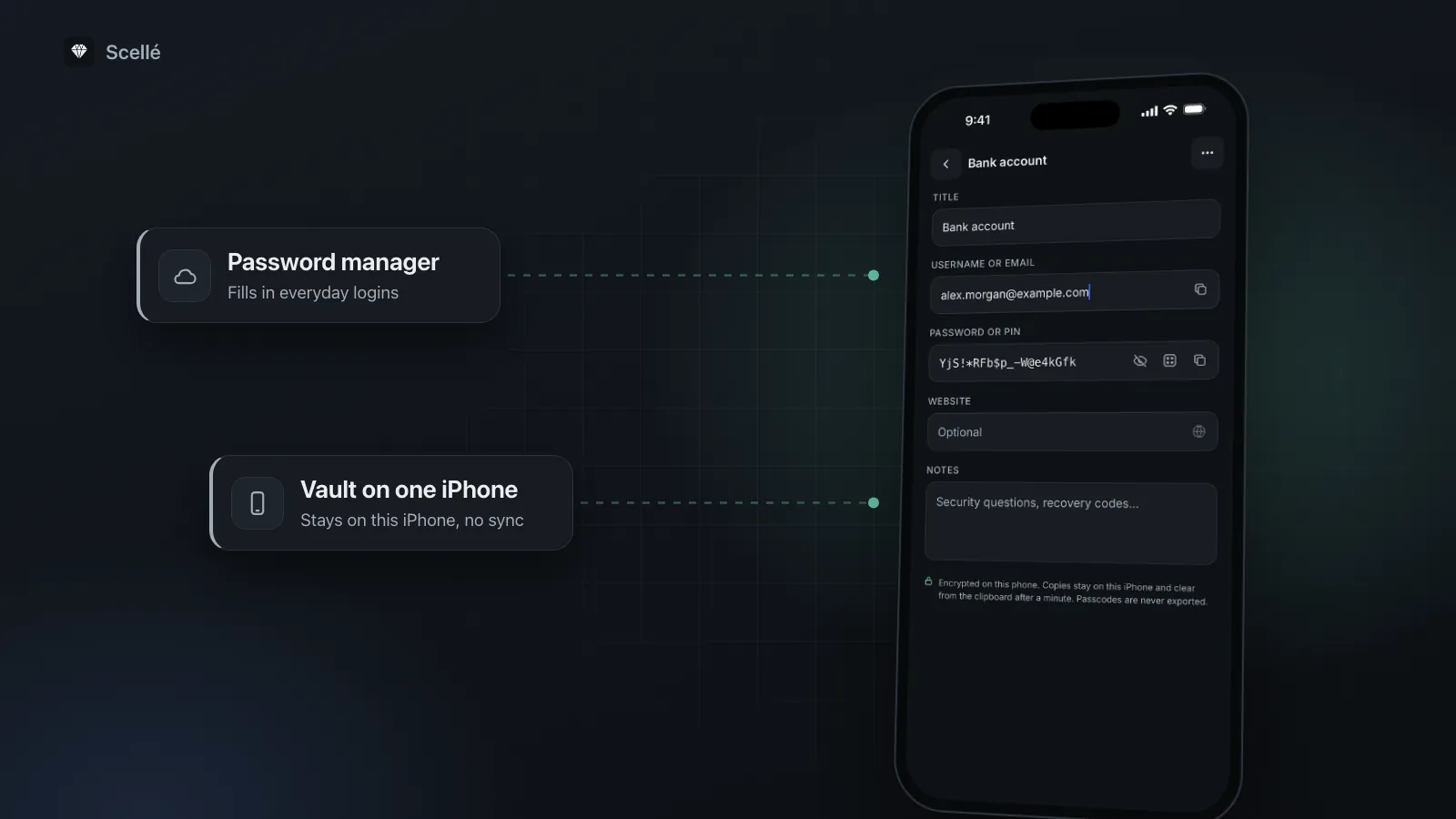
Password manager
- Yes: Fills in everyday logins
- Yes: Syncs to your other devices
- Follows the account it syncs through
Vault on one iPhone
- Yes: Stays on this iPhone, no sync
- Yes: Opens with a passphrase of its own
- No: No AutoFill, you copy by hand
How to keep a few secrets on one iPhone
These steps use Scellé. The same idea works with any encrypted vault that has its own passphrase and no sync.
- Make a short list of the secrets that don't need AutoFill: recovery codes, door and alarm codes, security answers.
- Open Scellé, tap +, then Passcode.
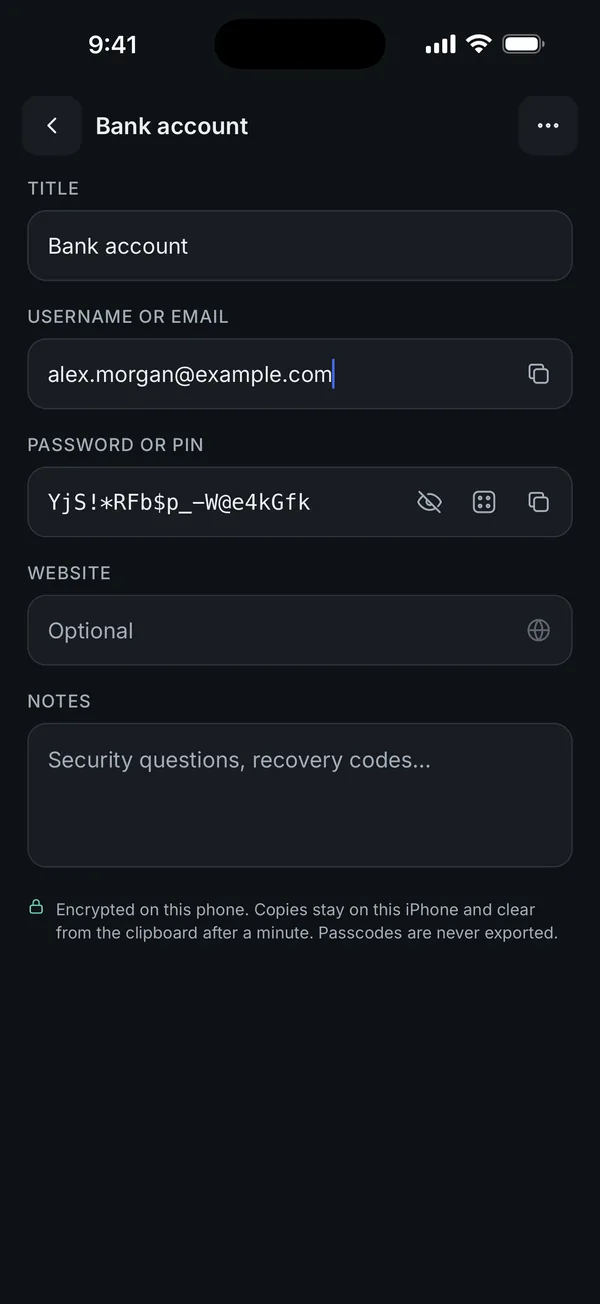
- Give it a title, add the username or email, then type the password or PIN, or tap the generate button for a new random one.
- Put recovery codes or security answers in the Notes field, then tap Save.
- Delete the old copies: the note, the screenshot, the text you sent yourself. Then clear Recently Deleted in Notes and Photos.
- Make an encrypted backup file from Scellé's settings and keep it off the phone, and print the recovery key.
Copying a password into another app
A normal copy on iPhone goes onto the clipboard, and with Universal Clipboard it can also reach your nearby iPad or Mac signed in to the same Apple Account. Apple says copied content stays there briefly or until you copy something else. When you copy a password or username in Scellé, it is marked as local to this iPhone, so it does not travel to your other devices, and it clears from the clipboard after 60 seconds. Paste it straight away.
Mistakes that leave passwords exposed
- Screenshots of codes. A screenshot of recovery codes lands in Photos, and syncs if iCloud Photos is on. Move or delete it, then clear Recently Deleted.
- Exported password files. If you export passwords from your iPhone to move them to another manager, Apple warns the file is not encrypted. Delete it as soon as the import is done.
- Recovery codes stored inside the account they recover. Codes for your email account kept only in that email are no help when you are locked out of it.
- Texting codes to yourself. The message sits in Messages, and on your other devices if Messages in iCloud is on.
- One copy only. A single phone with no backup is a single point of failure.
Where Scellé fits
Scellé is an encrypted vault for iPhone, and from version 1.1 it has a Passcodes type. Each passcode holds a title, a username or email, a password or PIN, a website and notes. Like every item in the vault, it is encrypted on the phone with its own random key, and the vault opens with a passphrase that is separate from your iPhone passcode. There is no account and nothing is uploaded.
- The generator makes a 20-character password from upper and lower case letters, numbers and symbols, without look-alike characters such as 0 and O.
- Copied passwords and usernames stay on this iPhone's clipboard and clear after 60 seconds.
- The password fields turn off autocorrect and AutoFill suggestions, so the keyboard does not learn them.
- The vault list shows titles and usernames, not passwords, and search finds a passcode by title or username.
- Passcodes are never exported as files, but they are included in the encrypted backup file, so they can move to a new iPhone with the rest of the vault.
What it does not do: Scellé has no AutoFill, so it will not fill in a login form. It does not hold passkeys, does not warn you about weak or leaked passwords, and does not sync to an iPad or Mac. For dozens of everyday logins that makes it the wrong tool; keep a password manager for those. How strong your passphrase is matters too, which is covered in passphrase vs PIN vs Face ID, and the lock protection page explains auto-lock and the growing wait after wrong guesses.
Frequently asked questions
Is Apple's Passwords app safe to use?
Yes, for most people it is a strong choice. Apple says passwords in iCloud Keychain are end-to-end encrypted, even under the default iCloud setting, and that Apple cannot read them. It also fills logins in for you and suggests strong passwords. Its trade-off is that it is tied to your Apple Account and opens wherever that account and your devices do.
Is it safe to keep passwords in the Notes app?
Not in an ordinary note. Unlocked notes are not end-to-end encrypted under iCloud's default setting, and anyone using your unlocked phone can read them. A locked note is better, because Apple encrypts it end to end, but its title stays visible in the list, and it may open with your iPhone passcode if that is the lock you chose.
What happens when I copy a password on iPhone?
A normal copy goes onto the clipboard, and with Universal Clipboard it can also appear on your nearby iPad or Mac signed in to the same Apple Account. It stays there briefly or until you copy something else. Scellé marks copied passcodes as local to this iPhone and sets them to clear from the clipboard after 60 seconds.
Can I export my passcodes from Scellé?
Not as a file. Scellé never exports passcodes through the share sheet, and they are left out when you export a selection or a folder. You copy them one at a time. They are included in Scellé's encrypted backup file, which is protected by a backup password, so they can move to a new iPhone along with the rest of the vault.
Should I write my passwords down on paper instead?
Paper has no account and nothing to hack, which is why some people keep recovery codes printed in a drawer. But paper can be lost, read by anyone who finds it, and has no backup unless you make one. If you use it, keep it somewhere private and keep only the few codes you would need to get back into your accounts.
What if I forget the passphrase for my vault?
Then the vault cannot be opened without its recovery key. Scellé offers an optional printable 24-word recovery key, and there is no reset button or back door. Print it and keep it away from the phone. Without the passphrase or the recovery key, nobody can open the vault, including the company that makes it.
Summary
- Keep everyday logins in a password manager with AutoFill. Apple's Passwords app is end-to-end encrypted and a good default.
- Move a handful of high-value secrets, such as recovery codes and door codes, into a vault with its own passphrase and no sync.
- Delete screenshots, plain notes and exported files that hold passwords.
- Back up the vault with an encrypted backup file, and print the recovery key. See what happens if you forget a passphrase.
Sources
- Apple Support: iCloud data security overview
- iPhone User Guide: Make your passwords and passkeys available across devices
- iPhone User Guide: Automatically fill in strong passwords
- Apple Support: Use Universal Clipboard to copy and paste between your Apple devices
- iPhone User Guide: Export passwords to another password manager
- Apple Support: How to lock or unlock notes on your iPhone or iPad