iPhone Passwords App vs a Vault App: Which Do You Need?
Use Apple's Passwords for logins, and a vault only for secrets that need more.
Published November 14, 2026
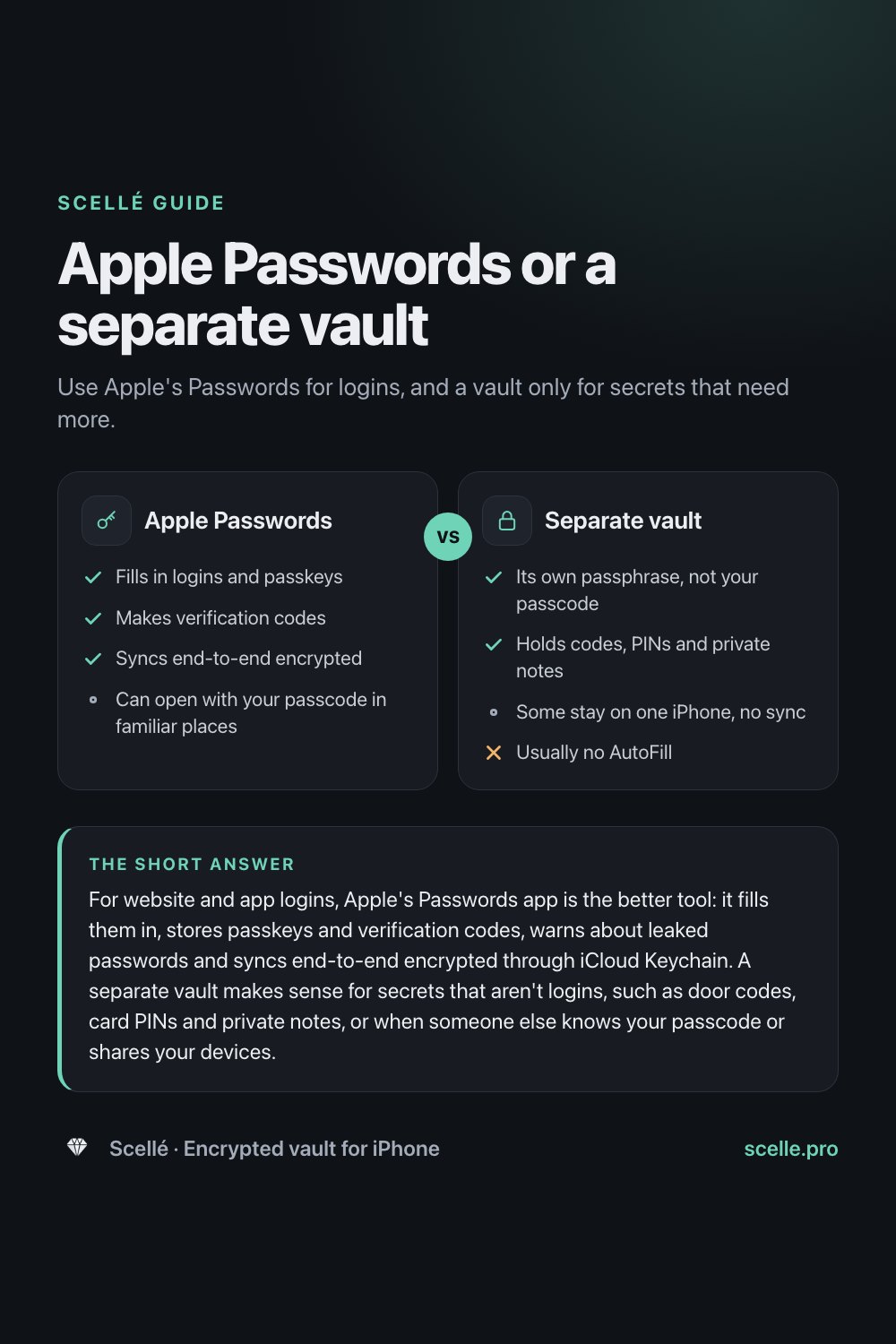
For website and app logins, Apple's Passwords app is the better tool: it fills them in, stores passkeys and verification codes, warns about leaked passwords and syncs end-to-end encrypted through iCloud Keychain. A separate vault makes sense for secrets that aren't logins, such as door codes, card PINs and private notes, or when someone else knows your passcode or shares your devices. If neither applies, Apple's tools are enough.
Keychain, iCloud Keychain and the Passwords app
Three names get mixed up here, so it helps to separate them. The keychain is your iPhone's built-in store for passwords, passkeys and other secrets, and apps can keep their own keys in it too. iCloud Keychain is the service that syncs your saved passwords, passkeys and other account details between your Apple devices. And the Passwords app, which Apple introduced with iOS 18, is where you see and manage all of it.
A vault app is something else: a separate app with its own lock, where you put things you want kept apart from the rest of the phone. Some vaults hold photos and files, some hold passwords, and some, like Scellé, hold both. The question is whether you need one for your passwords and private notes, or whether Apple's tools already cover you. For most logins, they do.
What Apple's Passwords app does well
Apple has built a strong password manager into iOS, and it costs nothing extra. According to Apple's own documentation, it does the following.
- Fills in logins for you. With AutoFill on, your iPhone enters saved passwords and passkeys, so you can use long, unique passwords without remembering any of them. It also suggests a strong password when you create an account.
- Stores passkeys. Passkeys replace passwords on sites and apps that support them, and they live in iCloud Keychain.
- Makes verification codes. For accounts with two-factor authentication, Passwords can generate the one-time codes itself, without text messages or a separate app.
- Warns you. It flags passwords that are easy to guess, used more than once, or found in known data leaks.
- Shares safely. You can share passwords with family or trusted contacts in a shared group.
- Syncs, end-to-end encrypted. Apple lists passwords in iCloud Keychain among the data categories that are end-to-end encrypted even under the default Standard Data Protection, and its user guide says the data can't be read by Apple.
- Recovers. If every device is lost, Apple describes getting your keychain back through a recovery contact or through its keychain escrow, which is protected by your device passcode.
Apple also lets you add notes to any saved account, and suggests using them for recovery key information, security questions and PIN numbers. For the passwords you type every day, a separate vault can't compete with this.
The Passwords app and a vault, side by side
| Point | Apple Passwords app | Vault app with its own lock |
|---|---|---|
| Fills in logins | Yes, through AutoFill | Usually not; you copy and paste |
| Passkeys and verification codes | Yes | Usually not |
| Leaked and weak password alerts | Yes | Usually not |
| Where it's stored | Every device using your Apple Account with Passwords & Keychain on | Depends on the vault; some keep everything on one phone |
| What opens it | Face ID, Touch ID, or your passcode where Stolen Device Protection allows it | The vault's own password or passphrase |
| Secrets that aren't logins | Only as notes on a saved account | Free-standing notes and entries |
| Next to documents and photos | No | In vaults that store files |
| If you lose every device | Recovery contact or keychain escrow | Only the backups you made |
| Cost | Built in | Varies; often a subscription |
Apple Passwords
- Yes: Fills in logins and passkeys
- Yes: Makes verification codes
- Yes: Syncs end-to-end encrypted
- Can open with your passcode in familiar places
Separate vault
- Yes: Its own passphrase, not your passcode
- Yes: Holds codes, PINs and private notes
- Some stay on one iPhone, no sync
- No: Usually no AutoFill
Who can open your saved passwords
This is the one place where Apple's tool and a vault really differ. Your saved passwords sit behind the same lock as the rest of your iPhone. Apple's page on Stolen Device Protection explains that when the feature is on and you're away from familiar places like home or work, using saved passwords needs Face ID or Touch ID, with no passcode fallback. In a familiar location, Apple says you can use your passcode as usual.
So the realistic risk is someone at home who knows your passcode: a partner, a relative, a housemate. You can close most of that gap without any extra app, by making Stolen Device Protection require Face ID or Touch ID everywhere.
- Check the requirements Apple lists: two-factor authentication for your Apple Account, a device passcode, Face ID or Touch ID, Significant Locations, and Find My turned on.
- Open Settings and tap Face ID & Passcode (or Touch ID & Passcode), then enter your passcode.
- Tap Stolen Device Protection and turn it on, if it isn't already.
- Under Require Security Delay, choose Always.
- From then on, Apple says actions that need biometric authentication, including using saved passwords, always require Face ID or Touch ID, even at home, and changing Face ID or your passcode needs a one-hour Security Delay.
One limit remains: anyone whose face or fingerprint is already set up on your iPhone can still get in. If that applies, or if you'd rather your most sensitive secrets didn't depend on the phone's lock at all, that is where a separate vault comes in.
When a separate vault makes sense
Secrets that aren't logins
Door and alarm codes, a safe combination, a bank card PIN, the recovery codes for your email, a private note. Apple's Passwords app organizes entries by website or app account. You can bend it, but a vault or a locked note holds these more naturally.
Someone else shares your devices or account
iCloud Keychain puts your passwords on every approved device signed in to your Apple Account. If a family iPad or a shared Mac uses your account, your passwords are there too, behind that device's lock. A vault that stays on one phone keeps a few secrets off the shared ones.
Secrets that belong with documents
A passport number next to the passport scan, an insurance login next to the policy PDF. A vault that holds both keeps related things in one locked place. See how to store passport and ID scans.
A middle option: a locked note
Apple's Notes app can lock notes with your device passcode or a custom password. Apple's guide says a custom password works on all devices with the same Apple Account, that Apple can't help you if you forget it and can't use Face ID or Touch ID, and that a locked note's title stays visible in the list. You also can't lock notes that contain PDFs or other file attachments. For a handful of text-only secrets, a locked note with a custom password may be all you need. Our guide comparing locked notes and a vault goes further.
When Apple's tool is enough
Be honest with yourself about what you're guarding against. You probably don't need a vault for passwords if:
- Nobody else knows your iPhone passcode, or you've set Stolen Device Protection to Always.
- You don't share an Apple Account or a device signed in to yours.
- What you want to store is mostly logins, which the Passwords app fills in for you.
- You'd rather have automatic sync and recovery than a copy on one phone.
In that case, use unique generated passwords, turn on passkeys where sites offer them, and let Passwords make your verification codes. That is a better setup than most people have. If you only want a few secrets off the cloud, our guide on storing passwords offline covers that narrower case.
Where Scellé fits
Scellé is an encrypted vault for iPhone that holds files, photos, notes, contacts and passcodes in one place. It isn't a password manager, and we wouldn't suggest it as one. It suits the cases above: a handful of secrets you want behind a passphrase your iPhone passcode doesn't open, on one phone, next to your documents.
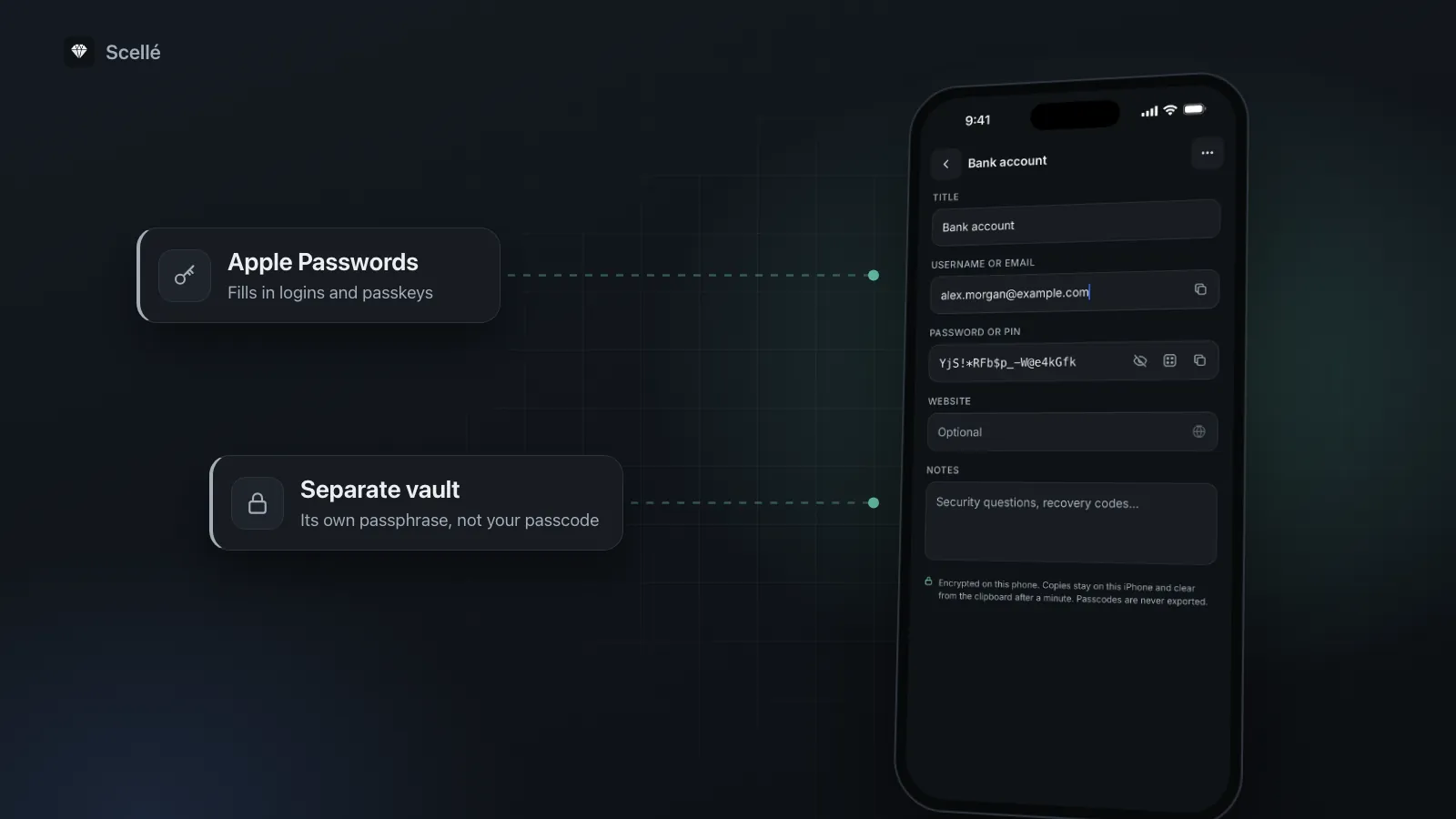
What a passcode holds. A title, a username or email, a password or PIN, a website and notes for security questions or recovery codes. The generator makes a 20-character random password with mixed character types and no look-alike characters.
How it's protected. Each entry is encrypted on the phone with its own random key, like every file in the vault. The vault opens with its own passphrase, hardened with Argon2id, with optional Face ID or Touch ID. Everything Scellé keeps in the iPhone's keychain is marked for this device only, and the vault key depends on one of those secrets, so copied vault files can't be opened on another phone.
Copying. A copied password or username stays on this iPhone, not on your other devices, and clears from the clipboard after 60 seconds.
Private notes. Free-standing notes that save as you type, encrypted like everything else.
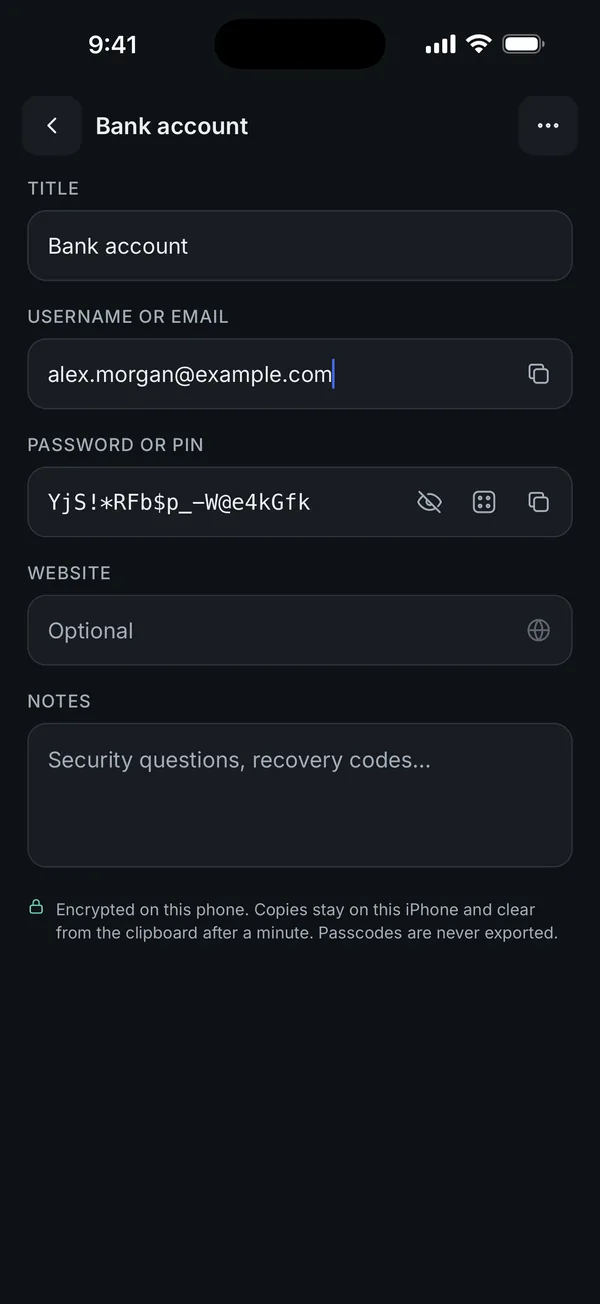
What it does not do: no AutoFill, no passkeys, no verification codes and no leaked-password alerts. It doesn't sync to an iPad or Mac. Passcodes are never exported as files; they move to a new iPhone only inside Scellé's encrypted backup file, which is protected by a backup password you choose. If you lose both your passphrase and your recovery key, nobody can open the vault. Scellé is iPhone only and costs $1.49 a week or $49.99 once (US prices, local price shown in the app). How strong the passphrase needs to be is covered in passphrase vs PIN vs Face ID, and the lock protection page explains auto-lock.
Frequently asked questions
Is iCloud Keychain safe enough for my passwords?
For most people, yes. Apple lists passwords in iCloud Keychain among the data that is end-to-end encrypted even under its default setting, so Apple doesn't hold the keys. The weaker point is usually your iPhone passcode: anyone who knows it may be able to open your saved passwords, unless Stolen Device Protection asks for Face ID or Touch ID instead.
Can I store PINs and security answers in the Passwords app?
Yes, within an account. Apple says you can add notes to a saved password or passkey for recovery key information, security questions, PIN numbers and similar details. Apple's guide describes these notes as part of a saved account, so a secret that isn't tied to a website or app, such as a door code, fits better in a locked note or a vault.
Should I keep my vault passphrase in the Passwords app?
Think twice. If the reason for a separate vault is that someone else knows your iPhone passcode, saving the vault's passphrase in an app that passcode can open undoes the point. Memorize it, and keep a written copy or the vault's recovery key somewhere safe and offline, away from the phone.
What happens to my passwords if I lose my iPhone?
With iCloud Keychain on, they are on your other approved devices and come back when you set up a new one. Apple also describes recovery through a recovery contact or its keychain escrow if every device is lost. A vault that keeps secrets on one iPhone only has no such copy unless you made a backup of it yourself.
Can a vault app fill in passwords like the Passwords app?
Some password managers can, through iOS AutoFill. Many vault apps can't, and Scellé is one of them: you copy a password and paste it yourself. That is fine for a few codes you rarely type, and impractical for dozens of daily logins, which is why the Passwords app or another password manager should keep those.
Summary
- Keep everyday logins, passkeys and verification codes in Apple's Passwords app. It is end-to-end encrypted, free and fills them in for you.
- If someone knows your passcode, set Stolen Device Protection to Always before reaching for another app.
- Use a vault, or a locked note with a custom password, for secrets that aren't logins or that shouldn't sit on shared devices.
- Don't store the vault's passphrase in an app your passcode opens.
Sources
- Apple Support: Use the Passwords app to create, manage, and share passwords and passkeys
- iPhone User Guide: Make your passwords and passkeys available across devices with iCloud Keychain
- iPhone User Guide: View your passwords and related information
- Apple Support: iCloud data security overview
- Apple Support: About Stolen Device Protection for iPhone
- iPhone User Guide: Lock your notes on iPhone