How to Store Passport and ID Scans on iPhone Safely
ID scans don't belong in the camera roll. Here is where to keep them instead.
Published November 9, 2026 · Updated November 12, 2026
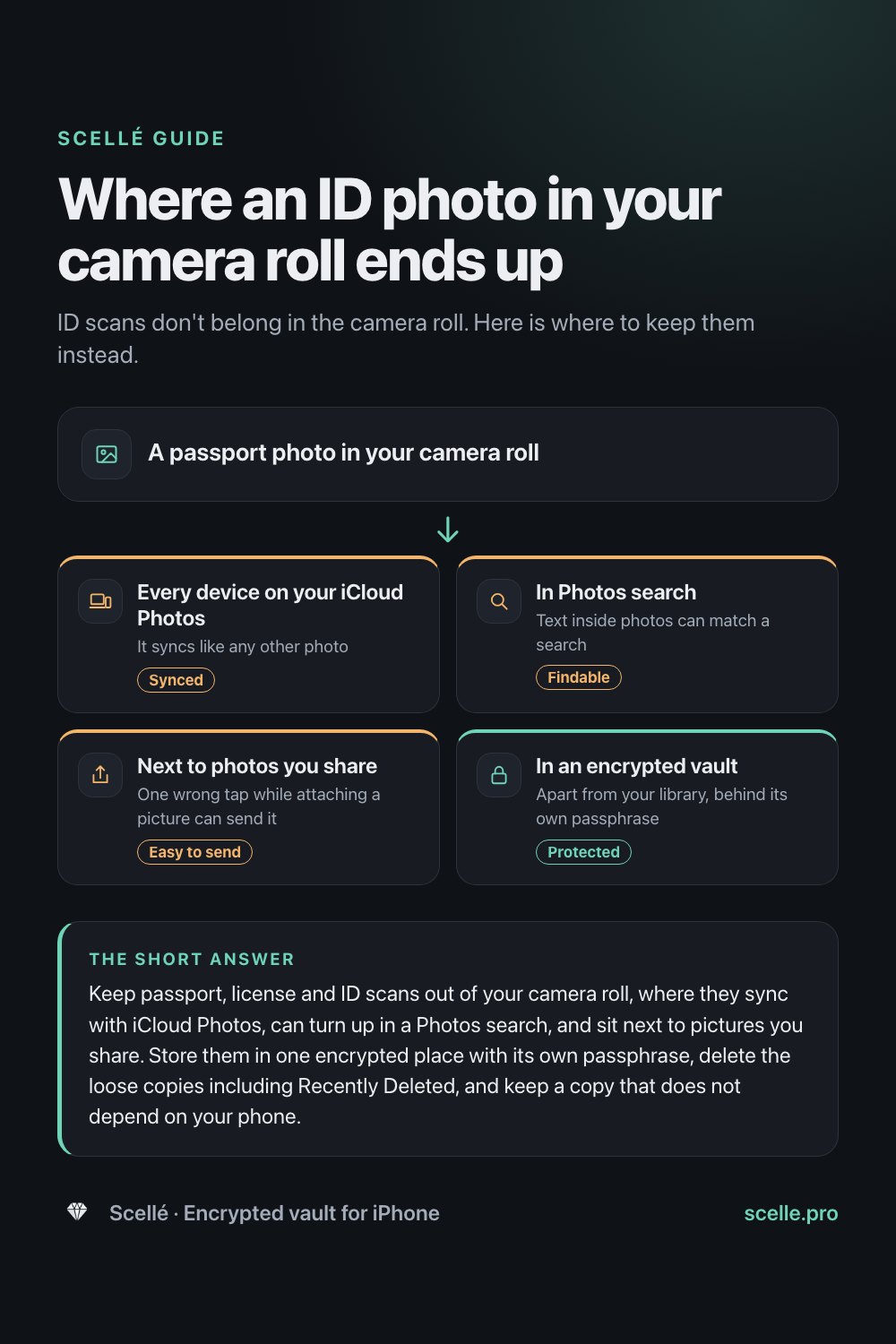
Keep passport, license and ID scans out of your camera roll, where they sync with iCloud Photos, can turn up in a Photos search, and sit next to pictures you share. Store them in one encrypted place with its own passphrase, delete the loose copies including Recently Deleted, and keep a copy that does not depend on your phone.
Why ID scans deserve more care than other photos
Most of us have them: a photo of the passport page taken for a hotel booking, both sides of a driver's license for a rental, a residence permit, an insurance card. They are useful to have on hand, and they are exactly what someone needs to open an account or pass a check in your name.
The trouble is usually not that they exist, but where they end up. A scan taken with the camera lands in the same library as every other photo, and from there it syncs, shows up in search and gets shared by accident. This page covers where ID scans go by default, what is worth keeping, how to move the ones you have, and how to share one safely when you have to.
Where ID scans end up by default
Each of the usual places has its own reach. Here is what Apple's documentation says about each.
| Where the scan is | What can reach it | Worth knowing |
|---|---|---|
| Photos (camera roll) | Every device using your iCloud Photos, and anyone browsing your unlocked phone | Apple says Photos search can match text inside photos, such as an email address or phone number. |
| Hidden album | Anyone who knows your iPhone passcode, and your other devices | Apple says hidden photos are hidden on your other devices too when you use iCloud Photos, which means they sync. |
| Notes or Files, scanned there | Wherever that note or folder syncs | In iCloud with Standard Data Protection, Notes and iCloud Drive are encrypted with keys Apple holds. Advanced Data Protection makes them end-to-end encrypted. |
| Mail and Messages | The recipient, and your own Sent folder or thread | Sending a copy creates a new one you no longer control. |
| An encrypted vault with its own passphrase | Only someone with the vault's passphrase | Depends on the app. Check that it really encrypts and where it stores files. |
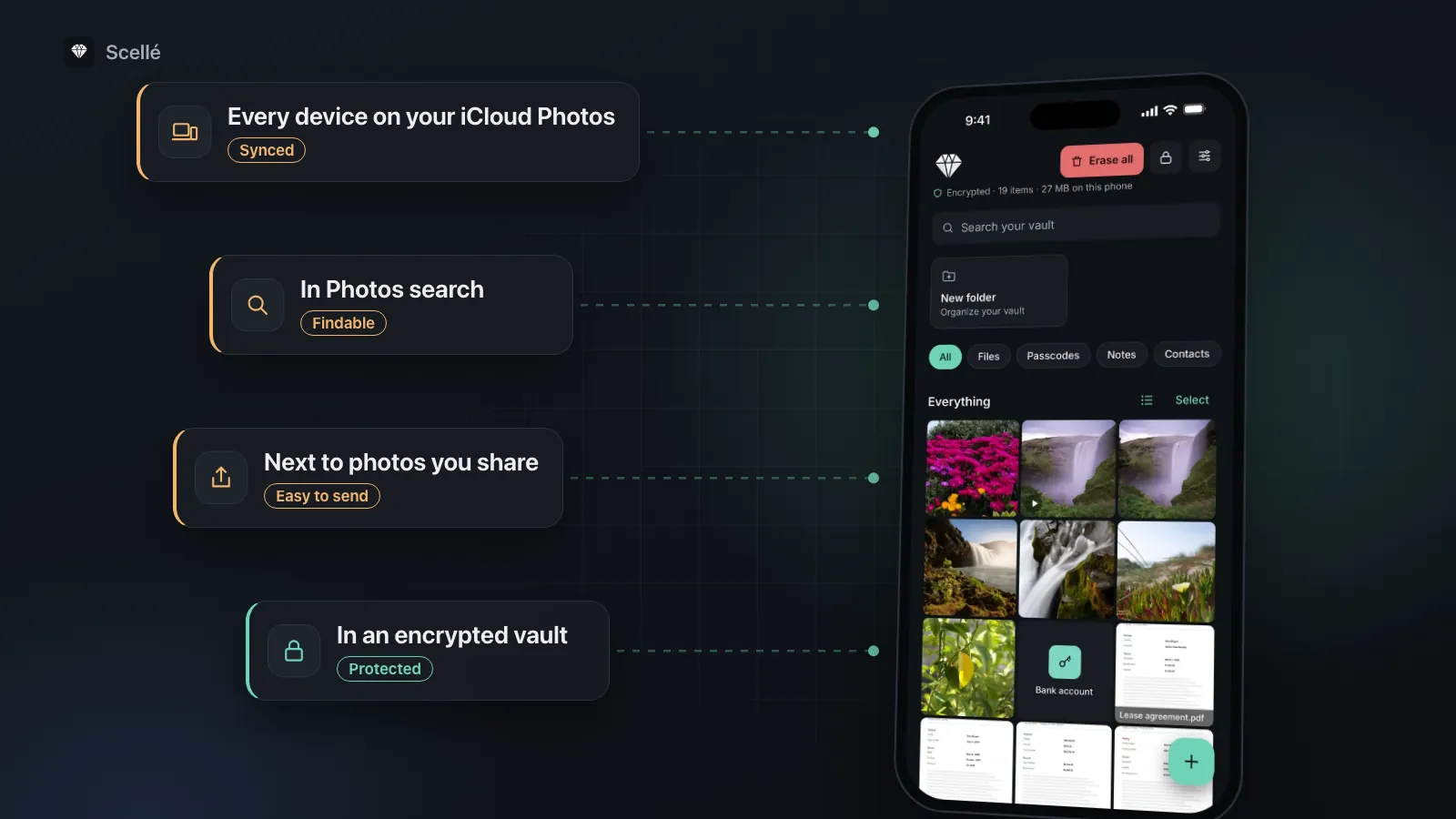
- Every device on your iCloud PhotosIt syncs like any other photoSynced
- In Photos searchText inside photos can match a searchFindable
- Next to photos you shareOne wrong tap while attaching a picture can send itEasy to send
- In an encrypted vaultApart from your library, behind its own passphraseProtected
Hiding a scan does not change the first two rows much. The reasons are covered in is the Hidden album private and do hidden photos sync to iCloud.
What to keep, and what to let go
The safest scan is the one you never kept. Before moving anything, sort out what you actually need.
Passport
The photo page is usually all anyone asks for. Keep one clear, current copy. Delete scans of expired passports unless you have a specific reason to keep them, such as a pending application that refers to the old number.
Driver's license and state ID
Rental companies and landlords often ask for both sides, so keep the front and back together in one folder. When the card is renewed, replace the old scans rather than adding to them.
Everything else
Insurance cards, residence permits, visas and vaccination records follow the same rule: one legible copy of the current version, filed where you can find it. Tax returns and contracts have their own considerations, covered in how to store tax returns, contracts and records.
How to move the scans you already have
- Find the copies. In Photos, tap the search button and try words printed on your documents, such as passport or license. Then check Files, Notes, Mail and your Downloads folder.
- Create folders in your vault, for example Identity, Travel and Insurance.
- Import the scans from Photos or Files into the vault. If the app can remove the originals from Photos after import, turn that on.
- Open each scan in the vault and zoom in to check the text is legible.
- Delete the originals in Photos, then open Recently Deleted under Utilities, unlock it and delete them there too, because Photos keeps deleted items for 30 days.
- Delete the loose copies you found in Files, Notes, Mail and Messages, including emails in your Sent folder.
The full cleanup routine, including copies in shared albums and backups, is in how to move photos to a vault and remove every copy.
Scanning new documents
Apple's own scanners in Notes and Files keep a scan out of the camera roll: in Files you choose a location and tap Save, and in Notes the scan stays in the note. That is better than a camera photo, but the note or folder then syncs wherever your Notes or iCloud Drive syncs. If your vault can scan, scanning straight into it skips that step entirely. How to scan documents without sending them to Photos compares the options.
Sharing a scan when someone asks
Banks, airlines, landlords and employers sometimes need a copy. A few habits keep that from spreading your ID further than necessary.
- Export just the one file they need, not a folder or a batch.
- Check who is asking before you send. Use a contact method you already trust rather than a link in an unexpected message.
- After sending, delete the copy from your Sent mail or the conversation, if the recipient has confirmed they received it.
- If the service offers an upload page on its own website or app, that is usually better than email.
When Apple's built-in options are enough
For some people, a vault is more than they need.
- Apple Wallet: if you mainly want to show ID in the US, Apple says you can create a Digital ID from an unexpired US passport and present it at select TSA checkpoints, in apps and online. Apple says the data is encrypted, that Apple cannot see when and where you use it, and that Face ID or Touch ID protects it. It is not a passport, cannot be used for international travel or border crossing, and does not give you a file to send.
- Notes or Files with Advanced Data Protection: if you rarely hand your phone to anyone, nobody else knows your passcode, and you have turned on Advanced Data Protection, a scan kept there is end-to-end encrypted in iCloud. It still opens for anyone who has your unlocked phone.
A vault makes sense when other people use or unlock your phone, when you want the scans off iCloud entirely, or when you want one place for every document with its own passphrase.
Keep a copy that does not depend on your phone
If a vault keeps files only on your phone, losing the phone means losing that copy. Plan for it now.
- Keep a paper copy of your passport number, issue date and expiry somewhere safe at home. It helps if you ever need to report the passport lost.
- If your vault can make an encrypted backup file, make one and keep it somewhere other than the phone.
- Write down or print your vault's recovery key and store it away from the phone. How the recovery key works explains why.
Without the passphrase or recovery key, an encrypted vault cannot be opened by anyone, including the people who made it. What happens if you forget your vault passphrase covers what that means in practice.
Where Scellé fits
Scellé keeps documents and photos in one encrypted place on your iPhone. You can add any file from the Files app, including PDFs, import scans from Photos with the originals removed afterward, take a photo straight into the vault, or use Scan to turn paper into a PDF that goes into the vault without ever reaching Photos. Each file is encrypted on the phone with its own key, file and folder names are encrypted too, and nothing is uploaded: there is no account and no server.
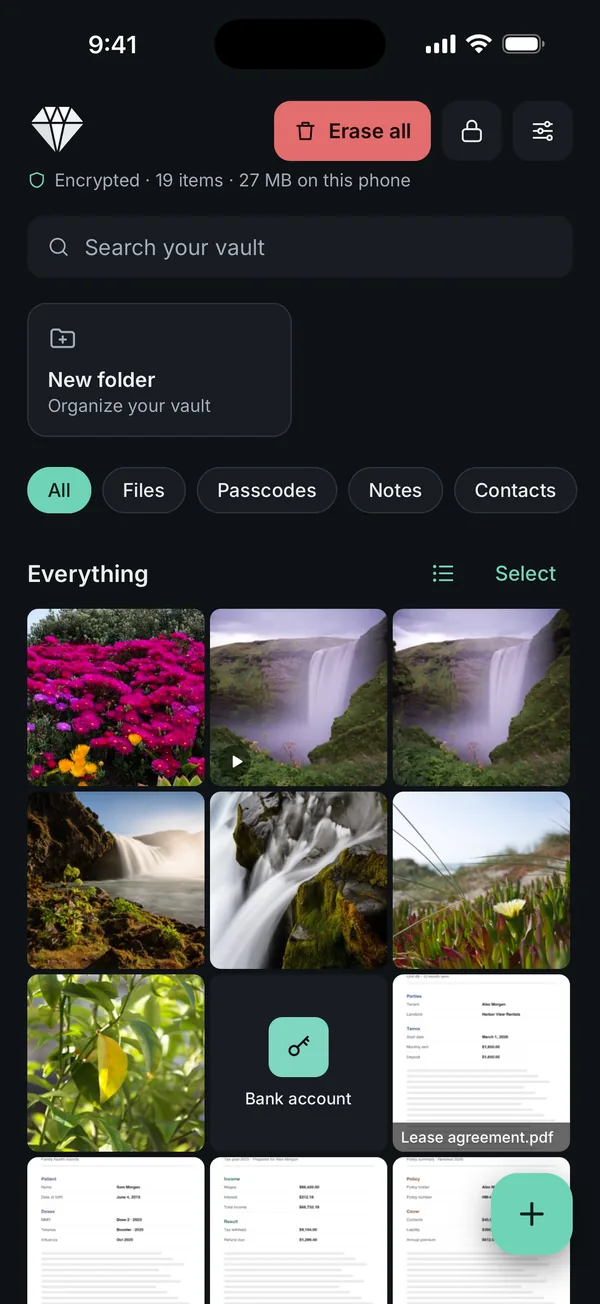
When someone needs a copy, Export sends one file through the share sheet, and the decrypted copy Scellé makes for that is removed as soon as the share sheet closes. Scellé can also create an encrypted backup file, protected by a backup password, and an optional 24-word recovery key you can print. Scellé opens with its own passphrase, not your iPhone passcode, and is paid: $1.49 a week or $49.99 once (US prices, local price shown in the app). It runs on iPhone only and does not sync to other devices.
Frequently asked questions
Is it safe to keep a photo of my passport on my iPhone?
It can be, if it is stored well. The risk is less the phone itself than where the photo goes: into iCloud Photos, onto your other devices, into Photos search, and next to pictures you share. A scan kept in an encrypted vault with its own passphrase, with the loose copies deleted, is far better protected than one in the camera roll.
Can someone find my passport photo by searching my iPhone?
Possibly. Apple says Photos search can match text inside photos, such as an email address or a phone number, as well as categories and dates. A word printed on your passport or license may be enough to bring the scan up. Anyone using your unlocked phone can try it, which is a good reason to keep ID scans out of Photos.
Should I put ID scans in the Hidden album?
It is better than leaving them in the main grid, but not by much. The Hidden album opens with your iPhone passcode, and with iCloud Photos on, hidden photos still sync to your other devices. For documents that could be used to impersonate you, a vault with its own passphrase and no cloud copy is the safer place.
Can I use Apple Wallet instead of a passport scan?
For some things. Apple says a Digital ID created from an unexpired US passport can be presented at select TSA checkpoints, in apps and online. Apple also says it is not a passport, cannot be used for international travel or border crossing, and is not a replacement for the physical document. It does not give you a file to send when someone asks for a copy.
Is it safe to email a scan of my passport?
Only when you have to, and only to someone you have verified. Once sent, the scan sits in your Sent folder, the recipient's inbox and any system they forward it to. Send one file, not a folder, delete it from your Sent mail afterward, and ask the recipient how long they keep it if you are unsure.
What if I lose my phone with my ID scans in a vault?
A vault that keeps files only on the phone has no copy elsewhere, so plan for this before it happens. Keep a paper copy of key details at home, and if your vault supports it, an encrypted backup file stored somewhere other than the phone. Also keep the vault's recovery key, so a new or replaced phone can still open that backup.
Summary
- Get ID scans out of the camera roll. There they sync, turn up in search and sit next to photos you share.
- Keep one current copy of each document in an encrypted place with its own passphrase.
- Delete the originals, empty Recently Deleted, and clear copies from Mail, Messages, Notes and Files.
- Share one file at a time, and only with someone you have verified.
- Keep a paper copy of key details and a backup that does not live on your phone.
Sources
- iPhone User Guide: Search for photos and videos on iPhone
- Apple Support: Hide photos on your iPhone, iPad, Mac, or Apple Vision Pro with the Hidden album
- Apple Support: How to scan documents on your iPhone or iPad
- Apple Support: iCloud data security overview
- Apple Support: Use your Digital ID in Apple Wallet
- Apple Support: Delete photos on your iPhone or iPad