Stolen Device Protection and Your Photos: What It Covers
It guards your passwords and account, not your photo library.
Published November 14, 2026

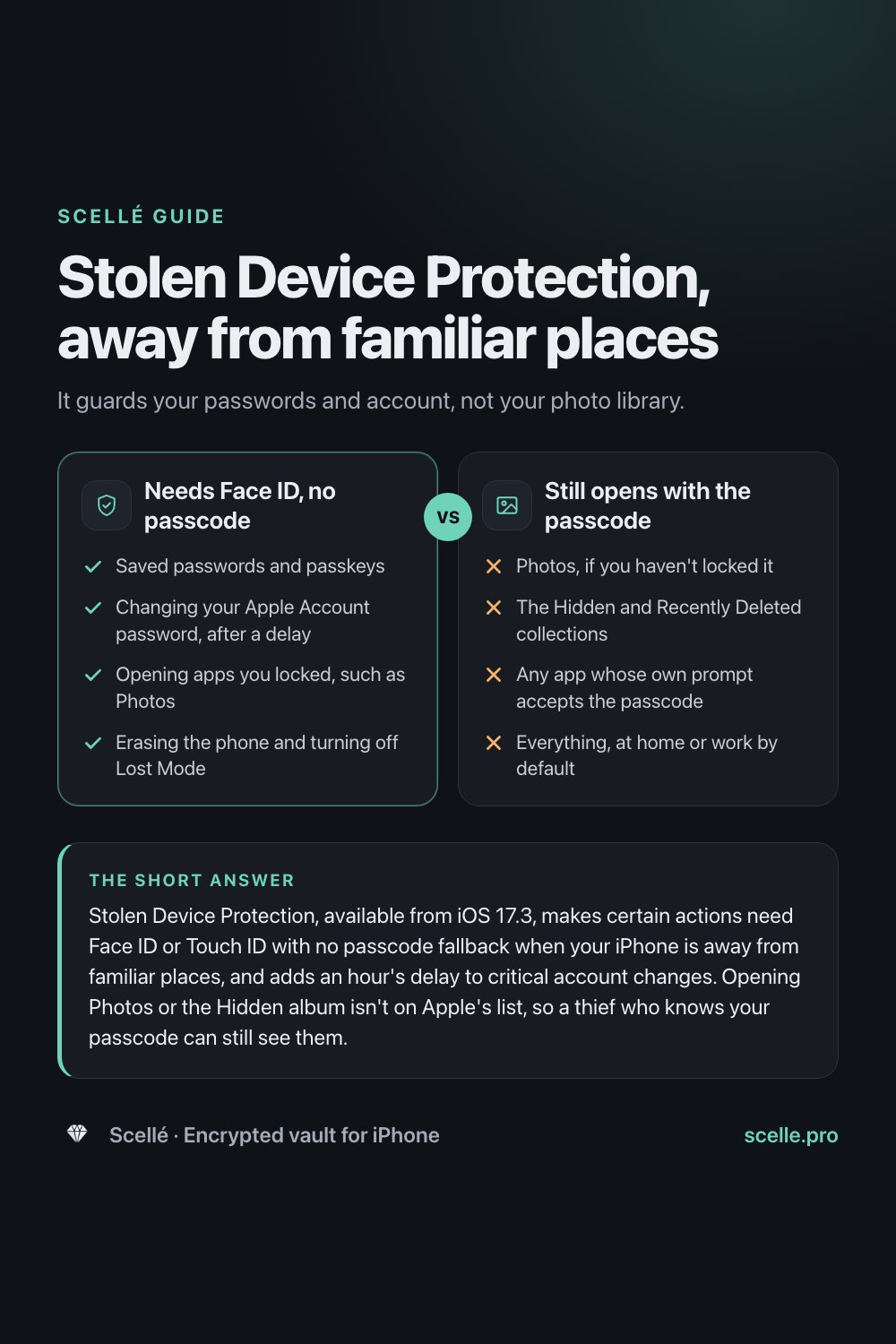
Stolen Device Protection, available from iOS 17.3, makes certain actions need Face ID or Touch ID with no passcode fallback when your iPhone is away from familiar places, and adds an hour's delay to critical account changes. Opening Photos or the Hidden album isn't on Apple's list, so a thief who knows your passcode can still see them. To bring your photos under it, lock the Photos app with Require Face ID, or keep private photos in an app with its own passphrase.
The problem it was built for
The worst kind of phone theft isn't the grab-and-run. It is the thief who watched you type your passcode first, at a bar or on a train, and then takes the phone. With the passcode, they can do almost anything you can: open your apps, change your Apple Account password, and lock you out.
Stolen Device Protection is Apple's answer to that. It adds a second requirement your passcode can't satisfy, Face ID or Touch ID, to the actions that do the most damage. That is a real improvement. But people often assume it covers everything private on the phone, including photos, and it doesn't. This guide sets out exactly what it does, what it leaves open, and how to close the gap.
What Stolen Device Protection does
Apple describes two mechanisms, both active when your iPhone is away from familiar locations such as home or work. It is available with iOS 17.3 or later and must be turned on before the phone is lost or stolen.
- Face ID or Touch ID, no passcode fallback. Apple's list includes using passwords and passkeys saved in Keychain, using saved payment methods in Safari, turning off Lost Mode, opening a locked app, erasing all content and settings, using the phone to set up a new device, and setting up or transferring an eSIM.
- A security delay. For critical changes you authenticate with Face ID or Touch ID, wait an hour, then authenticate again. Apple's list includes changing your Apple Account password, signing out of your Apple Account, adding or removing Face ID or Touch ID, changing your passcode, resetting all settings, and turning off Stolen Device Protection itself.
In familiar locations, Apple says these extra steps aren't required and your passcode works as usual, unless you choose to require them everywhere.
What it covers for your photos, and what it doesn't
Notice what is missing from Apple's lists: opening Photos. Viewing your pictures is not one of the protected actions, so a thief who knows your passcode can unlock the phone and scroll your library.
| Situation | With Stolen Device Protection, away from home |
|---|---|
| Thief opens Photos with your passcode | Not covered. Photos opens |
| Thief opens the Hidden or Recently Deleted collection | Not covered. Apple says these unlock with Face ID, Touch ID or the passcode |
| Photos app locked with Require Face ID | Covered. Apple says a locked app needs Face ID or Touch ID, with no passcode option |
| Thief changes your Apple Account password to take your iCloud photos | Covered. Face ID, an hour's delay, then Face ID again |
| Phone taken while already unlocked with Photos open | Not covered. What is on screen is already open |
| Another app's own Face ID prompt that accepts the passcode | Not on Apple's list, unless you lock that app too |
| At home or work, by default | Not covered. The passcode works as usual there |
The account protection matters more than it might look. Because a thief can't quickly change your Apple Account password or sign you out, you keep control of iCloud, which means you keep your iCloud Photos and the ability to mark the phone as lost. What is stored on the phone itself is a different matter.
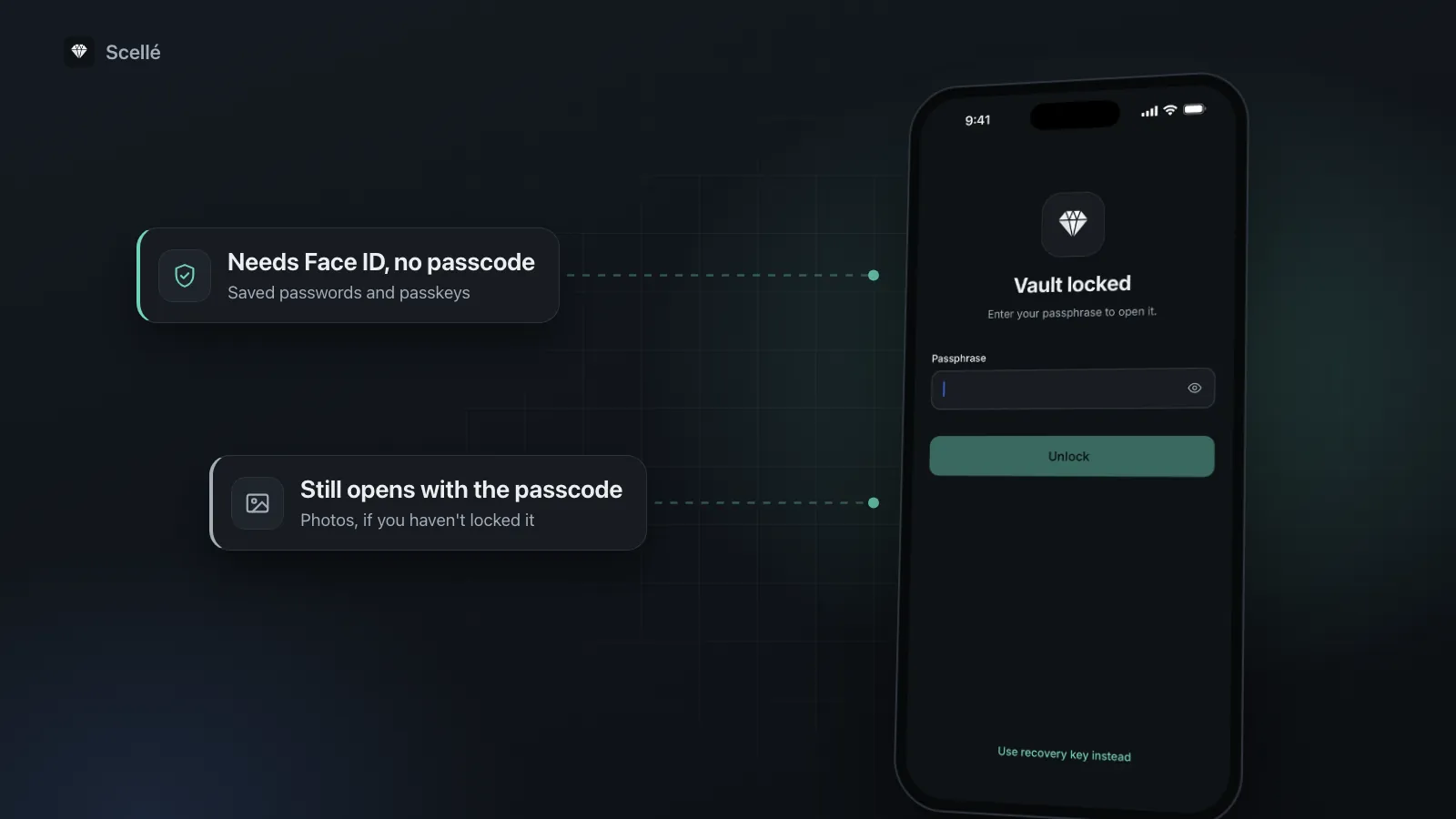
Needs Face ID, no passcode
- Yes: Saved passwords and passkeys
- Yes: Changing your Apple Account password, after a delay
- Yes: Opening apps you locked, such as Photos
- Yes: Erasing the phone and turning off Lost Mode
Still opens with the passcode
- No: Photos, if you haven't locked it
- No: The Hidden and Recently Deleted collections
- No: Any app whose own prompt accepts the passcode
- No: Everything, at home or work by default
How to turn it on and extend it to your photos
You need two-factor authentication for your Apple Account, a passcode, Face ID or Touch ID, Significant Locations in Location Services, and Find My. Apple says it might already be on by default. Then:
- Go to Settings, tap Face ID & Passcode (or Touch ID & Passcode), and enter your passcode.
- Tap Stolen Device Protection and turn it on.
- Optional: under Require Security Delay, choose Always, so the Face ID checks and delays apply at home and work too.
- Go to the Home Screen, touch and hold the Photos app until the quick actions menu opens, tap Require Face ID, then confirm and authenticate.
- Do the same for any other app that holds private photos, such as a messaging or vault app.
Locking Photos is the step most people miss. Apple's support page on locked apps says that when you lock an app with Stolen Device Protection on, you extend its extra layer to that app. Apple's list of built-in apps that can't be locked names Calculator, Camera, Clock, Contacts, Find My, Maps, Shortcuts and Settings; Photos is not on it. Apple says apps that come with the iPhone can't be hidden, and a locked app locks again each time you quit it.
Worth knowing
A locked app accepts your passcode when you are in a familiar location, unless you chose Always. So locking Photos stops a thief on the street, but not someone at home who knows your code.
Why the Hidden album isn't enough
The Hidden album feels like a second lock, and it is locked by default. But Apple says it unlocks with Face ID, Touch ID or your passcode, and it isn't on Stolen Device Protection's list. For a thief who has your passcode, it is one more tap. If you have photos you would hate a stranger to see, hiding them is not the protection, locking the app or moving them is. More on that in is the Hidden album private.
If your iPhone is stolen
- Mark it as lost at iCloud.com/find, quickly. Apple says Lost Mode locks the phone with its passcode, and with Stolen Device Protection on, turning Lost Mode off needs Face ID or Touch ID.
- Don't count on the protection alone. Apple says its extra safeguards last only for a period, and marking the phone lost is the best protection.
- Leave your contact details off the lost message, and don't remove the phone from Find My. Apple says removing it lifts Activation Lock.
- Erase it remotely once you have given up on getting it back. Apple says that can't be undone.
A second lock: apps with their own passphrase
Stolen Device Protection and locked apps both depend on the same idea: something the thief doesn't have, your face or finger. A vault app with its own passphrase adds a different kind of lock: something the thief doesn't know, which isn't your iPhone passcode. The two work well together. How much the vault adds depends on one detail: whether its Face ID prompt falls back to the iPhone passcode. If it does, the passcode opens the vault after all, so lock that app with Require Face ID too. The passphrase, PIN and Face ID guide explains the difference, and are photo vault apps encrypted shows how to check the rest.
How Scellé handles it
Scellé is an encrypted vault for iPhone. Here is how its lock behaves against a thief who knows your passcode, checked against the app's code.
Its own passphrase. The iPhone passcode doesn't open Scellé. Its passphrase is at least 12 characters and is hardened with Argon2id, which makes each guess slow. The first five wrong attempts are free; after that, each one adds a longer wait, and restarting the phone or changing the clock doesn't shorten it. An unlock pattern, if you set one, is quicker but easier to watch over your shoulder; after five wrong attempts of any kind, only the passphrase opens the vault.
Face ID with no passcode fallback, everywhere. If you turn on Face ID for Scellé, iOS releases the vault's key only after a Face ID or Touch ID match. Typing the iPhone passcode at that prompt doesn't open it, at home or away. If the faces or fingerprints set up in iOS change, Scellé turns Face ID unlock off and asks for the passphrase.
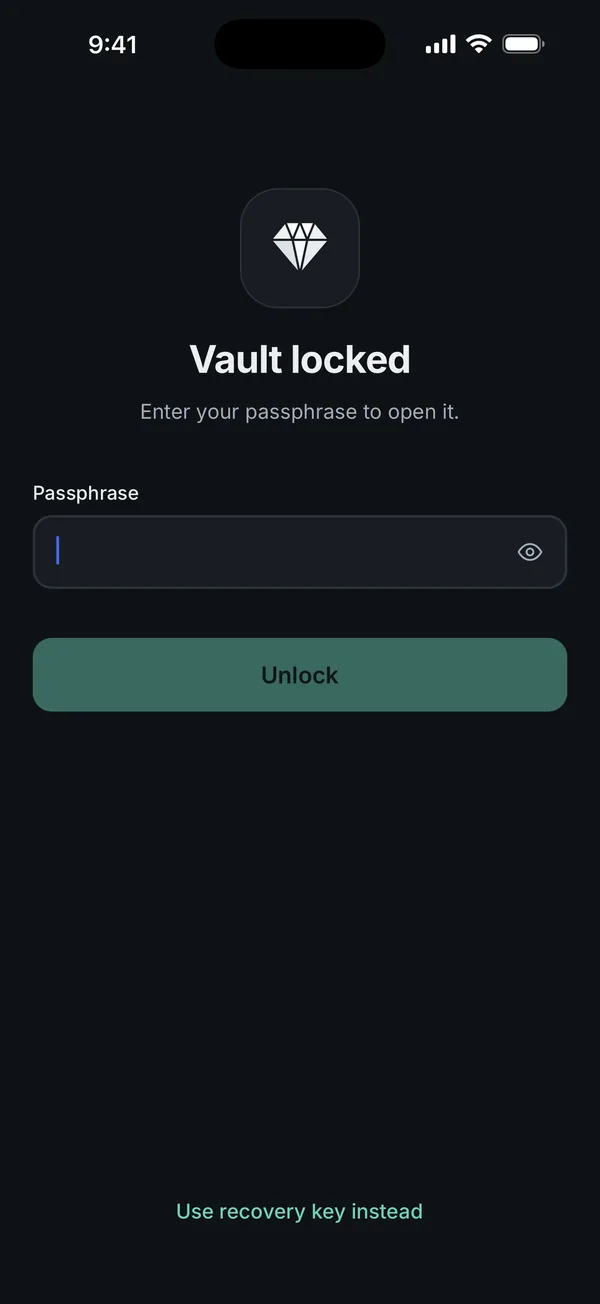
Locks when you leave. The vault locks as soon as you leave the app by default, is hidden in the app switcher, and blocks screenshots. If someone grabs the phone while the vault is open, it is open, which is true of every app.
If the phone is gone for good. The vault stays encrypted on the stolen phone. To get your files back on a new iPhone, you need an encrypted backup file made beforehand in Settings, Backup, because Scellé has no cloud copy. See how to move the vault to a new iPhone.
Scellé costs $1.49 a week or $49.99 once (US prices, local price shown in the app) and works on iPhone only. More on the lock is on the lock protection page.
Frequently asked questions
Does Stolen Device Protection protect my photos?
Not by itself. Apple's list of actions that need Face ID with no passcode fallback includes saved passwords, payment details, erasing the phone and opening locked apps, but not opening Photos. It protects your Apple Account, which keeps your iCloud photos yours. To cover the photos on the phone, lock the Photos app or use a separate vault.
Can a thief open my Hidden album with my passcode?
Yes. Apple says the Hidden and Recently Deleted collections unlock with Face ID, Touch ID or your passcode, and Stolen Device Protection's list doesn't include them. If you lock the whole Photos app with Require Face ID, Apple says a locked app needs Face ID or Touch ID with no passcode option when you are away from familiar locations.
Does Stolen Device Protection work at home?
By default, no. Apple says that in familiar locations such as home or work you can use your passcode as usual. You can change that: in Settings, Face ID & Passcode, Stolen Device Protection, choose Always under Require Security Delay. Then the extra Face ID checks and delays apply everywhere.
Which iOS version do I need for Stolen Device Protection?
Apple says it is available with iOS 17.3 or later. You also need two-factor authentication for your Apple Account, a passcode, Face ID or Touch ID, Significant Locations, and Find My turned on. It must be on before the phone is lost or stolen, and Apple says it might already be on by default.
Can I lock the Photos app on iPhone?
Apple's list of built-in apps that can't be locked names Calculator, Camera, Clock, Contacts, Find My, Maps, Shortcuts and Settings, and Photos is not on it. To lock it, touch and hold the Photos icon, tap Require Face ID, and confirm. Apple says apps that come with the iPhone can be locked but not hidden.
What should I do first if my iPhone is stolen?
Mark it as lost at iCloud.com/find as quickly as you can. Apple says Lost Mode locks the phone, and with Stolen Device Protection on, turning Lost Mode off needs Face ID or Touch ID. Apple also warns that the protection's extra safeguards last only for a period, so don't rely on it instead of marking the phone lost.
Summary
- Stolen Device Protection guards passwords, payments and your Apple Account from a thief who knows your passcode, away from familiar places.
- Opening Photos and the Hidden album isn't on its list, so they still open with the passcode.
- Lock the Photos app with Require Face ID to bring it under the protection, and consider Always if you want it at home too.
- For the most private photos, a vault with its own passphrase and Face ID that doesn't fall back to the passcode adds a lock the passcode can't open.
Sources
- Apple Support: About Stolen Device Protection for iPhone
- Apple Support: Use locked apps with Stolen Device Protection
- Apple Personal Safety User Guide: Lock or hide apps on your iPhone
- iPhone User Guide: Lock or hide an app
- iPhone User Guide: Delete or hide photos and videos
- Apple Support: If your iPhone or iPad was stolen