How to Lock Photos on iPhone With a Password or Face ID
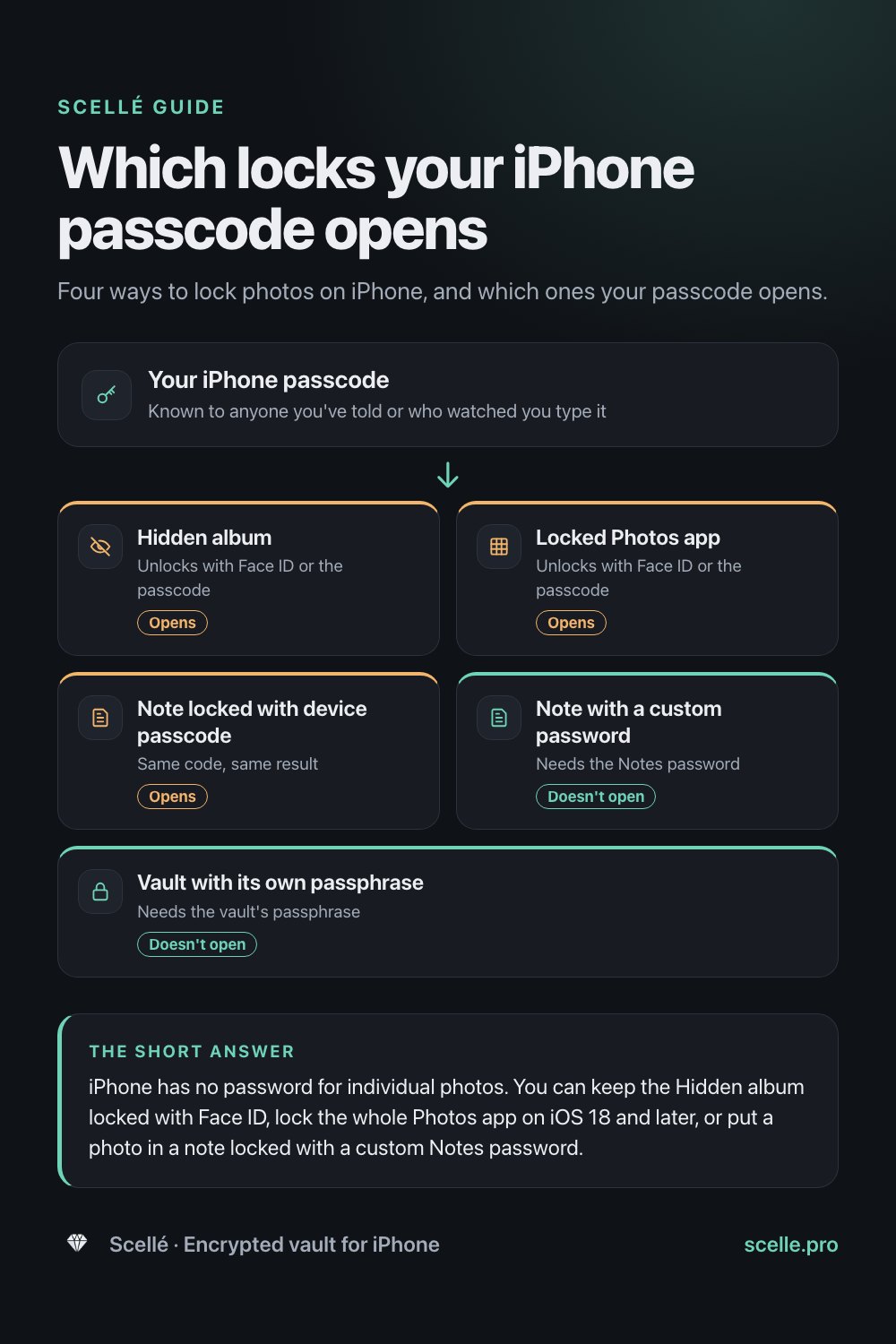
Four ways to lock photos on iPhone, and which ones your passcode opens.
Published November 14, 2026

iPhone has no password for individual photos. You can keep the Hidden album locked with Face ID, lock the whole Photos app on iOS 18 and later, or put a photo in a note locked with a custom Notes password. The first two open with your iPhone passcode; for a lock your passcode can't open, use a Notes password or a vault app with its own passphrase.
What "locking" a photo can mean on iPhone
People search for a way to lock photos because they want a password on a few pictures, not on the whole phone. iPhone doesn't work that way. There's no password for a single photo in the Photos app. Instead there are four places you can put a photo that ask for something before they open: the Hidden album, a locked Photos app, a locked note, or a separate vault app.
The important difference between them isn't Face ID. It's what sits behind Face ID. In some of these options your iPhone passcode is the real key, so anyone who knows it gets in. In others the key is a separate password that your passcode can't open. This guide walks through each option with the exact iOS steps, then compares who can open what.
Option 1: Keep the Hidden album locked with Face ID
Since iOS 16 the Hidden album is locked by default. Apple's iPhone User Guide says the Hidden and Recently Deleted collections unlock with Face ID, Touch ID or your passcode. Moving a photo there is the quickest way to put it behind a lock.
- Open Photos, tap the photo, tap the More button, then tap Hide.
- Go to Settings, tap Apps, then tap Photos.
- Make sure Use Face ID (or Use Touch ID, or Use Passcode) is turned on. Apple says turning it off leaves the Hidden and Recently Deleted collections unlocked.
- Optionally, turn off Show Hidden Album in the same screen so the album isn't listed in Photos.
- To open the album, tap Collections, scroll to Hidden under Utilities, tap View Album and unlock it.
The catch is the passcode. There is no separate password for the Hidden album, and the photo stays in your library and in iCloud Photos like any other. Our Hidden album privacy guide covers who can still reach it.
Option 2: Lock the whole Photos app
On iOS 18 and later, you can lock any app so it asks for Face ID, Touch ID or your passcode before it opens. For Photos:
- Touch and hold Photos on the Home Screen until the Quick Actions menu opens.
- Tap Require Face ID (or Touch ID or Passcode), then tap Require Face ID again to confirm.
- To remove the lock, touch and hold the app and tap Don't Require Face ID.
Apple says opening a locked app doesn't unlock it for good: it relocks after you quit it. Information inside a locked app also stays out of CarPlay, notification previews, search, Siri suggestions and call history. Photos can't be hidden, though, because Apple only allows hiding apps you downloaded from the App Store.
This is a good guard for a phone you hand to others, since nobody can open Photos without your face or code. It's still your passcode behind the lock, and Apple notes the locked status applies only to that iPhone and doesn't sync with iCloud.
Option 3: A note locked with its own password
Notes is the one Apple app that can lock content with a password that isn't your iPhone passcode. You choose the method in Settings, then Apps, then Notes, then Password: Use Device Passcode, or a custom password just for Notes.
- Go to Settings, tap Apps, tap Notes, then tap Password and choose Use Custom Password. Add a hint, and turn on Face ID only if you're comfortable with it.
- In Notes, create a note and add the photo from your library.
- Tap the More button, then tap Lock.
- Go back to Photos, delete the original, then delete it from Recently Deleted.
Know the limits before you rely on it. Apple says the title of a locked note stays visible in the notes list. You can't lock notes with video, audio, PDF or file attachments, notes with tags, or notes shared with someone else. And if you forget a custom Notes password, Apple can't help you open those notes. Apple says both lock methods use end-to-end encryption for iCloud accounts. More in our Notes lock vs vault guide.
Option 4: A vault app with its own passphrase
A vault app is a separate app that stores photos inside itself, behind its own lock. The good ones encrypt each file, so the photo is unreadable without the key, not just hidden behind a screen. The weak ones put a PIN screen in front of files that aren't encrypted at all. Our guide to checking whether a vault app really encrypts shows how to tell them apart.
What makes a vault different from the Apple options is the key. If it opens with its own passphrase, knowing your iPhone passcode gets nobody in. The same caution applies as with Notes: a key only you hold is a key only you can lose.
Who can open each lock
Here is how the four options compare, based on Apple's documentation for the built-in ones. "Unlocked phone" means someone holding your iPhone after you've unlocked it.
| Option | Someone with your unlocked phone | Someone who knows your passcode | Other devices |
|---|---|---|---|
| Hidden album, Use Face ID on | No, it asks for Face ID or the passcode | Yes | Synced with iCloud Photos, behind each device's lock |
| Locked Photos app | No, it asks for Face ID or the passcode | Yes | The lock doesn't sync; the photos do |
| Note locked with device passcode | No | Yes | Opens with each device's own passcode |
| Note locked with a custom password | No | No, unless they know the Notes password | Same Notes password on every device |
| Vault app with its own passphrase | No | No | Depends on the app; some keep files on one phone only |
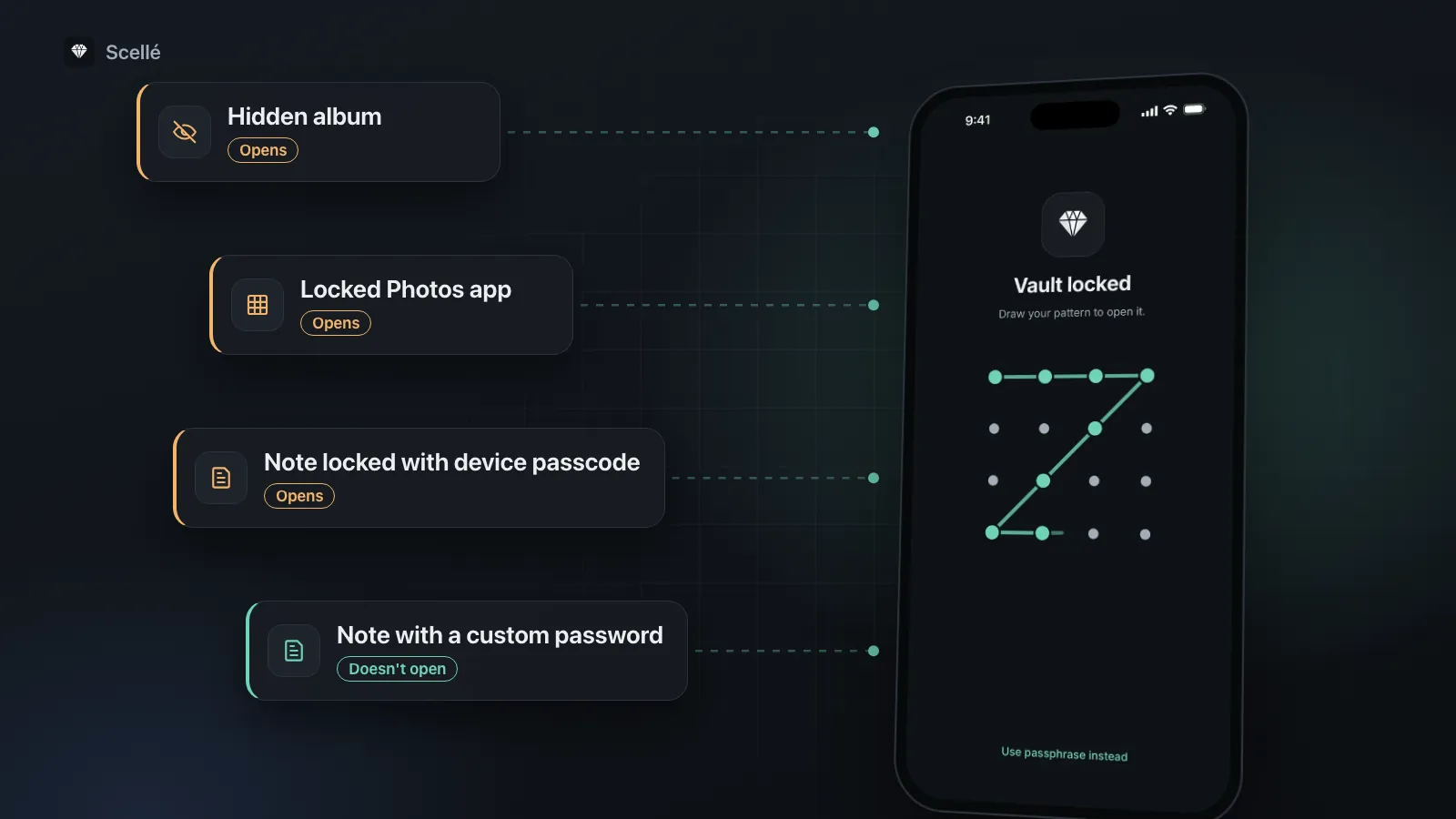
- Hidden albumUnlocks with Face ID or the passcodeOpens
- Locked Photos appUnlocks with Face ID or the passcodeOpens
- Note locked with device passcodeSame code, same resultOpens
- Note with a custom passwordNeeds the Notes passwordDoesn't open
- Vault with its own passphraseNeeds the vault's passphraseDoesn't open
Apple's iCloud data security overview adds one more column people ask about. With the default Standard Data Protection, Photos in iCloud is encrypted but Apple holds the keys. With Advanced Data Protection, Photos and Notes become end-to-end encrypted, with the keys on your trusted devices.
Mistakes that leave a locked photo exposed
- Leaving the original behind. Copying a photo into a note or a vault doesn't remove it from Photos. Delete it there, then clear Recently Deleted, which keeps it for 30 days.
- Turning off Use Face ID in Photos settings. The Hidden and Recently Deleted collections are then unlocked for anyone holding the phone.
- Sharing the passcode. If someone you want to keep out knows it, only the custom Notes password or a vault passphrase still holds.
- A password you can't remember. Notes and good vaults have no reset that brings old content back. Write it down and keep it somewhere safe. Our guide on passphrases, PINs and Face ID helps you choose one.
How Scellé locks photos
Scellé is an encrypted vault for iPhone, and it's an example of option 4.
Its own passphrase. The vault opens with a passphrase of at least 12 characters that you choose, separate from your iPhone passcode. After 5 wrong attempts it makes you wait, and the wait grows with each further miss.
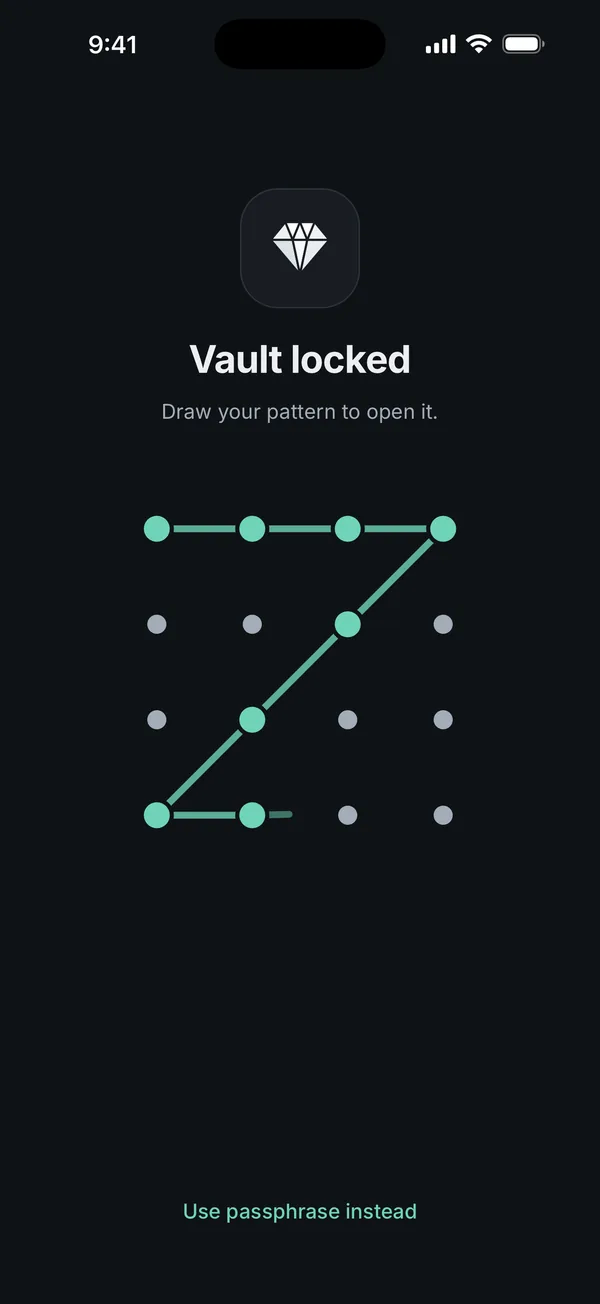
Face ID and patterns as shortcuts. You can turn on Face ID, which unlocks a key iOS releases only after a successful Face ID or Touch ID check, with no fallback to your iPhone passcode. Or you can draw a pattern of at least 6 dots on a 4×4 grid. After 5 wrong patterns, only the passphrase opens the vault.
Encryption, not a cover screen. Each photo is encrypted on the phone with its own key before it's saved, and file names, folder names and dates are encrypted too. When you add photos from your library, Scellé can ask iOS to delete the originals afterwards. See the lock and protection page and the encryption page for details.
Locks when you leave. It locks when you leave the app, immediately or after 1 or 5 minutes, hides its contents in the app switcher, and blocks screenshots by default.
What it does not do: it doesn't sync to an iPad or Mac, and there's no reset. If you lose both the passphrase and the optional 24-word recovery key, nobody can open the files. Scellé costs $1.49 a week or $49.99 once (US prices, local price shown in the app).
Frequently asked questions
Can I put a password on a single photo on iPhone?
Not in the Photos app. Photos has no per-photo password, and the Hidden album unlocks with Face ID, Touch ID or your iPhone passcode. The closest built-in option is a note with the photo in it, locked with a custom Notes password. Otherwise you need a vault app that locks its contents with its own passphrase.
Does locking the Photos app lock my photos in other apps?
Apple's page lists where a locked app's information stays out of view: CarPlay, notification previews, search, Siri suggestions and call history. It doesn't mention the photo picker that other apps use, so don't assume it's covered. Open an app that asks for photos, such as Messages, and check on your own iPhone before you rely on it.
Why can't I hide the Photos app like other apps?
Apple only lets you hide apps you downloaded from the App Store. Apps that come installed on iPhone, Photos included, can't be hidden. You can still lock Photos so it asks for Face ID, Touch ID or your passcode each time it opens, and you can hide individual photos inside it with the Hidden album.
What happens if I forget my Notes password?
Apple says that if you forget a custom Notes password and can't use Face ID or Touch ID, it can't help you open those locked notes. You can reset the password, but the reset only applies to notes you lock from then on. The notes locked with the old password stay locked, so keep that password somewhere safe.
Is Face ID safer than my passcode for locked photos?
Face ID is faster and hard to watch over your shoulder, but in every Apple option here it's a shortcut, and the passcode or password behind it still works. If someone knows your iPhone passcode, they can open the Hidden album and a locked Photos app without your face. That's why a separate password matters more than the Face ID switch.
Can someone see my locked photos on my iPad or Mac?
It depends on the option. With iCloud Photos on, hidden photos are on your other devices too, behind each device's own lock. Apple says a locked or hidden app is only locked on that iPhone and the status doesn't sync. Locked iCloud notes open on other devices with the same Notes password, or that device's own passcode.
Summary
- iPhone has no password for a single photo, but it has four places that lock.
- The Hidden album and a locked Photos app both open with your iPhone passcode.
- A note with a custom Notes password, or a vault with its own passphrase, is the only kind of lock your passcode can't open.
- Whatever you choose, delete the original from Photos and clear Recently Deleted.