Calculator Vault Apps: Are They Safe, and What Do They Hide?
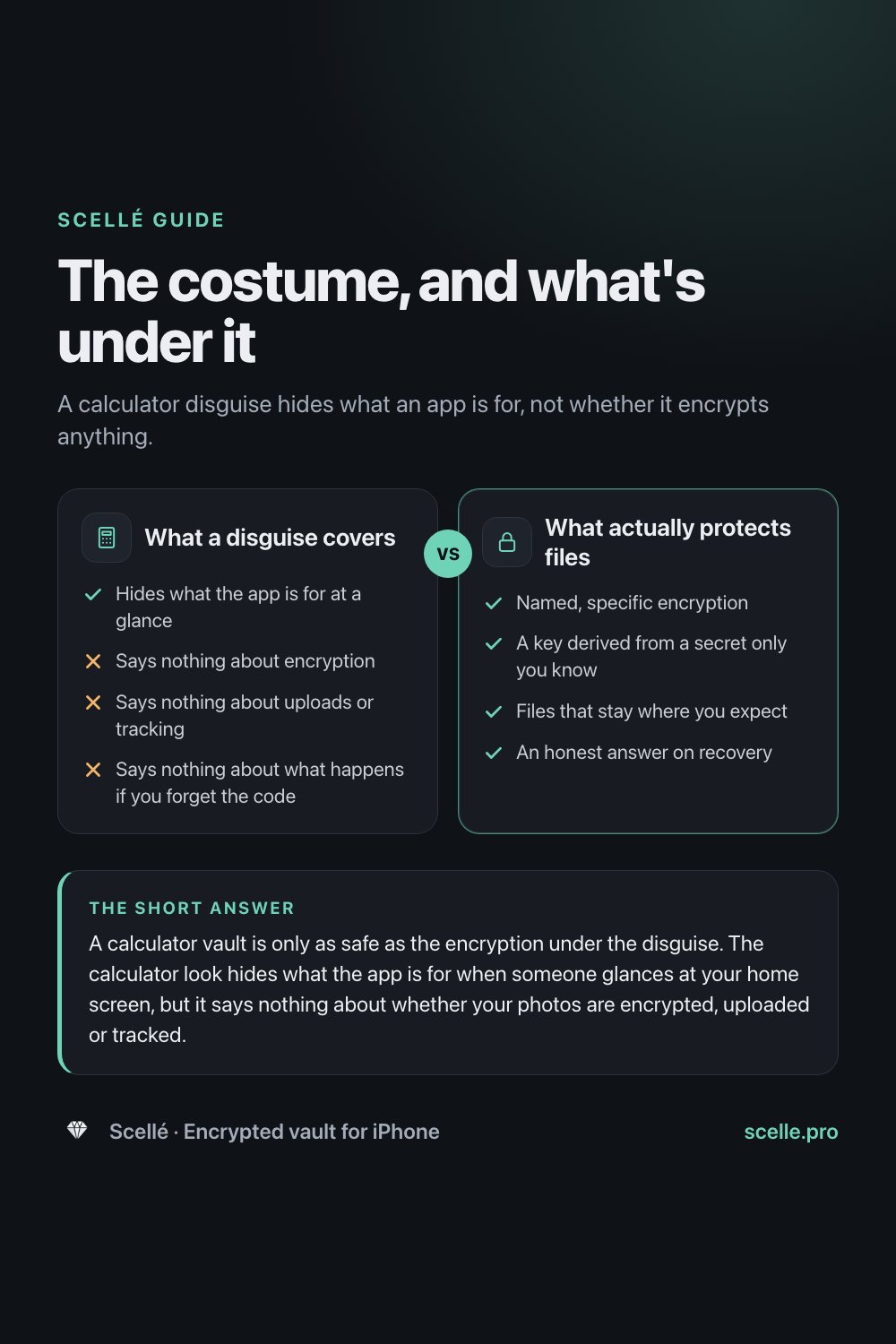
A calculator disguise hides what an app is for, not whether it encrypts anything.
Published November 16, 2026
A calculator vault is only as safe as the encryption under the disguise. The calculator look hides what the app is for when someone glances at your home screen, but it says nothing about whether your photos are encrypted, uploaded or tracked. Check those things the same way you would for any vault, and remember that iOS can now lock or hide any app you downloaded.
What a calculator vault is
A calculator vault is a photo or file vault dressed up as something boring. On the home screen it looks like a calculator. Open it and you may see a working keypad. Type a secret code, and instead of an answer you get the hidden photos. The idea answers a real worry: you don't want anyone to notice an app called Vault or Secret on your phone, or to ask what's in it.
The question people actually search is whether these apps are safe. The honest answer is that the disguise and the safety are two separate things. This guide explains what the disguise does and doesn't hide, who it fools, how to check what's under it, and when Apple's own tools already cover the same need.
How the disguise works, and where it shows through
A disguise works at the level of a glance. A friend who borrows your phone to check a map has no reason to open a calculator. That is genuinely useful if the people around you are curious rather than determined.
It shows through in several places:
- Your iPhone already has a Calculator. A second one can catch the eye of anyone who knows that vaults disguise themselves this way.
- Purchase history. In the App Store, Apps & Purchase History lists the apps you've downloaded, as they appear on the App Store.
- Search. Apple says that hiding an app with iOS removes it from search results, which tells you an app that isn't hidden can still turn up there.
- The code itself. A calculator keypad invites a numeric code, and numeric codes are short. Anyone who knows the trick can sit and try codes.
None of this means a disguise is pointless. It means the disguise is a curtain, not a lock.
What the costume tells you about the files
Nothing. The icon and the fake keypad are the same whether the photos behind them are encrypted with a key only you hold, stored as ordinary files, or copied to a company's servers. You can't tell by using the app, and the calculator look makes it no easier to find out.
What a disguise covers
- Yes: Hides what the app is for at a glance
- No: Says nothing about encryption
- No: Says nothing about uploads or tracking
- No: Says nothing about what happens if you forget the code
What actually protects files
- Yes: Named, specific encryption
- Yes: A key derived from a secret only you know
- Yes: Files that stay where you expect
- Yes: An honest answer on recovery
The same questions apply as for any vault: whose key protects the files, where the files go, what the app collects, and what happens if you forget your code. Our six checks for photo vault apps go through each one.
Who a disguise fools, and who it doesn't
| Who | Disguise with no real encryption | Disguise over real encryption |
|---|---|---|
| Someone glancing at your home screen | Fooled | Fooled |
| Someone who opens the app | Sees a calculator, if it works as one | Sees a calculator or a lock screen |
| Someone who knows these apps and checks your purchase history | Not fooled | Not fooled, but still needs your secret |
| Someone who learns or guesses your code | Gets in | Gets in, so the secret has to be strong |
| Someone with a copy of the app's storage | Can read the files | Sees only scrambled data |
The last two rows are where safety is decided, and the disguise plays no part in either.
Things to watch for in disguised vaults
A short numeric code as the only secret
A 4-digit code has 10,000 possibilities and a 6-digit code a million. That's fine for a lock screen that makes you wait after wrong guesses, and far too few if the code is also the only thing protecting the files from someone with a copy. Our guide to passphrases, PINs and Face ID shows the math.
Decoy codes
Some vaults let a second code open a fake space with harmless photos. That only means something if the fake space is separate and the real one stays encrypted. If both sit in the same unprotected storage, the decoy hides nothing from someone who copies it.
Accounts, cloud copies and ads
A disguised app can still ask for an email, offer cloud backup or show ads. Each of those means information about you, or copies of your files, leaving the phone. The App Store privacy label is the first place to look, keeping in mind that the developer fills it in.
An easy reset
If "forgot code" sends you an email and gets you back in, the company can reach your files or the files were never encrypted with your code. Neither is what you want from a vault.
The originals left in Photos
Copying photos into any vault leaves the originals in your library until you delete them. Deleted photos then sit in Recently Deleted for 30 days. See how to move photos into a vault without leaving copies.
How to check a calculator vault before you trust it
- Open the app's App Store page. Note the developer, then scroll to App Privacy and read what is linked to you or used to track you.
- Find the developer's security page. Look for a named encryption method, a named way of turning your code into a key, and a plain statement of where files and keys are kept.
- Go through setup slowly. Notice whether it asks for an email, an account or cloud backup, and whether it accepts only a short code.
- Read the "forgot code" option. A reset by email is a warning sign. A recovery key you hold, or a plain "we can't recover it", is the honest answer.
- Import one test photo first. Then open Photos, tap Collections and look in Recently Deleted, so you know what happens to originals.
- Decide what the disguise is for. If it's only to avoid questions, compare it with iOS's own Hide feature in the next section.
Apple's built-in alternative: lock or hide the app
On current iOS you can lock or hide any app you downloaded from the App Store, including a vault. Touch and hold the app on the Home Screen, tap Require Face ID (or Touch ID or Passcode), then choose to lock it or to hide and lock it. Apple says a hidden app disappears from the Home Screen, App Library and search results and moves to a Hidden folder at the bottom of App Library, which needs Face ID, Touch ID or your passcode to open. A locked app's content also stays out of notification previews and search.
That covers the main reason people want a calculator disguise, without a fake keypad. It has the same limit, though: it's a lock, not encryption, and anyone who knows your iPhone passcode can open a hidden app. Apple also notes that locked and hidden status applies only to that iPhone and doesn't sync with iCloud. For photos, the Photos app's Hidden collection is locked with Face ID, Touch ID or your passcode by default. Our guide on how private the Hidden album is covers its limits.
Where Scellé fits
Scellé is our app, and it puts the encryption first. Every file is encrypted on the phone with its own key, the keys are protected by a passphrase of at least 12 characters, and nothing is uploaded. The security page has the details.
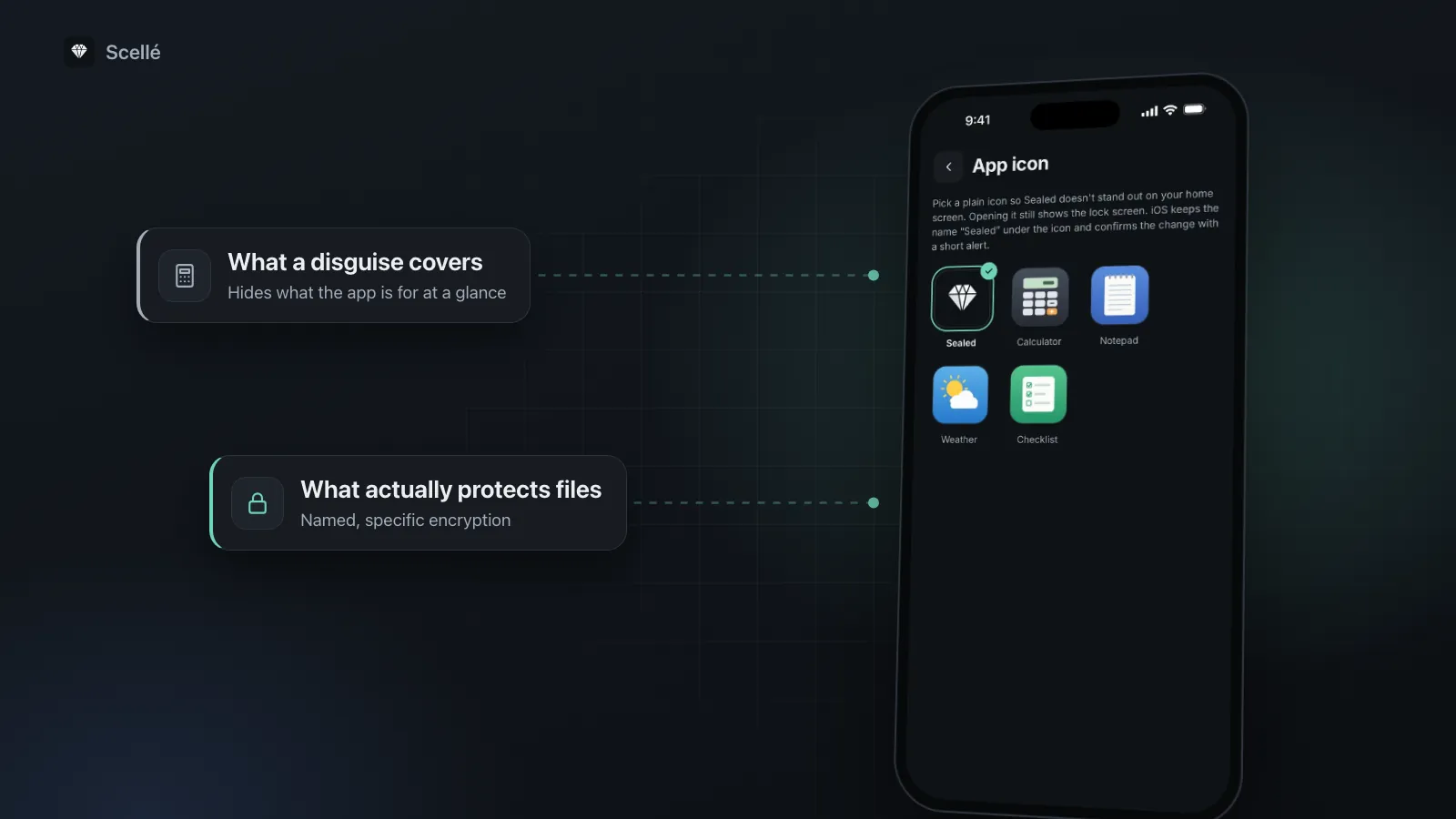
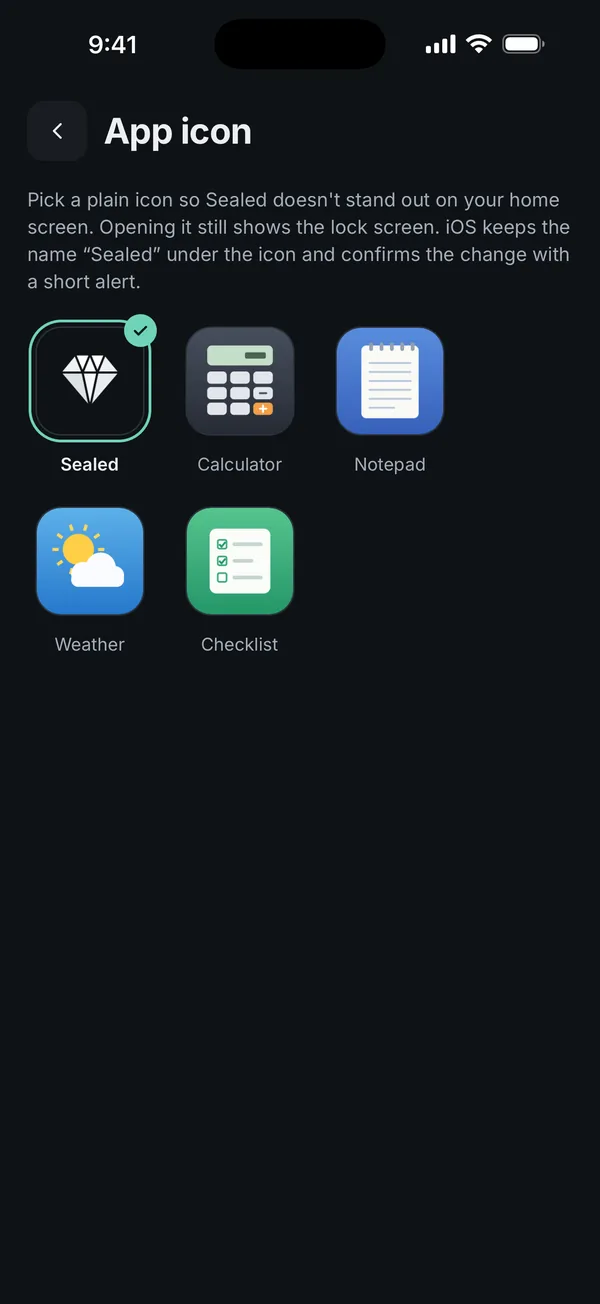
The disguise is optional and deliberately modest. In Settings you can swap the icon for a plain calculator, notepad, weather or checklist one. It is only an icon: opening the app shows Scellé's normal lock screen, not a fake calculator, and iOS keeps the name Scellé under it and confirms the change with a short alert. If you want the app out of sight entirely, use iOS's Hide feature as well.
For the decoy idea, Scellé has a second vault that opens with a different passphrase and keeps its own encrypted files, for privacy from a partner, a nosy relative or a thief. The lock screen looks the same either way. Someone with a copy of the app's files could still tell that a second vault exists, though not what's in it. Scellé costs $1.49 a week or $49.99 once (US prices; your local price is shown in the app).
Frequently asked questions
Can someone tell a calculator vault apart from the real Calculator app?
Often, yes. The iPhone already has its own Calculator app, so a second calculator on the home screen can stand out to anyone who knows these apps exist. The vault also appears under its App Store name in your purchase history, and anyone who knows the trick can try typing codes into it.
What happens to my photos if I delete a calculator vault app?
Apple says deleting an app removes it and its data from your iPhone, so a vault that keeps files only on the phone loses them. Data the app stored in iCloud isn't deleted with it. Before deleting any vault, export what you want to keep and check that the exported copies open.
Is a numeric code strong enough to protect a vault?
Not on its own. A 4-digit code has 10,000 possibilities and a 6-digit one a million, which is little against anyone who can test guesses on a copy of the files. A code works as a lock screen if the app slows down wrong guesses. Real encryption should rest on a longer secret.
Is hiding an app with iOS better than a calculator disguise?
For keeping an app out of sight, often yes. On current iOS, a hidden app leaves the Home Screen, App Library and search results, and its Hidden folder needs Face ID, Touch ID or your passcode. It doesn't add encryption, though, and anyone who knows your iPhone passcode can open it.
Do calculator vault apps show ads or track you?
Some do and some don't, so check each one. The App Store privacy label lists the data an app collects, what is linked to you and what is used to track you. The developer fills the label in, so treat it as a minimum, and read the privacy policy for anything about ads or cloud storage.
Does Scellé work as a real calculator?
No. Scellé offers a calculator-style icon, along with notepad, weather and checklist ones, but it's only an icon. Opening the app shows Scellé's normal lock screen, and iOS keeps the name Scellé under the icon. What protects the files is the encryption and the passphrase, not the disguise.
Summary
- A calculator disguise hides what an app is for, not what's in it.
- Judge any disguised vault by its encryption, its secret, where files go and how recovery works.
- Prefer a long secret over a short numeric code.
- If you only want an app out of sight, iOS can lock or hide it for you.
Sources
- iPhone User Guide: Lock or hide an app on iPhone
- iPhone User Guide: Remove or delete apps from iPhone
- iPhone User Guide: Delete or hide photos and videos on iPhone
- Apple Developer: App privacy details on the App Store
- iPhone User Guide: Get started with Calculator on iPhone
- Scellé: How Scellé encrypts your files