How to Hide a Vault App's Icon on iPhone, and What Still Shows
iOS can hide the app, a new icon can disguise it, and neither hides everything.
Published November 14, 2026

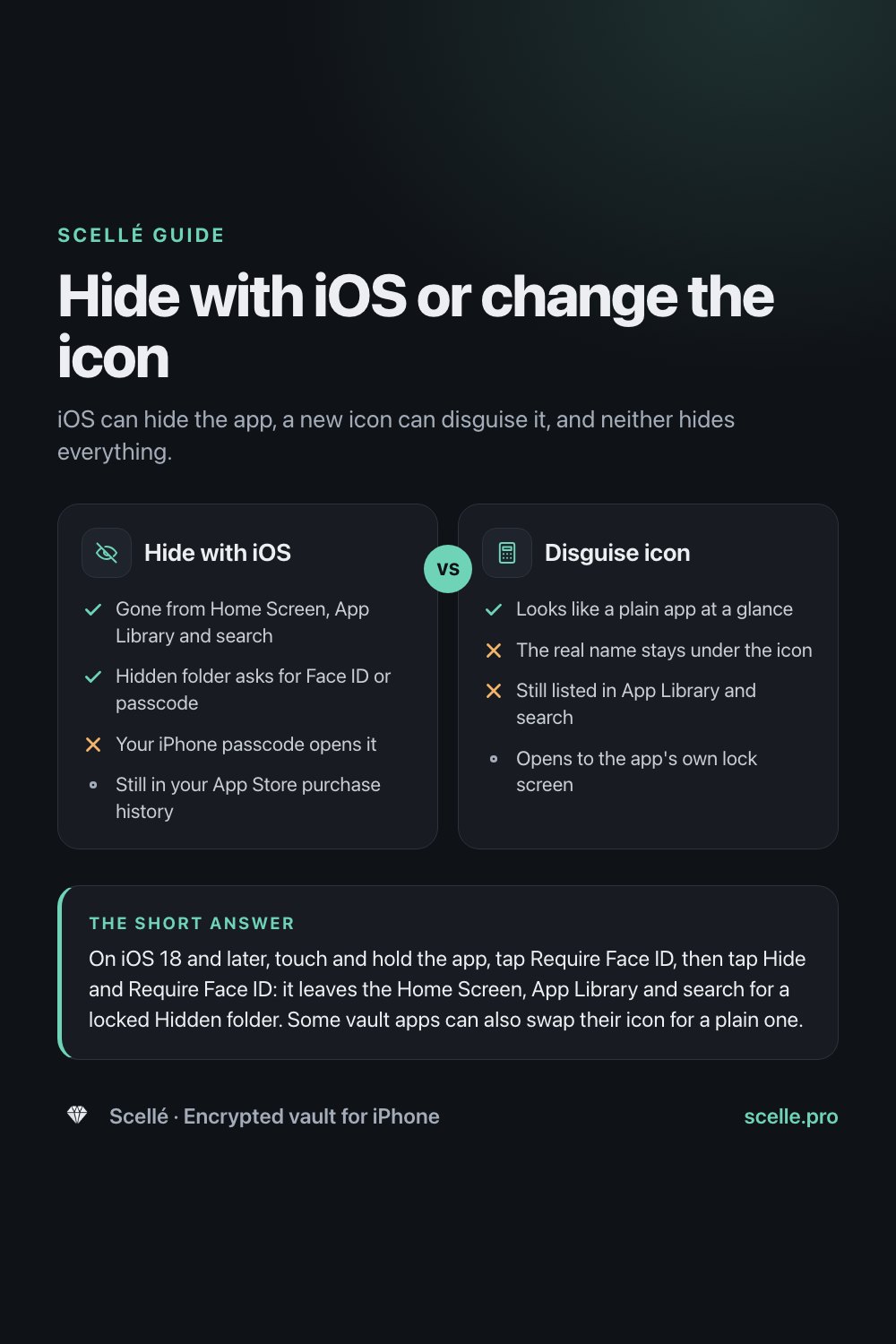
On iOS 18 and later, touch and hold the app, tap Require Face ID, then tap Hide and Require Face ID: it leaves the Home Screen, App Library and search for a locked Hidden folder. Some vault apps can also swap their icon for a plain one. Neither removes the app from your App Store purchase history, and neither protects the files inside.
Why people hide a vault app
A vault app's icon tells anyone who glances at your Home Screen that you keep something private. That alone can start a conversation you'd rather not have with a partner, a parent, a child borrowing the phone, or a friend scrolling past. So the question isn't only how to protect the files, it's how to keep the app itself from being noticed.
It helps to be clear about what hiding an icon does. It's a curtain, not a lock. It changes what someone sees on the Home Screen, but it does nothing to the files inside the app. Those are only as safe as the vault's own encryption and passphrase. This guide covers every way iOS lets you make an app less visible, how disguised icons work, and the places a vault still shows up.
Your options on iPhone, side by side
Here is what each method hides, based on Apple's iPhone User Guide for current iOS, and what it leaves in view.
| Method | Where it disappears | Where it still shows |
|---|---|---|
| Remove from Home Screen | The Home Screen | App Library and search, under its name |
| Turn off Show App in Search | Spotlight search | The Home Screen and App Library |
| Lock and hide (iOS 18 and later) | Home Screen, App Library and search | The locked Hidden folder, Settings > Apps > Hidden Apps, purchase history |
| Hide the App Store purchase | The Your Apps list in the App Store | Your complete purchase history in Settings, and the app itself |
| A disguise icon from the app | The real icon on the Home Screen | The app's name under the icon, App Library, search |
Only the iOS Hide feature puts a lock between someone and the app's icon, and that lock is Face ID, Touch ID or your iPhone passcode. The rest change where the app appears, not who can open it.
How to hide an app with iOS
Locking and hiding apps is available on iOS 18 and later. Hiding works for any app you downloaded from the App Store, including vault apps. Apps that come installed on iPhone can't be hidden.
- On the Home Screen, touch and hold the app until the Quick Actions menu opens.
- Tap Require Face ID (or Touch ID, or Passcode).
- Tap Hide and Require Face ID, authenticate, then tap Hide App. The app leaves the Home Screen and moves to the Hidden folder at the bottom of App Library.
- To open it, swipe left past your last Home Screen page to App Library, tap the Hidden folder, authenticate, then tap the app and authenticate again.
- To see a list of hidden apps, go to Settings, tap Apps, then tap Hidden Apps.
Apple says a hidden app is also locked, so information inside it stays out of notification previews, search, Siri suggestions, CarPlay and your call history. It relocks after you quit it. The hidden status applies only to that iPhone and doesn't sync with iCloud. To stop hiding an app, open the Hidden folder, touch and hold the app and tap Don't Require Face ID.
Lighter options
Remove from Home Screen. Touch and hold the app, tap Remove App, then Remove from Home Screen. Apple says the app moves to App Library and isn't deleted. It's still there under its name, and it can still turn up in search.
Keep it out of search. Go to Settings, tap Search, scroll down, tap the app and turn off Show App in Search. It still sits on the Home Screen or in App Library.
Don't delete it. Apple says deleting an app removes it and its data from your iPhone. For a vault that keeps files only on the phone, that means the files are gone. Reinstalling gives you an empty app.
How disguised icons work
iOS lets an app ship extra icons and switch between them when you ask. Apple's developer documentation describes this as changing the icon the system displays for the app. Many vault apps use it to offer a plain icon, like a calculator or a notepad, that doesn't hint at what the app is. Only the picture changes: the app's name isn't part of the switch, so the real name stays under the icon, the app opens as itself, and App Library and search still list it.
Some vaults go further and open to a working fake calculator, with the vault behind a code typed on the keypad. That can fool a curious glance, but a short numeric code is easy to guess, and the costume tells you nothing about whether the files are encrypted. Our guide to calculator vault apps covers what to check.
Hide with iOS
- Yes: Gone from Home Screen, App Library and search
- Yes: Hidden folder asks for Face ID or passcode
- No: Your iPhone passcode opens it
- Still in your App Store purchase history
Disguise icon
- Yes: Looks like a plain app at a glance
- No: The real name stays under the icon
- No: Still listed in App Library and search
- Opens to the app's own lock screen
Where a vault still shows
Even with the icon hidden or disguised, a vault app leaves traces that someone who knows where to look can find:
- Purchase history. Apple says hiding an app in your App Store purchase list removes it from that list, but it still appears in your complete purchase history in Settings, along with any in-app purchases or subscriptions.
- iPhone Storage. Settings, then General, then iPhone Storage lists apps with how much space each uses. A vault full of videos can be one of the biggest. Apple's page on hiding apps doesn't say whether hidden apps are left out of this list, so check on your own phone.
- The Hidden folder and its list. The folder sits at the bottom of App Library, and Settings has a Hidden Apps list. Your passcode opens the folder.
- Family Sharing. Apple says that for members aged 13 to 17, a parent or guardian can still see that an app was downloaded and how long it's used.
- Your iPhone passcode. Anyone who knows it can open the Hidden folder. If they can also open the vault with that same code, hiding the icon bought you nothing.
Protect the files first, then hide the app
If you only do one thing, make the vault's own lock strong. A good vault encrypts each file and opens with a passphrase that is separate from your iPhone passcode, so finding the app doesn't get anyone into it. Our guide to passphrases, PINs and Face ID explains why a long passphrase beats a short PIN. Then hide the app with iOS, and add a disguise icon if you want it to blend in on the occasions you leave it on the Home Screen.
If the worry is someone pressuring you to open the vault, a decoy can help with personal privacy. Our guide to second and decoy vaults covers how they work and their limits.
What Scellé's disguise icons change
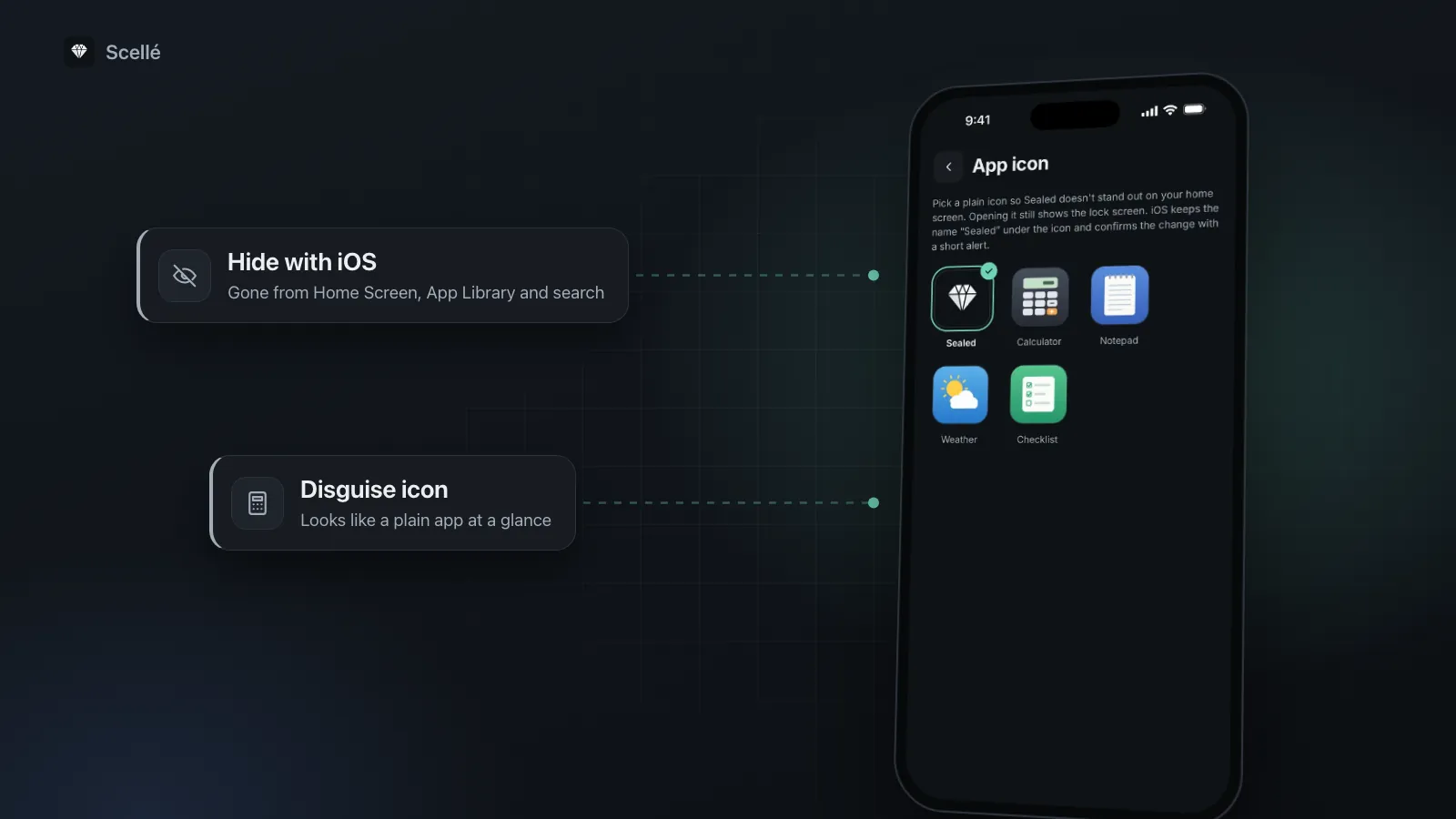
Scellé is an encrypted vault for iPhone. In its Settings, under App icon, you can switch the Home Screen icon from the regular Scellé icon to a plain Calculator, Notepad, Weather or Checklist icon. The setting is inside the app, so you change it after unlocking the vault.
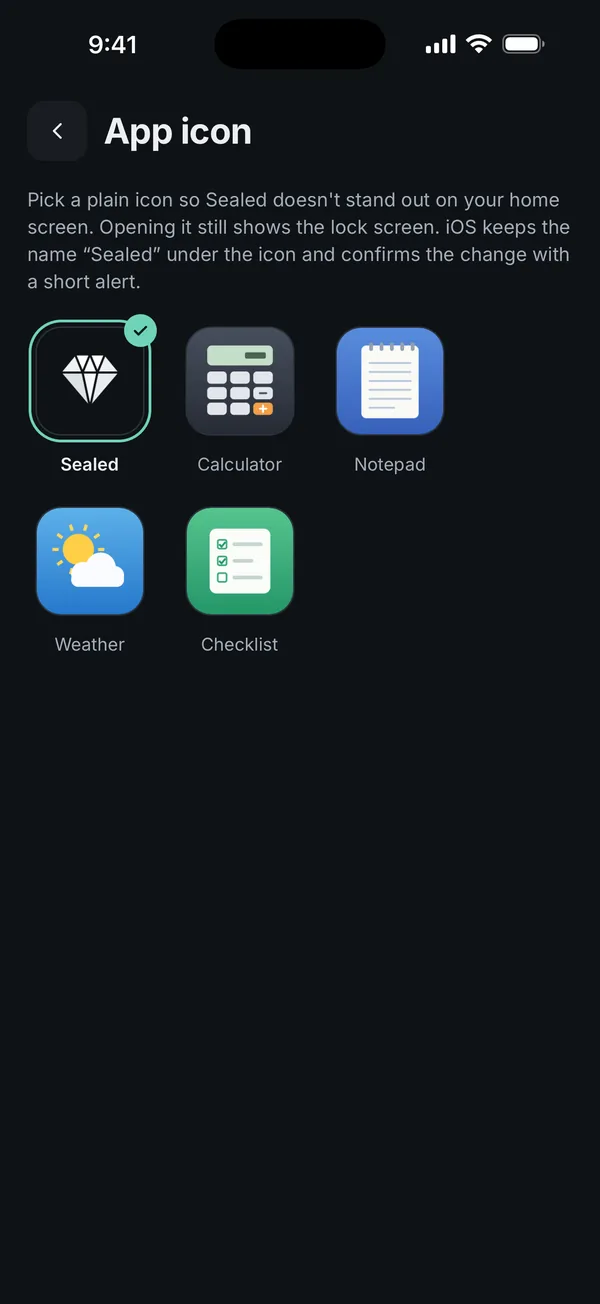
What it changes. Only the icon image, through iOS's alternate icon feature. iOS confirms the change with a short alert.
What it doesn't change. The name under the icon stays Scellé, so App Library, search, iPhone Storage and your purchase history show Scellé too. There is no fake calculator: tapping the icon opens Scellé's normal lock screen. For the icon to disappear entirely, use iOS's Hide feature as well.
What protects the files. Each file is encrypted on the phone with its own key, and the vault opens with its own passphrase of at least 12 characters, not your iPhone passcode. Screenshots of Scellé come out black and its contents are hidden in the app switcher, both on by default. More on the lock and protection page.
Scellé keeps the vault only on your iPhone, so never delete the app to hide it unless you've saved an encrypted backup file somewhere else. Scellé costs $1.49 a week or $49.99 once (US prices, local price shown in the app).
Frequently asked questions
Can someone find a hidden app on my iPhone?
Yes, with your passcode. Apple says a hidden app moves to a Hidden folder at the bottom of App Library, which opens with Face ID, Touch ID or your passcode. Settings also has a list of hidden apps under Apps, then Hidden Apps. Hiding keeps an app out of casual view, not away from someone who can unlock your phone.
Does hiding an app also hide its notifications?
Apple says information inside a locked app, and hidden apps are locked too, doesn't appear in other places such as notification previews, search, Siri suggestions, CarPlay or your call history. That keeps a vault's contents out of view in those places. It doesn't stop the app from being listed in your App Store purchase history.
Will a hidden app still show in my App Store purchases?
Yes, until you hide the purchase too. In the App Store, tap your picture, tap Apps & Purchase History, tap Your Apps, swipe left on the app and tap Hide. Apple says it then disappears from that list but still appears in your complete purchase history in Settings, along with any in-app purchases.
Does changing a vault app's icon change its name?
Not when the app uses iOS's alternate icons. Only the picture on the Home Screen changes, and iOS keeps showing the app's name under it. Anyone who reads the label, searches for the app or scrolls App Library sees the real name. In Scellé, the name Scellé stays under every icon.
Is it safe to delete a vault app to hide it and reinstall it later?
No. Apple says deleting an app removes it and its data from your iPhone, and a vault that keeps files only on the phone has nowhere else to bring them back from. Reinstalling gives you an empty app. If you want the icon gone, hide the app with iOS instead, and keep a backup of the vault somewhere else.
Can my parents see a hidden app on my iPhone?
If you're 13 to 17 and in a Family Sharing group, Apple says you can lock or hide apps, but a parent or guardian in the group can still see that the app was downloaded, how much time it's used, and restrict it with Screen Time. Children under 13 in Family Sharing can't lock or hide apps. Ages vary by country.
Summary
- To hide a vault app, use iOS: touch and hold it, tap Require Face ID, then Hide and Require Face ID.
- A disguise icon changes the picture, not the name, and the app still appears in App Library and search.
- Your App Store purchase history still lists the app, even if you hide the purchase.
- Hiding is a curtain. Protect the files with a vault that encrypts them and has its own passphrase, and never delete the app to hide it.
Sources
- iPhone User Guide: Lock or hide an app
- iPhone User Guide: Remove or delete apps
- iPhone User Guide: Search with Spotlight
- Apple Support: Hide and unhide apps in your App Store purchase list
- Apple Support: How to check the storage on your iPhone and iPad
- Apple Developer Documentation: setAlternateIconName(_:completionHandler:)