How to Export Photos From a Vault App and Test It First
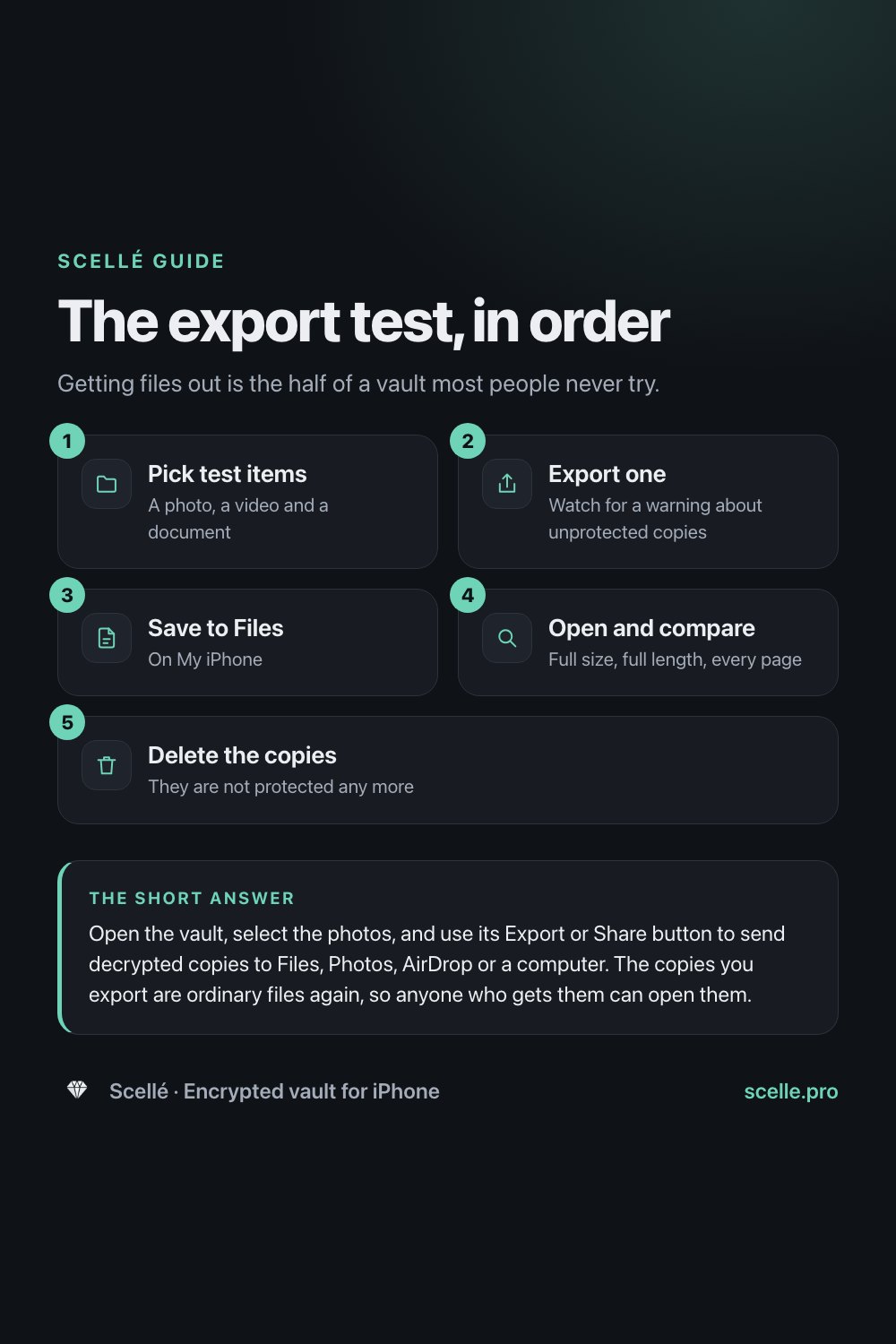
Getting files out is the half of a vault most people never try.
Published November 14, 2026

Open the vault, select the photos, and use its Export or Share button to send decrypted copies to Files, Photos, AirDrop or a computer. The copies you export are ordinary files again, so anyone who gets them can open them. Test this once with a few photos long before you need it, because a vault you cannot get files out of is a trap.
Why getting files out matters as much as locking them in
Most people choose a vault app for how well it locks. Few check how well it lets go. Yet sooner or later you will need a file back: to send a passport scan to an embassy, print a contract, move to a new phone, or simply stop using the app. If the vault makes that hard, or impossible, your files are stuck.
Think of it like a safe deposit box. The lock is only half of the service. The other half is that you can walk in, open the box and take things home whenever you like. A vault app should give you both, and you should know how the second half works before the day you need it.
What an export actually makes
A vault that really encrypts stores your photos as scrambled data that only the app can read with your passphrase. When you export, the app does three things:
- Decrypts a copy. The app turns the encrypted data back into a normal file, such as a HEIC photo, an MP4 video or a PDF.
- Hands it to the share sheet. iOS shows its usual sharing options, and you choose where the copy goes.
- Cleans up. A careful app deletes its own temporary copy once the share sheet closes, so the only plain copy left is the one you saved or sent.
The key point: the exported copy is no longer protected by the vault. It is an ordinary file in Files, Photos or wherever you put it. The original stays encrypted inside the vault unless you delete it there. Our checklist on whether a photo vault really encrypts helps you tell the difference.
Where exported files can go
The share sheet decides the destinations, not the vault. Each one has a different privacy result, so pick on purpose.
| Destination | What happens to the copy | Good for |
|---|---|---|
| Save to Files, On My iPhone | Stays on this phone as a normal file, readable by anyone who can unlock the phone | Short-term use, such as attaching to an email |
| Save to Files, iCloud Drive | Uploaded to iCloud Drive, so it no longer lives only on this phone | Moving files to a Mac or iPad on purpose |
| Save image or video to Photos | Added to your library, and synced by iCloud Photos if you use it | Photos you no longer need to keep private |
| AirDrop | Sent to a nearby Apple device. Apple says transfers are encrypted and the recipient can accept or decline | Moving files to your own Mac without the cloud |
| A USB drive or computer | Apple says you can copy files to an external drive with the Files app, using an adapter if needed | An offline copy you keep somewhere safe |
If you export photos only to view them once, delete the copy afterward. In Photos, a deleted photo then sits in Recently Deleted for 30 days unless you empty it, which Apple explains on its page about deleting photos.
The five-minute export test
Run this on any vault app when you start using it and after big updates. It tells you whether you can get your files back out, in what form, and how complete they are.
- Pick three test items: one photo, one video and one document such as a PDF. If the vault holds notes or contacts, add one of each.
- In the vault, open the photo and tap Export or Share. Note whether the app warns you that the copy will be unprotected.
- On the share sheet, tap Save to Files, choose On My iPhone, and save.
- Open the Files app, tap Browse, then On My iPhone, and find the file. Check the name and the file type.
- Open the photo at full size and zoom in. Compare it with how it looked before you imported it. Play the video to the end. Open every page of the PDF.
- Repeat with a whole folder or a multi-selection, to make sure bulk export works too.
- Delete the test copies from Files when you are done. Touch and hold each file, then tap Delete.
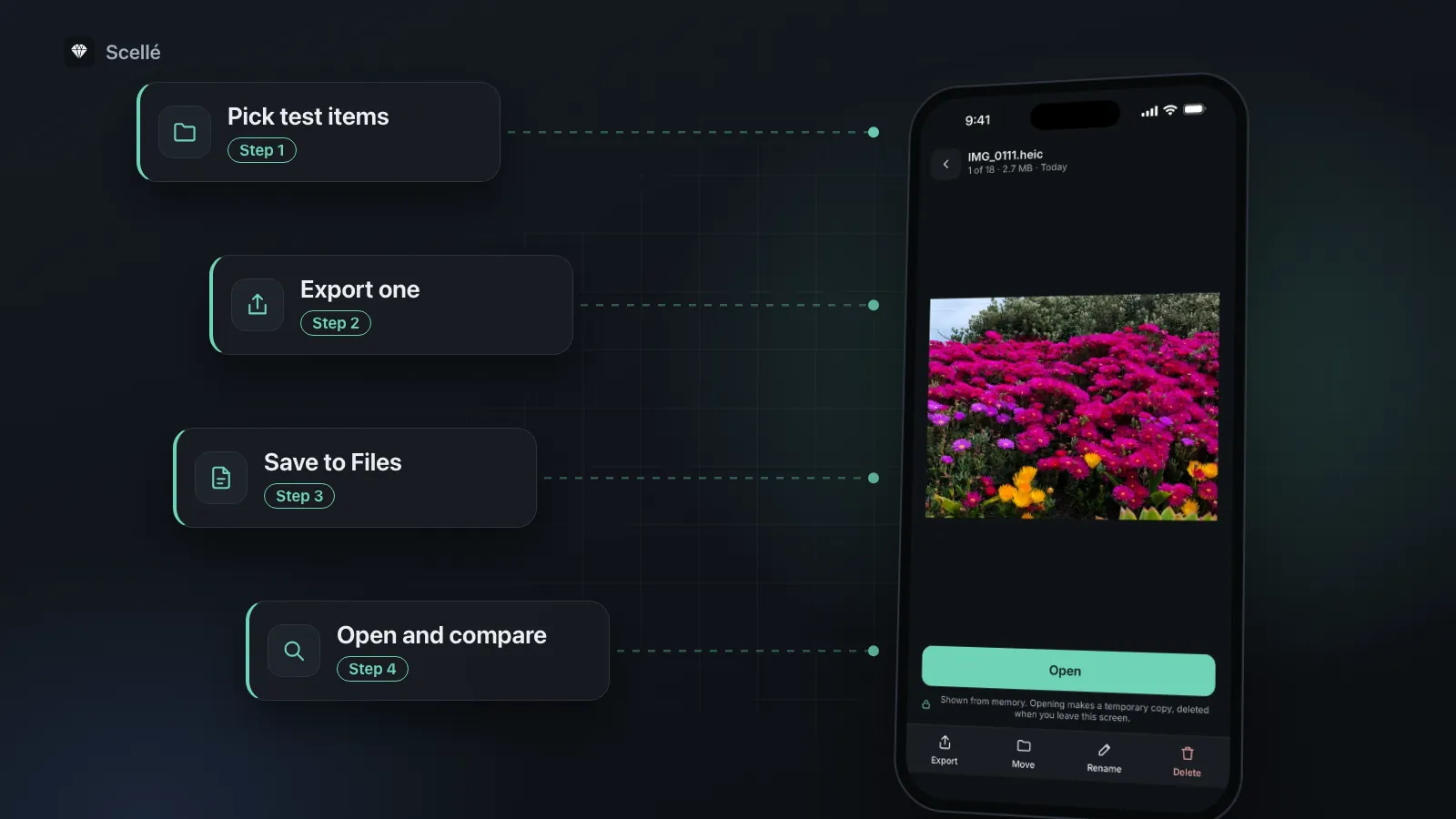
- 1Pick test itemsA photo, a video and a document
- 2Export oneWatch for a warning about unprotected copies
- 3Save to FilesOn My iPhone
- 4Open and compareFull size, full length, every page
- 5Delete the copiesThey are not protected any more
What a good result looks like
- The file opens in other apps without the vault.
- Photos keep their original format and size, unless you chose a space-saving option on import.
- File names are readable, not random strings.
- Bulk export works, so you are not stuck exporting hundreds of photos one by one.
Red flags
- No export at all, or export only to the app's own cloud or account.
- Exports that come out visibly smaller or blurrier than what you imported, with no setting that explains it.
- Export locked behind a paid plan, so leaving means paying first.
Exporting vs an encrypted backup
People often mix these up. They solve different problems.
An export makes readable copies of the items you pick. You use it to get a file out for good, or to hand it to another app or person. Once exported, the copy is unprotected.
An encrypted backup file packs the whole vault into one file that stays encrypted, protected by a backup password. Only the same app can open it, and only with that password. You use it to survive losing the phone or to move the vault to a new iPhone, without ever turning your files back into plain copies.
Export
- Yes: Readable copies that open in any app
- Yes: You pick the items
- No: Copies are not protected by the vault
Encrypted backup file
- Yes: The whole vault stays encrypted
- Yes: Restores on another iPhone
- Opens only in the same app, with the backup password
A sensible routine uses both: an encrypted backup kept somewhere other than the phone, refreshed every so often, and exports only for the files you actually need outside the vault. Moving the whole vault to a new phone is covered step by step in how to transfer an encrypted vault to a new iPhone.
Mistakes that cost people their files
Deleting the app before exporting
Apple says deleting an app removes it and its data from your iPhone, unless that data is stored in iCloud. With a vault that keeps everything on the phone, deleting the app deletes the files. Export or back up first, then check the copies open, then delete.
Forgetting the passphrase before you leave
You need to unlock the vault to export anything. If you are planning to switch apps, do it while you still remember the passphrase. Our guide on what happens if you forget your vault passphrase explains why a well-built vault cannot let you skip this.
Leaving exported copies lying around
Exported copies are easy to forget in Files, Downloads or the camera roll. If you move the files to a new vault, remove the old copies afterward, the same way you would after moving photos into a vault in the first place.
How Scellé handles export
Where to find it. Open any photo, video or document and tap Export at the bottom of the screen. To export several items, select them in the vault or a folder, or open a folder's menu and tap Export all.
A clear warning. Before anything is decrypted, Scellé asks "Export a decrypted copy?" and shows how many files and how much data, then reminds you that the copies you share or save are not protected by Scellé.
The original file. Photos and videos come out in the format they were stored in, such as HEIC, under their own names. If Storage saver was on when you added them, Scellé kept the smaller version, and that is what you export.
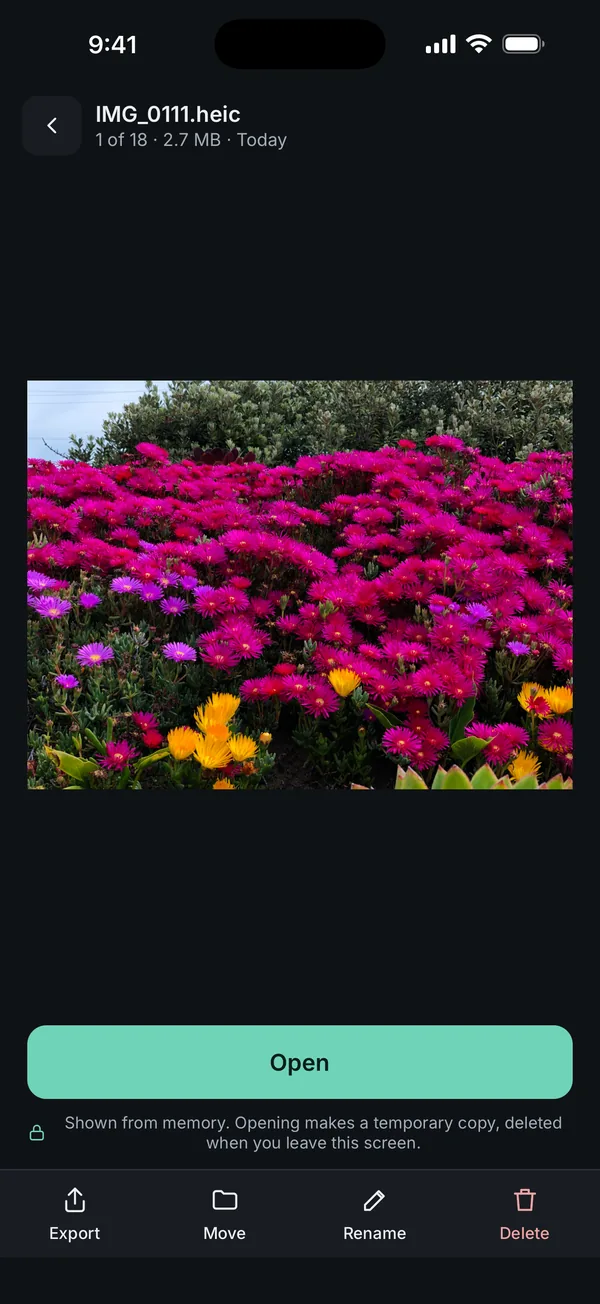
Temporary copies cleaned up. Scellé decrypts the copies into a temporary folder for the share sheet and deletes them as soon as it closes, and again whenever the app locks, goes to the background or starts.
Notes, contacts and passcodes. Notes export as plain text files and contacts as vCard files, which the iOS Contacts app can import. Passcodes are never exported; you copy them one at a time from inside the vault.
After a plan ends. Your files stay readable and exportable. Only adding new items needs an active plan.
Encrypted backup file. In Settings you can save the whole vault as one encrypted backup file, protected by a backup password you choose, to Files, iCloud Drive, AirDrop or a computer, and restore it on any iPhone with Scellé. Nothing is decrypted to make it. If you forget the backup password, nobody can open the backup.
What Scellé does not do: it does not sync to other devices, and the vault is kept out of iCloud backups, so the backup file is the copy you keep yourself. It is iPhone only and paid: $1.49 a week or $49.99 once (US prices, local price shown in the app). How the files are protected while they are inside is explained on the encryption page.
Frequently asked questions
Will exported photos lose quality?
It depends on how the vault stored them. If the app kept the original file, the export is the same file: a HEIC photo comes out as HEIC. If the app shrank photos on import to save space, the export is the smaller version, and the full-size original is gone. Open one exported photo at full size and compare before you rely on it.
Can I export from a vault app after my subscription ends?
That is up to each app, so check before you subscribe. Some vaults lock everything behind the paywall once a plan lapses. In Scellé, files, notes and contacts stay readable and exportable when a plan ends. Only adding new items needs an active plan. If an app's listing or FAQ does not say, ask its developer.
Why can't I export my saved passwords from a vault?
Some vaults deliberately keep passwords out of exports, because a password list saved as a plain file is easy to leak. Scellé works this way: passcodes are left out of every export, and the confirmation says so. You copy a passcode one at a time from inside the vault instead. Notes and contacts can be exported.
What happens to my vault photos if I delete the app?
Apple says deleting an app removes it and its data from your iPhone, unless that data is stored in iCloud. A vault that keeps everything on the phone, like Scellé, takes your files with it. Export what you want to keep, or make an encrypted backup file and save it somewhere else, before you delete the app.
Is an encrypted backup the same as exporting?
No. An export makes ordinary, readable copies that work in any app. An encrypted backup file keeps everything encrypted and can only be opened by the same app with the backup password. Use exports to get files out for good, and a backup to move or protect the whole vault without ever exposing it.
Summary
- Exporting turns an encrypted file back into an ordinary copy that anyone can open, so choose where it goes with care.
- Run the five-minute export test on any vault before you trust it with files you cannot replace.
- Check that photos come out at full quality and that bulk export works.
- Use an encrypted backup to protect or move the whole vault, and exports only for files you need outside it.
- Never delete a vault app, or forget its passphrase, before your files are safely out.