How to Hide Videos on iPhone, and Where They Still Take Space
Videos hide like photos, but size, iCloud and Live Photos need extra care.
Published November 14, 2026

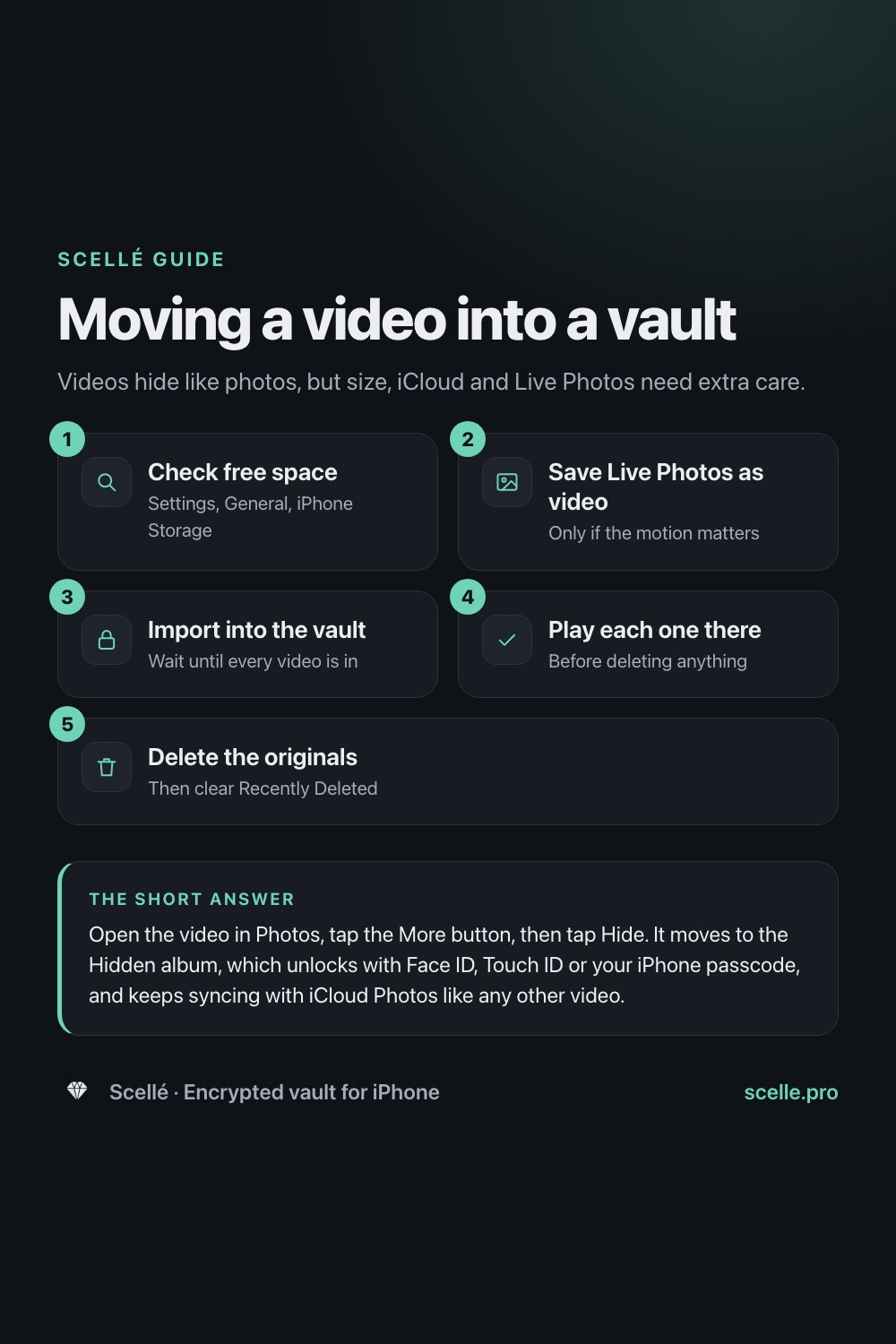
Open the video in Photos, tap the More button, then tap Hide. It moves to the Hidden album, which unlocks with Face ID, Touch ID or your iPhone passcode, and keeps syncing with iCloud Photos like any other video. Hiding doesn't shrink or move the file, so check your storage before moving videos elsewhere, and remember a Live Photo has a short video inside it.
Videos hide the same way as photos, with three differences
On iPhone, a video is just another item in your photo library. You hide it the same way you hide a photo, it lands in the same Hidden album, and the same lock protects it. If you've hidden a photo before, you already know the steps.
What's different is everything around the file. Videos are far bigger than photos, so where they're stored and how much space they take matters more. A lot of "photos" are partly video, because Live Photos record a moment before and after the shot. And some of Apple's other privacy tools, like locked notes, don't accept video at all. This guide covers the steps, then each of those differences.
How to hide a video in Photos
These steps follow Apple's iPhone User Guide for current iOS.
- Open Photos and tap the video. To see only videos, tap Collections, scroll to Media Types, then tap Videos.
- Tap the More button, then tap Hide and confirm. To hide several, tap Select, tap each video, then tap the More button and Hide.
- Go to Settings, tap Apps, then tap Photos, and check that Use Face ID (or Use Touch ID, or Use Passcode) is on, so the Hidden album stays locked.
- Turn off Show Hidden Album in the same screen if you don't want the album listed in Photos at all.
- To watch or unhide a video later, tap Collections, then Hidden under Utilities, tap View Album and unlock it.
Apple says hidden items move to the Hidden collection and can't be viewed anywhere else in Photos. They do still open with your iPhone passcode, and with iCloud Photos on they're hidden on your other devices too, not removed from them. Our guide to how private the Hidden album is covers who can still reach them.
Live Photos are videos too
Apple describes a Live Photo as recording what happens 1.5 seconds before and after you take a picture, including the audio, and Live Photo is on by default in the Camera app. So a photo you'd like to hide may carry a few seconds of movement and sound you'd forgotten about.
In Photos, hiding a Live Photo hides all of it. The difference shows up when it leaves Photos:
- Sending. Apple says a Live Photo shared by Mail is sent as a still image. Other apps may also keep only the still.
- Keeping the motion. Open the Live Photo, tap the button in the top-right corner, then tap Save as Video. You get a short regular video you can hide or move like any other.
- Dropping the motion. When editing a Live Photo, tap the Live button to turn it into a still of its key photo.
- Turning it off. In Camera, switch Live to Off. To keep it off, go to Settings, then Camera, then Preserve Settings, and turn on Live Photo.
Where a hidden video takes up space
Hiding changes where a video shows, not where it's stored or how big it is. Here's where the file actually sits depending on your setup.
| Where the video is | On your iPhone | In iCloud |
|---|---|---|
| Hidden album, iCloud Photos on with Optimize iPhone Storage | Possibly only a smaller version | The full original |
| Hidden album, iCloud Photos on, Download and Keep Originals | The full original | The full original |
| Hidden album, iCloud Photos off | The full original | Not in iCloud Photos, but see the note on backups below |
| Recently Deleted (after you delete it) | Still there for 30 days | Still there for 30 days with iCloud Photos on |
| A vault app that keeps files on the phone | The full file, inside the app | Nothing, if the app stays out of backups |
Optimize iPhone Storage
Apple says Optimize iPhone Storage is on by default with iCloud Photos. Your iPhone then keeps space-saving versions of photos and videos and the full originals stay in iCloud, starting with the ones you open least. If you move an older video out of Photos, the full original may have to download from iCloud first, which can take a while on a long video.
Check before you move anything
Go to Settings, then General, then iPhone Storage to see how much space is free and how much Photos uses. Moving a video into another app doesn't save space by itself: the copy in the app takes the same room, and the original keeps taking room until you delete it and clear Recently Deleted.
Built-in options that don't work for video
A few tools that help with photos fall short for videos:
- Locked notes. Apple says you can't lock a note with video, audio, PDF or file attachments. A video in a note means an unlocked note.
- Locking the Photos app. On iOS 18 and later, Photos can ask for Face ID or your passcode every time it opens. That covers videos, but it's the same passcode, and it doesn't change where they're stored.
- Turning off iCloud Photos. This works on the whole library, not one video, and your library can then end up in iCloud Backup instead, as our guide to whether hidden photos sync to iCloud explains.
Moving videos to a vault, step by step
When a hidden video needs a lock your passcode can't open, or needs to come off iCloud, the usual answer is an encrypted vault app. The order matters with large files.
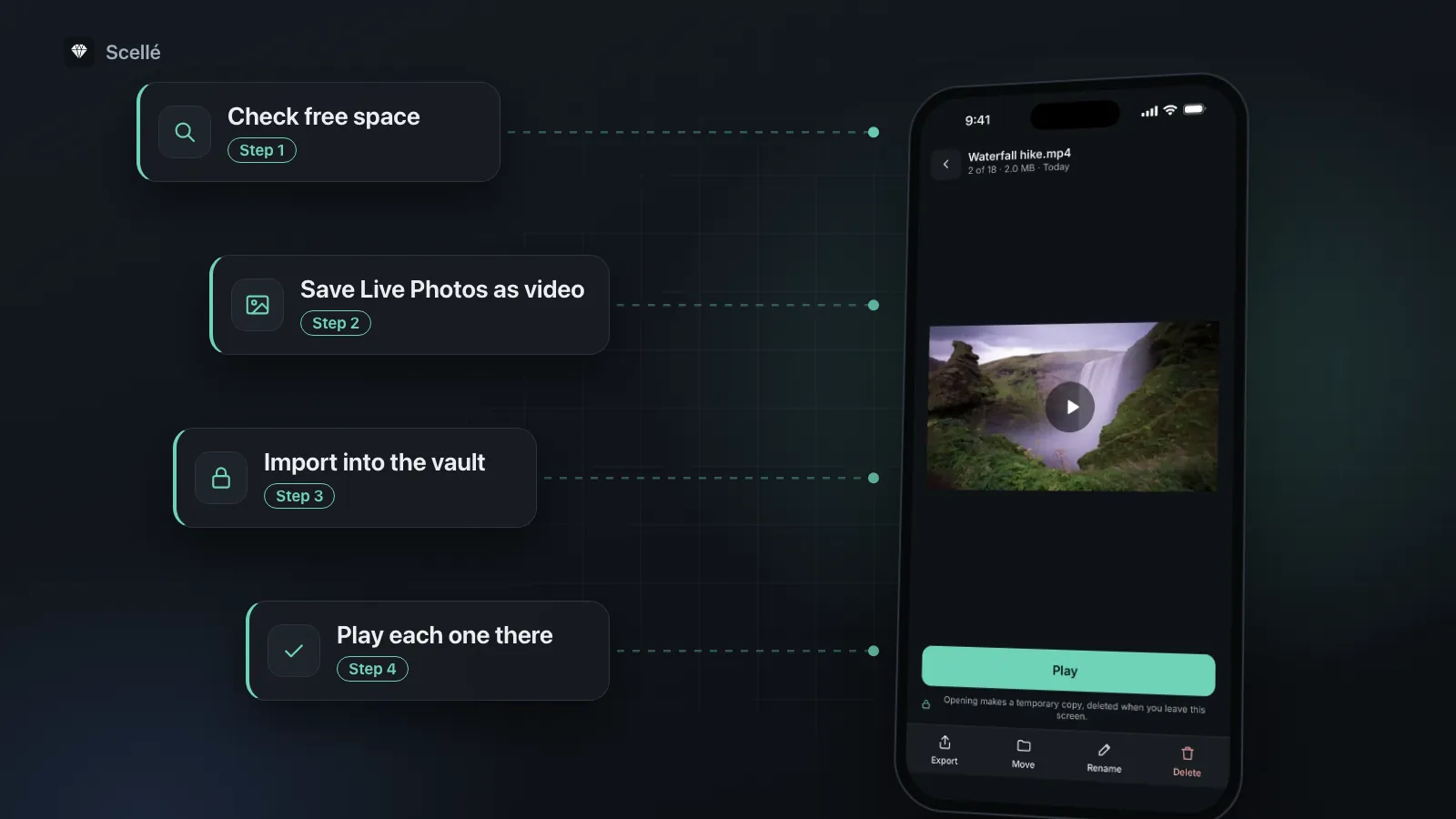
- 1Check free spaceSettings, General, iPhone Storage
- 2Save Live Photos as videoOnly if the motion matters
- 3Import into the vaultWait until every video is in
- 4Play each one thereBefore deleting anything
- 5Delete the originalsThen clear Recently Deleted
Copies hide in other places too. Videos you sent in Messages, posted to a shared album or AirDropped stay where they went, and older computer backups made while the video was in your library still contain it. Our guide to moving photos to a vault and removing every copy covers those, and the same steps work for video.
What Scellé does with videos
Scellé is an encrypted vault for iPhone, and video was built in from the start.
Getting videos in. Add videos from your library with Photos & videos, or tap Record video to film straight into the vault. A video recorded in Scellé is never saved to Photos. With Remove from Photos after adding on (the default), Scellé asks iOS to delete the library originals once they're encrypted, and iOS confirms first.
Encryption that handles big files. Each video is encrypted on the phone with its own key, in small chunks, so a long video never has to sit in memory all at once. Its name, folder and date are encrypted too, and so is its preview in the grid.
Playing. Tap Play and Scellé decrypts a temporary copy for iOS's built-in viewer. That copy is deleted when you leave the screen, and when the app locks or goes to the background.
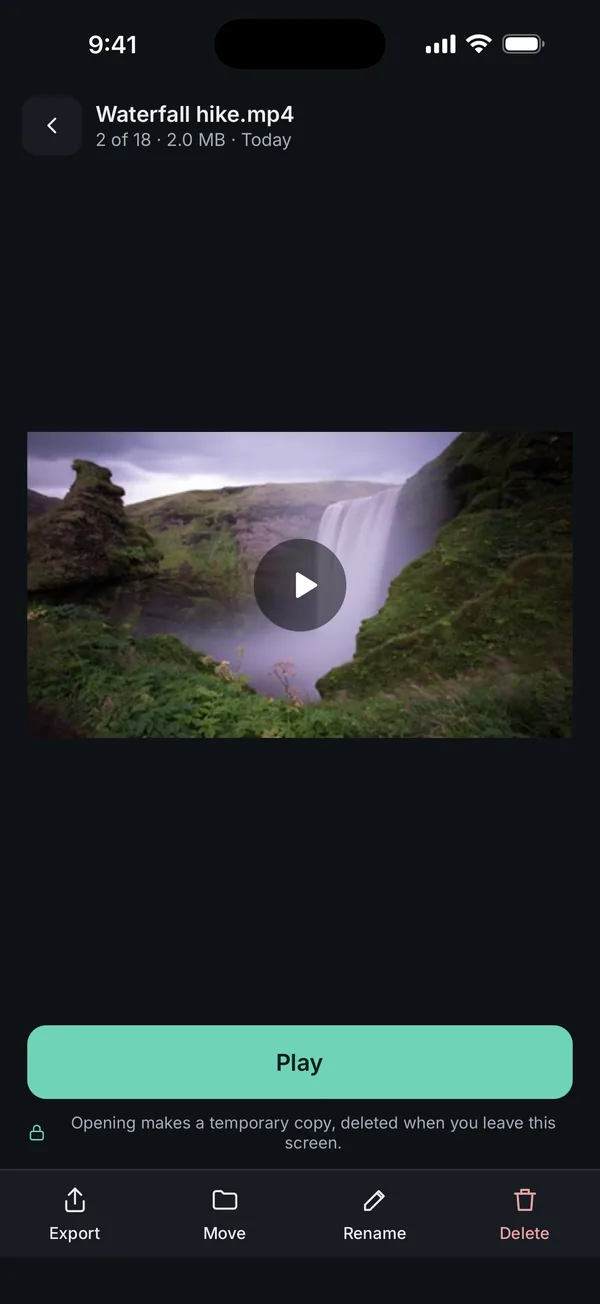
Space. Settings in Scellé shows how much the vault uses and how much room is left for new files, and notes that adding a file briefly needs about twice its size. An optional Storage saver keeps videos from Photos at 1080p. It's off by default, because the smaller copy can't be turned back into the original.
What it does not do: Scellé treats a Live Photo as a still photo, so save it as a video first if you want the motion. It doesn't sync to an iPad or Mac, and the vault stays out of iCloud and computer backups, so videos in it have no automatic copy anywhere else. You can make an encrypted backup file of the whole vault, protected by a backup password, but with many videos it will be large. Deleting a video in Scellé removes it for good, and deleting the app deletes the vault with it. To take a video back out, see exporting from a vault app. Scellé costs $1.49 a week or $49.99 once (US prices, local price shown in the app).
Frequently asked questions
How do I find all my videos to hide them at once?
In Photos, tap Collections, scroll down and tap Media Types, then tap Videos. That shows only your videos. Tap Select, tap each one you want, tap the More button, then tap Hide and confirm. They all move to the Hidden album together. Live Photos have their own entry under Media Types.
Does hiding a video free up space on my iPhone?
No. A hidden video is still in your photo library, at the same size. To see how much space Photos uses, go to Settings, then General, then iPhone Storage. With iCloud Photos and Optimize iPhone Storage on, iOS may keep a smaller version on the phone and the original in iCloud, whether the video is hidden or not.
Can I lock a video in the Notes app?
No. Apple says you can't lock notes that have video, audio, PDF or file attachments. You can add a video to a note, but then the note can't be locked. For a video behind its own password, the built-in options run out, and you need a vault app that locks with a passphrase separate from your iPhone passcode.
What happens to a Live Photo when I hide it?
The whole Live Photo is hidden, still frame and motion together, because it's one item in Photos. Things change when it leaves Photos: Apple notes that a Live Photo sent by Mail arrives as a still, and other apps may keep only the still too. Use Save as Video first if the motion matters.
Will a hidden video show up on my iPad or Mac?
Yes, if those devices use iCloud Photos with the same Apple Account. Apple says photos and videos you hide on one device are hidden on your other devices too. They're in the Hidden album there, behind that device's own Face ID, Touch ID, passcode or login password.
Can I watch a video inside a vault app without saving it back to Photos?
In a well-built vault, yes. The app decrypts the video for playback and plays it inside the app or the system viewer, without putting it in your library. Check that the app removes any decrypted copy afterwards. Saving it back to Photos would undo the point of moving it, since it would sync with iCloud Photos again.
Summary
- Hide a video like a photo: open it, tap the More button, tap Hide.
- Hiding doesn't shrink, move or encrypt the video. It still opens with your passcode and syncs with iCloud Photos.
- Live Photos carry a few seconds of video and sound. Save as Video if you want to keep the motion elsewhere.
- Before moving videos to a vault, check free space, play each one there, then delete the originals and clear Recently Deleted.