Is iCloud Photos Encrypted? Standard vs Advanced Data Protection
Always encrypted, but by default Apple holds the keys to your photos.
Published November 14, 2026

Yes. iCloud Photos is always encrypted in transit and on Apple's servers. By default, under standard data protection, Apple keeps the keys so it can help you recover your photos. Turn on Advanced Data Protection and your photos become end-to-end encrypted, with the keys only on your trusted devices, though Shared Albums and some metadata stay under standard protection.
Encrypted, yes. The real question is who has the key
People often ask this before uploading something private. The good news is that your iCloud photos are never stored in plain form: Apple encrypts them on the way to its servers and while they sit there. What changes between settings is who holds the keys that unlock them.
Apple offers two settings, and most people are on the first without knowing it. Here is what each does for your photos, how to switch, and what stays exposed either way.
Standard vs Advanced Data Protection, from Apple's table
Apple's iCloud data security overview lists every iCloud category with its encryption and where the keys are stored. These are the rows that matter for photos and the places copies of them end up.
| Data category | Standard: encryption | Standard: keys | Advanced: encryption | Advanced: keys |
|---|---|---|---|---|
| Photos | In transit & on server | Apple | End-to-end | Trusted devices |
| iCloud Backup (including device and Messages backup) | In transit & on server | Apple | End-to-end | Trusted devices |
| iCloud Drive | In transit & on server | Apple | End-to-end | Trusted devices |
| Notes | In transit & on server | Apple | End-to-end | Trusted devices |
| Messages in iCloud | End-to-end | Trusted devices | End-to-end | Trusted devices |
| Passwords and Keychain | End-to-end | Trusted devices | End-to-end | Trusted devices |
In total, Apple says 15 data categories are end-to-end encrypted under standard data protection, and Advanced Data Protection raises that to 25. Photos is one of the categories that moves.
What standard data protection means for your photos
Standard data protection is the default. Apple says your iCloud data is encrypted in transit and stored encrypted at rest, and the keys from your trusted devices are kept in Apple data centers, so Apple can decrypt your data on your behalf when you need it: signing in on a new device, restoring from a backup, or recovering your data after forgetting your password. As long as you can sign in to your Apple Account, you can get your photos back.
That makes recovery easy. The other side is that Apple holds a way to decrypt your photos.
What Advanced Data Protection changes
With Advanced Data Protection on, your trusted devices keep sole access to the keys for Photos and most other categories. Apple says no one else can access end-to-end encrypted data, not even Apple, and that it stays secure even in a data breach in the cloud. Apple's security guide adds that turning it on deletes the keys Apple held from its hardware security modules, permanently, so photos already in iCloud are covered too.
It also changes three practical things:
- Recovery is up to you. If you lose access to your account, you need your device passcode, a recovery contact or a recovery key. Apple can't do it for you.
- iCloud.com is off by default. You can turn web access back on, and then approve each web sign-in on a trusted device.
- Every device must be up to date. Old devices signed in to your account can block you from turning it on.
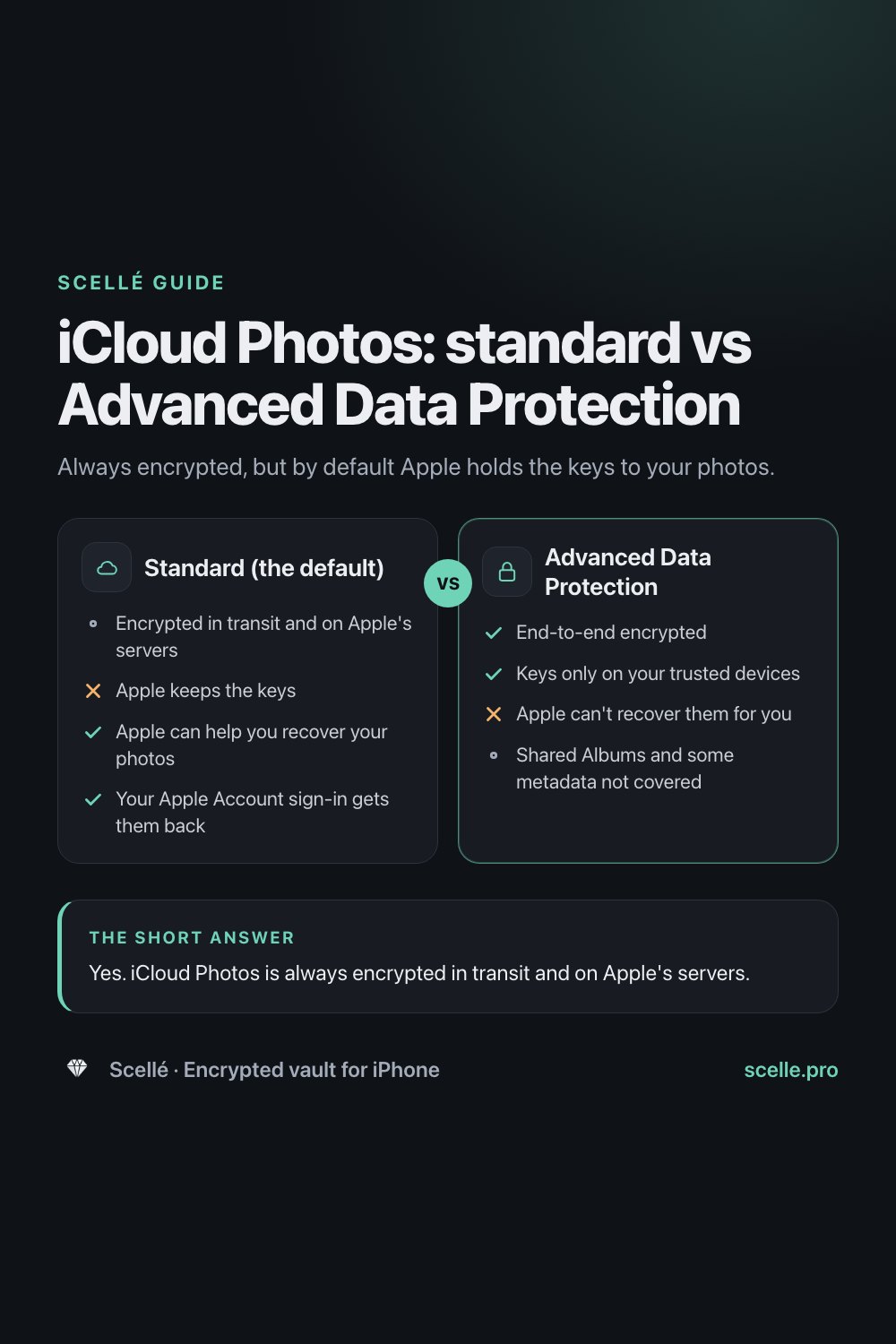
Standard (the default)
- Encrypted in transit and on Apple's servers
- No: Apple keeps the keys
- Yes: Apple can help you recover your photos
- Yes: Your Apple Account sign-in gets them back
Advanced Data Protection
- Yes: End-to-end encrypted
- Yes: Keys only on your trusted devices
- No: Apple can't recover them for you
- Shared Albums and some metadata not covered
How to turn on Advanced Data Protection
What you need first
- An Apple Account with two-factor authentication, and a passcode or password on your devices.
- Every device signed in to your account updated: iPhone with iOS 16.2 or later, iPad with iPadOS 16.2, Mac with macOS 13.1, Apple Watch with watchOS 9.2, Apple TV with tvOS 16.2, HomePod with software 16.0, and iCloud for Windows 14.1 on a Windows computer.
- At least one recovery method besides your passcode: a recovery contact or a recovery key.
- A regular Apple Account. Apple says Managed Apple Accounts and child accounts are not eligible.
A recovery contact is a trusted friend or family member with an Apple device who can give you a code if you are locked out. They get no access to your account, and you can add up to five. A recovery key is a 28-character code that you keep yourself. Apple notes that creating one turns off its standard account recovery process, and tells you not to store it in iCloud Photos, Notes, iCloud Drive or the Passwords app, since you couldn't open those if you were locked out.
The steps on iPhone
- Update your iPhone to the latest version of iOS, and check your other devices meet the minimum versions above.
- To add a recovery contact, open Settings, tap your name, tap Sign-In & Security, then Recovery Contacts, and tap Add Recovery Contact. For a recovery key, tap Recovery Key in the same screen instead, and write the key on paper.
- Go back to Settings, tap your name, then tap iCloud.
- Scroll down, tap Advanced Data Protection, then tap Turn on Advanced Data Protection.
- Follow the onscreen instructions to review your recovery methods and turn it on.
Turning it on from one device turns it on for your whole account. If a device prevents it, Apple says you can remove that device from your account's device list and try again.
Before you switch
With Advanced Data Protection on, Apple can't recover your photos for you. If your passcode, recovery contact and recovery key all fail, Apple says it can't help you get your end-to-end encrypted data back.
What stays outside end-to-end encryption
Shared Albums and public links
Apple says the Shared Albums feature in Photos, iWork collaboration and sharing with "anyone with the link" do not support Advanced Data Protection. Photos added to a shared album are stored with standard data protection, because albums can be shared on the web. A Shared Library is different: it stays end-to-end encrypted as long as every participant has Advanced Data Protection on.
Metadata Apple keeps the keys for
Even with Advanced Data Protection on, Apple keeps some photo metadata under standard encryption to sort and de-duplicate your storage. For Photos, Apple lists:
- A checksum of the photo or video data.
- Whether an item is marked as a favorite, hidden or deleted.
- When it was created on the device, and when it was imported and modified.
- How many times it has been viewed.
Apple also says a title and representative thumbnail may be used to show a preview when you share something. If you hide a photo, the photo is end-to-end encrypted but the fact that it is hidden is not. Our guide to hidden photos and iCloud sync follows a hidden photo through every setting.
Your signed-in devices
End-to-end encryption protects photos on Apple's servers. Every device signed in to your account can still open them, so anyone who can unlock one of those devices sees your library.
When to keep some photos off iCloud entirely
For most of your library, Advanced Data Protection is the right fix. A few situations call for keeping particular photos out of iCloud altogether:
- You can't turn on Advanced Data Protection, because you're a new user in the UK, you use a managed or child account, or an old device you still need can't update.
- Other people use your devices. A family iPad or a shared Mac signed in to your account receives your whole library.
- Someone else knows your passcode. It opens your phone, and Apple lists it as a way to recover your end-to-end encrypted data.
- The photo is really a document, such as a passport or ID scan, that you want on one phone only. See how to store passport and ID scans.
Hiding a photo doesn't do this, since hidden photos sync like any other. The photo has to leave your library, and the deletion has to reach Recently Deleted and your other devices. Our guide to moving photos to a vault walks through every copy.
Where Scellé fits
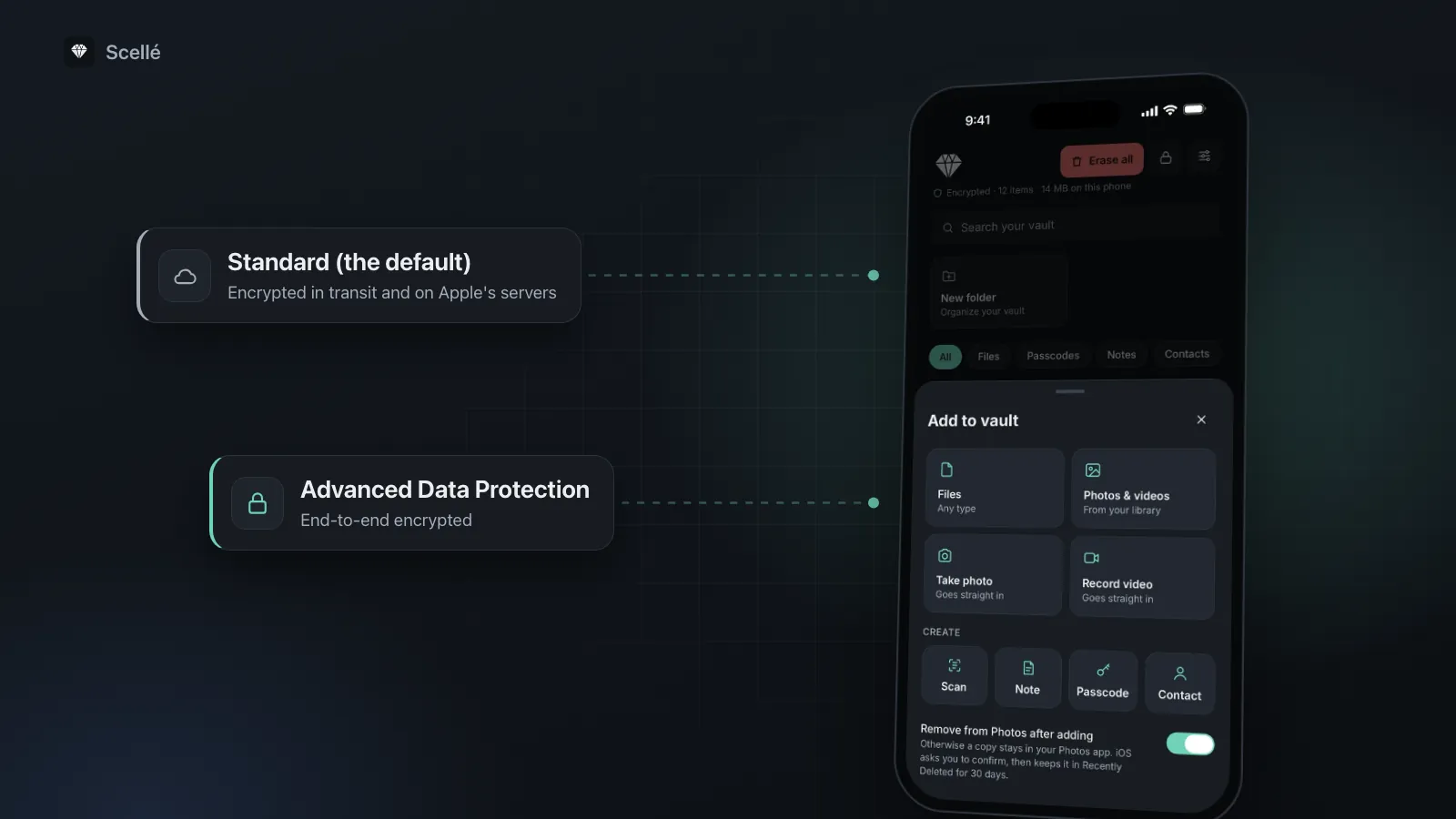
Scellé is our encrypted vault for iPhone, built for the photos that should stay on one phone. A photo you add is encrypted on the phone with its own key, and nothing is uploaded: there is no account, no server and no sync. The vault folder is excluded from iCloud and computer backups. Photos and videos you take with Scellé's own camera go straight into the vault and never reach your library, so iCloud Photos never sees them. When you import from Photos, Scellé can ask iOS to delete the originals, and iOS asks you to confirm.
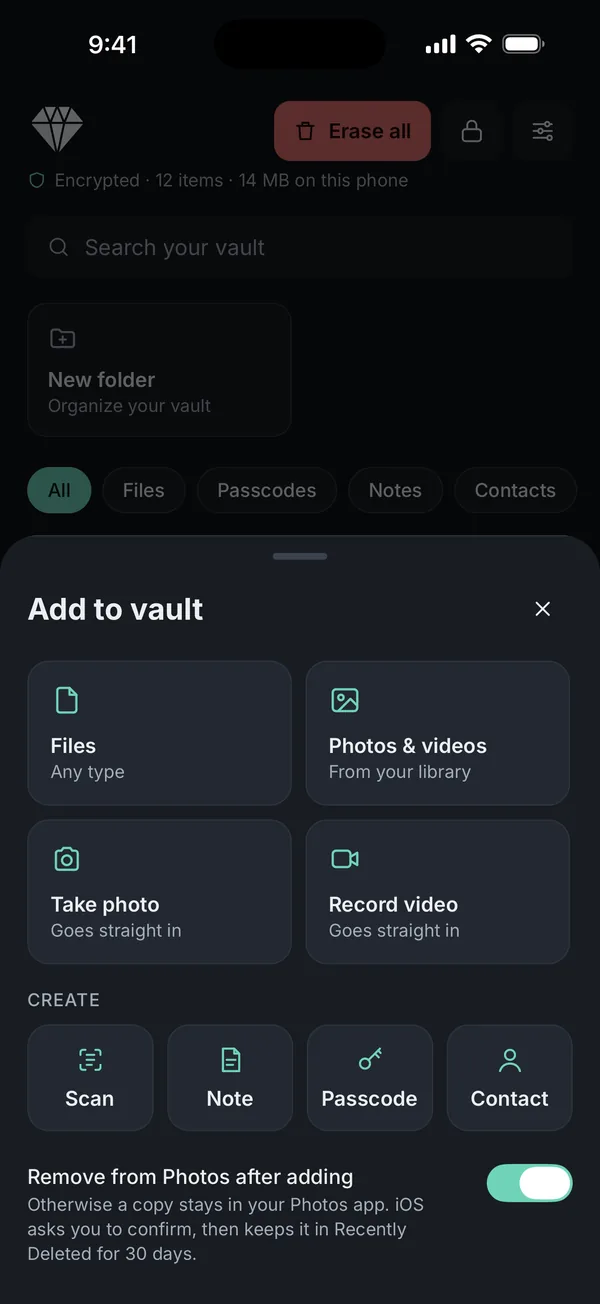
What it does not do: it doesn't sync to your iPad or Mac, and it can't remove copies already in iCloud, in shared albums or in older backups. For a copy off the phone, Scellé makes an encrypted backup file, protected by a backup password, that you save where you choose. Scellé costs $1.49 a week or $49.99 once (US prices, local price shown in the app). How it encrypts is on the encryption page.
Frequently asked questions
Can Apple see my iCloud photos?
Under standard data protection, Apple keeps the encryption keys in its data centers, so it can decrypt your data on your behalf, for example when you restore a backup or sign in on a new device. With Advanced Data Protection on, Apple says only your trusted devices have the keys for Photos, and no one else can access them, not even Apple.
What happens if I turn off Advanced Data Protection?
You can turn it off at any time in Settings, under your name, then iCloud. Apple says your device then securely uploads the needed encryption keys to Apple's servers, and your account goes back to standard data protection. From then on, Apple can again help you recover most of your data if you lose access.
Is Advanced Data Protection available in every country?
No. Apple says it can no longer offer Advanced Data Protection to new users in the United Kingdom, so for UK users who haven't already turned it on, Photos stays under standard data protection. Apple's security guide also notes that the feature may not be available in all countries or regions.
What if I lose my recovery key with Advanced Data Protection on?
You can still recover with your device passcode or a recovery contact, if you set one up. Apple warns that if your recovery methods fail, it can't help you recover your end-to-end encrypted data, and that if you set up a recovery key and can't provide it when you lose access, you can be locked out of your account permanently.
Do all my devices need updating to use Advanced Data Protection?
Yes. Every device signed in to your Apple Account must meet the minimum versions, such as iOS 16.2 for iPhone and macOS 13.1 for Mac. If an old device blocks you, Apple says you can remove it from your account's device list and try again. While it's on, you can sign in only on devices that meet the requirements.
Are photos in a Shared Library end-to-end encrypted?
They can be. Apple says Advanced Data Protection keeps shared content end-to-end encrypted as long as all participants have it turned on, and iCloud Shared Photo Library is one of the supported features. If one participant uses standard protection, the shared content isn't end-to-end encrypted. Shared Albums are a different feature and are never covered.
Summary
- iCloud Photos is always encrypted, but under the default standard data protection Apple holds the keys.
- Advanced Data Protection makes Photos end-to-end encrypted, with keys only on your devices. Set up a recovery contact or key first.
- Shared Albums, public links and some photo metadata stay under standard protection either way.
- For photos that should exist on one phone only, take them out of your library rather than hiding them.
Sources
- Apple Support: iCloud data security overview
- Apple Support: How to turn on Advanced Data Protection for iCloud
- Apple Platform Security: Advanced Data Protection for iCloud
- Apple Support: Set up a recovery key for your Apple Account
- Apple Support: Set up a recovery contact for your Apple Account
- Apple Support: Advanced Data Protection in the United Kingdom