How to Remove Location Data from iPhone Photos Before You Share
Strip the location from one photo, from a share, or from every future shot.
Published November 14, 2026

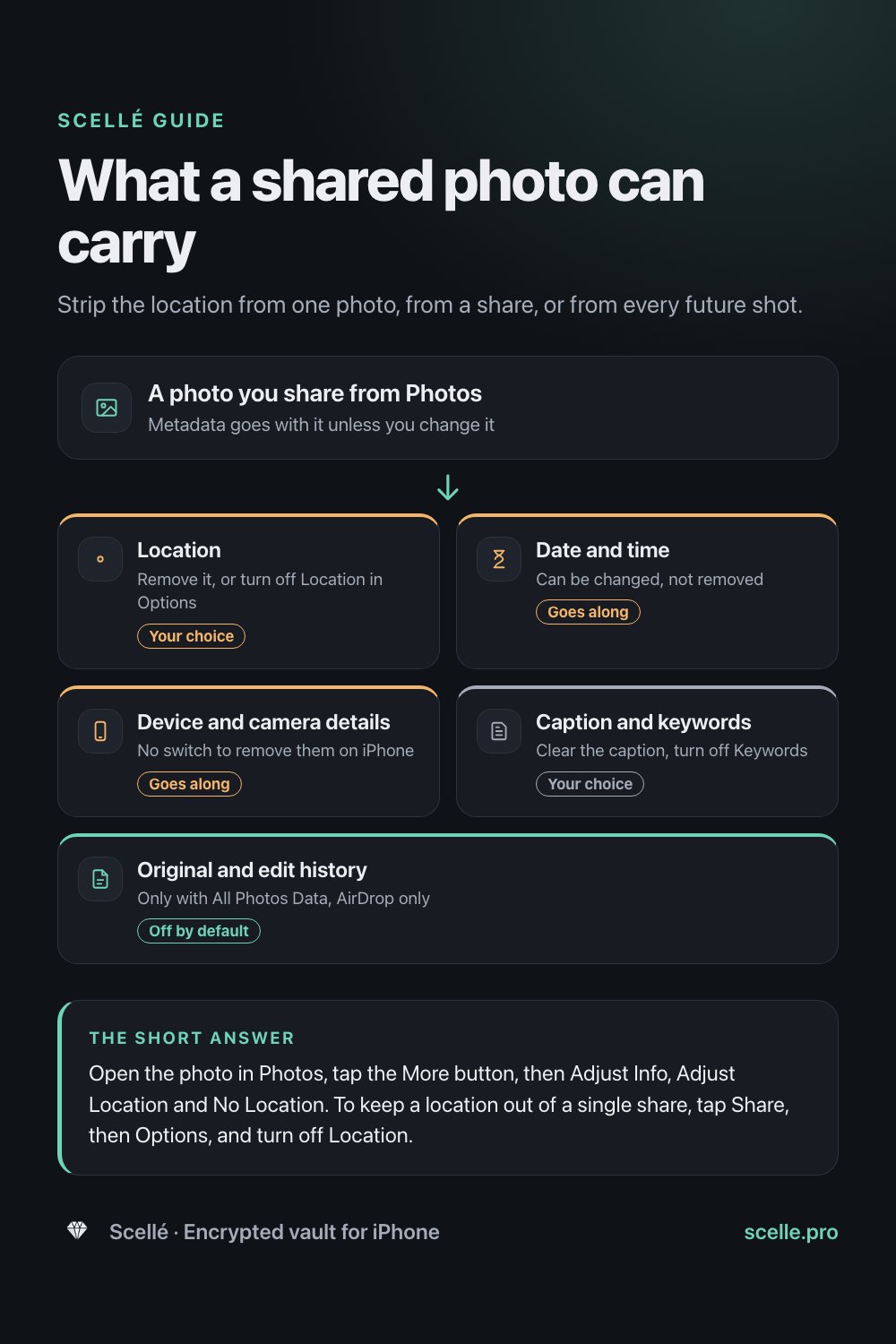
Open the photo in Photos, tap the More button, then Adjust Info, Adjust Location and No Location. To keep a location out of a single share, tap Share, then Options, and turn off Location. To stop new photos being tagged, go to Settings > Privacy & Security > Location Services > Camera and choose Never.
What location data in a photo is
When the Camera app is allowed to use Location Services, every photo and video gets the coordinates of where it was taken, written into the file itself. Apple says the Camera works this out from cellular, Wi-Fi, GPS and Bluetooth information. That is what lets Photos show your pictures on a map and find them when you search for a place.
It is a bit like a postmark on an envelope: useful to you, and readable by whoever ends up holding it. Apple's personal safety guide puts it plainly: when you share photos that include location metadata, the people you share them with may be able to see where they were taken. A photo of your new front door, your child's school bag or your desk at home can say more than the picture shows.
The good news is that iPhone gives you three separate controls: remove the location from a photo, leave it out of one share, or stop the Camera recording it at all. This guide covers all three, what else travels with a photo, and the places location can still slip through.
What a photo carries besides its location
Location is the detail people worry about most, but it is not the only one. Apple's sharing guide says that sharing a photo or video includes its associated metadata, such as the date and time, location, device and captions. Here is what you can and cannot change on the iPhone itself.
| Detail | Where it comes from | What you can do on iPhone |
|---|---|---|
| Location | The Camera, when it has Location Services | Remove it (No Location), or turn it off for one share in Options |
| Date and time | The moment the photo was taken | Change it with Adjust Date & Time; Apple describes no way to remove it |
| Device and camera details | The phone, plus lens, shutter speed and similar | Apple's guide describes no switch to remove them |
| Caption | Text you typed in the caption field | Edit or clear it before sharing |
| Keywords | Labels you added to organize photos | Turn off Keywords in the share sheet's Options |
| Original and edit history | The unedited photo and your changes | Sent only if you turn on All Photos Data, which Apple says works with AirDrop only |
To see what a photo holds, open it and swipe up, or tap the Info button. Apple lists what may appear there: the device that took it, the date and time, camera details such as lens and shutter speed, and where it was taken.
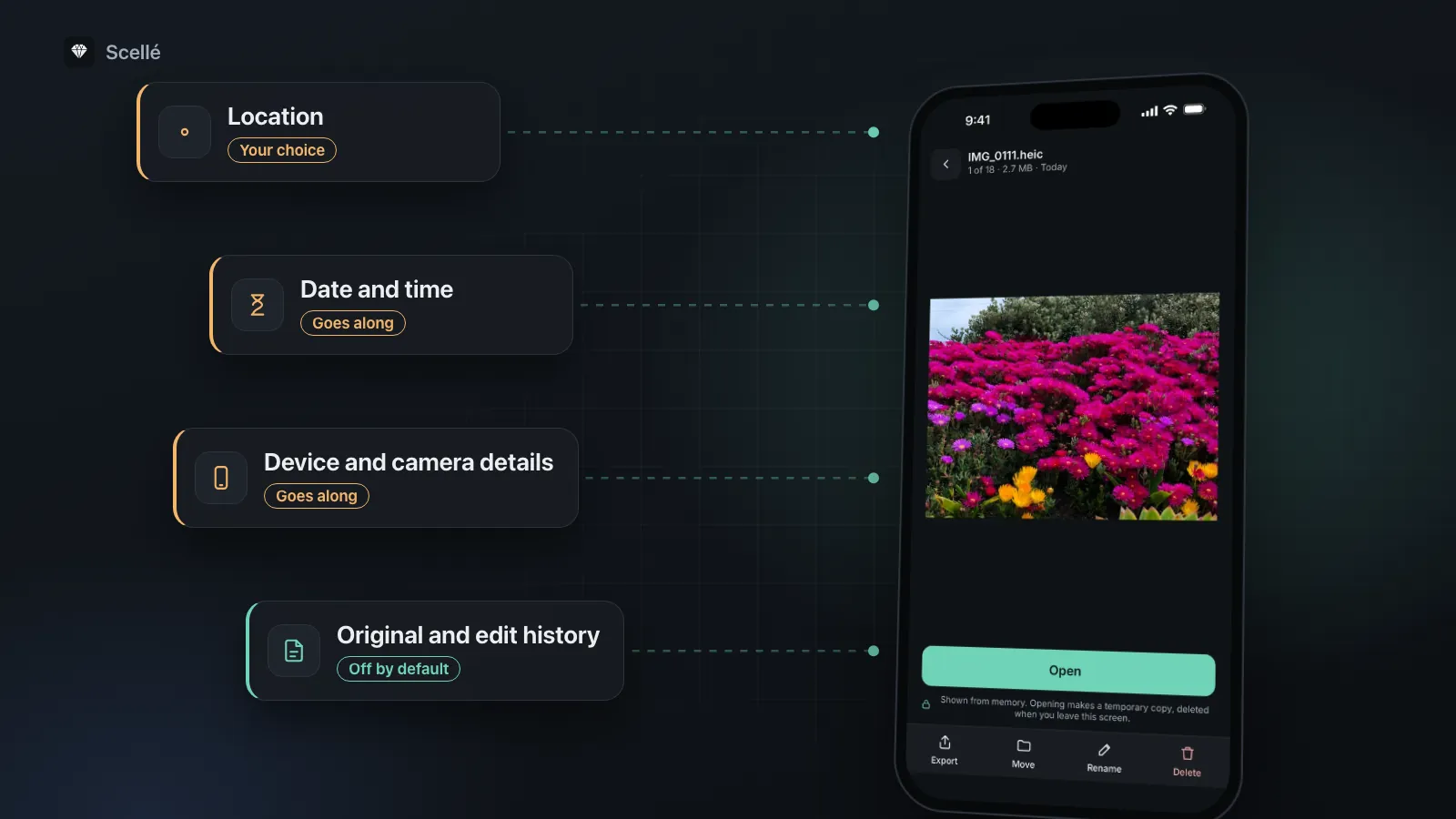
- LocationRemove it, or turn off Location in OptionsYour choice
- Date and timeCan be changed, not removedGoes along
- Device and camera detailsNo switch to remove them on iPhoneGoes along
- Caption and keywordsClear the caption, turn off KeywordsYour choice
- Original and edit historyOnly with All Photos Data, AirDrop onlyOff by default
How to remove or leave out location, step by step
These steps come from Apple's iPhone User Guide and its personal safety guide. Menu names can shift a little between iOS versions, but the path has stayed the same in recent releases.
- Check whether a photo has a location: open it in Photos and swipe up, or tap the Info button. If it has one, you will see a place name and a small map.
- Remove it from that photo: tap the More button, tap Adjust Info, tap Adjust Location, then tap No Location.
- To change several photos at once, tap Select in your library, tap the photos, then follow the same steps.
- To leave location out of one share, select the photos, tap the Share button, tap Options, and turn off Location. Apple says Location Not Included then appears above the Options button. Share as usual.
- To stop new photos from being tagged, go to Settings > Privacy & Security > Location Services > Camera, then tap Never.
Find the photos that still have a location
In Photos, tap Collections, then the Map collection under Pinned. Apple says only photos and videos with embedded location information appear there. It is a quick way to spot pictures taken at home before you post them.
Worth knowing
Apple's guide lets you revert a photo to its original location later. That means No Location is a change Photos remembers, not a permanent wipe of the original. For anything you send, turn off Location in Options as well.
Where location can still slip through
The controls above cover photos you share from Photos or the Camera. A few routes sit outside them.
- Copies you already sent. Removing a location today does nothing to a copy sitting in someone's Messages, email or cloud folder.
- Apps with access to your library. Apple's Photos privacy page says access to photos includes associated metadata, such as location and depth information. An app with full access to your library can read the location of every photo in it. Check the list in Settings > Privacy & Security > Photos.
- Sharing a file from another app. Apple documents the Location switch for sharing from Photos and the Camera. If you share an image as a file from Files, a download or another app, don't assume that switch is there, because the file goes as it is.
Should you turn off location for the Camera?
It depends on how you use your photos. With location on, Photos can show your library on a map, group pictures by place and find a city name in search. Apple's privacy page notes that Photos uses the places where you take photos, on the device, for features such as Memories. Turning it off gives all of that up for new photos.
A sensible middle path for most people: keep Camera location on, and turn off Location in Options whenever a photo leaves your phone. If you post publicly a lot, sell things online, or someone has reason to look for where you live, choosing Never for the Camera is simpler, because there is nothing to forget.
Photos you keep private
Location data is mainly a sharing problem. A photo that never leaves your phone shows its location only to people who can open it. That is where storage matters. The Hidden album keeps a photo out of your library view, but it stays in your photo library. Apple says an app with full access can still reach hidden photos, location included, and they sync with iCloud Photos like any other photo, as covered in do hidden photos sync to iCloud and is the Hidden album private.
Moving a photo into an encrypted vault takes it out of the library altogether. Its location, date and every other detail are encrypted along with the picture, because they are part of the same file. Our guide to moving photos to a vault and removing every copy walks through it.
How Scellé handles location data
Scellé is an encrypted vault for iPhone. Here is exactly what it does with the details inside a photo, checked against the app's code.
It keeps the original file. When you add photos from your library, Scellé asks iOS for the original file and encrypts those bytes as they are. It does not read, change or remove metadata. If a photo had a location when you added it, assume the copy in the vault has it too. Inside the vault that location is encrypted with the rest of the file, so nobody can read it without opening the vault.
Export gives back the same file. When you tap Export, Scellé decrypts a temporary copy for the share sheet and deletes it when the sheet closes. That copy is the file you imported, location included. Because it is shared as a file, the Location switch from Photos does not apply.
Its camera adds no location. Scellé never asks for location access, so photos and videos you take with Take photo or Record video inside Scellé have no location to carry. They also never touch your photo library.
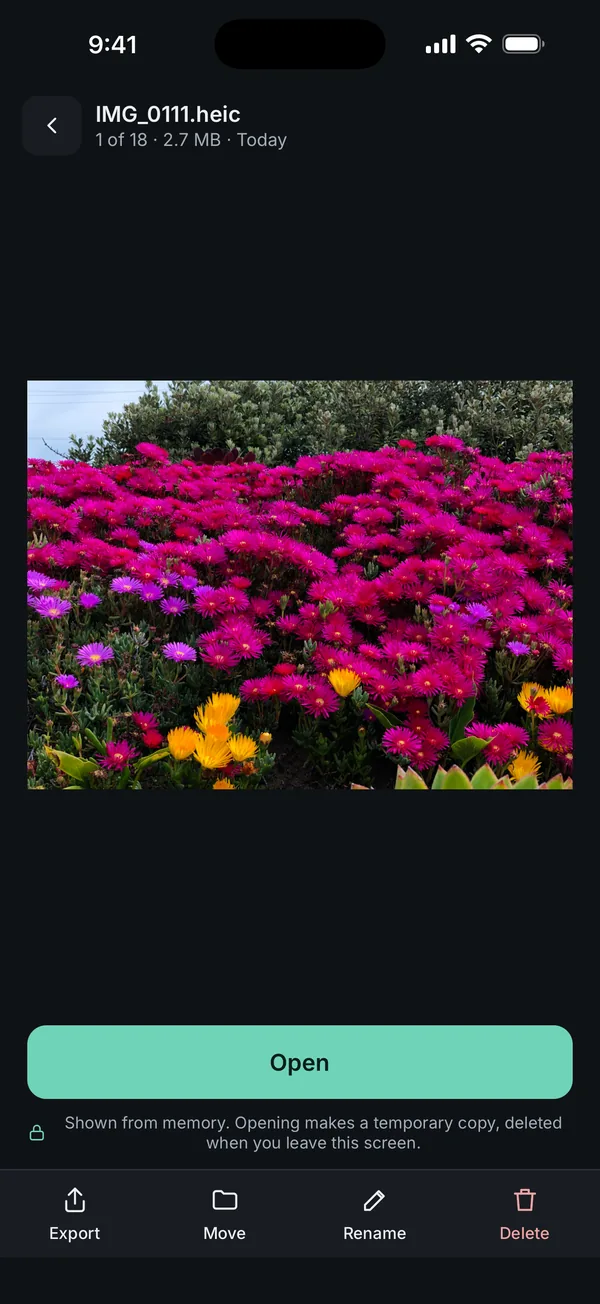
What it does not do: Scellé is not a metadata remover. The optional storage saver re-saves photos as smaller JPEGs, but it is built to save space, not to clean files, so don't rely on it for that. If you need to send a vault photo without its location, use the route Apple documents: share it from Photos with Location turned off in Options. See how exporting from a vault works and the encryption page for how files are protected. Scellé costs $1.49 a week or $49.99 once (US prices, local price shown in the app) and works on iPhone only.
Frequently asked questions
Does No Location delete the location from the original photo?
Not in a way you should count on. Apple's guide lets you revert a photo to its original date, time and location later, which means Photos remembers the original. Treat No Location as a change Photos keeps track of. When the photo is about to leave your phone, also turn off Location in the share sheet's Options, so the copy you send carries none.
Does sending a photo in Messages share my location?
It can. Apple says sharing a photo or video includes its metadata, such as the date and time, location, device and captions. If the photo has a location and you leave the Location switch on in Options, the person you send it to may be able to see where it was taken. Turn the switch off before you tap Send.
Will turning off location for the Camera remove it from old photos?
No. Apple describes that setting as stopping location from being collected in the future. Photos you already took keep their location until you remove it with Adjust Location, or leave it out when you share. You can find the photos that still carry a location in the Map collection, which only shows photos with embedded location information.
Can other apps see where my photos were taken?
Yes, if you give them access. Apple's Photos privacy page says access to photos includes associated metadata, such as location and depth information. An app with full access can read that for your whole library. You can see and change each app's access in Settings > Privacy & Security > Photos, and choose limited access so it only sees the photos you pick.
Can I remove the date or the camera details too?
You can change the date and time with Adjust Date & Time, but Apple's iPhone guide describes no way to remove it, or to remove the device and camera details. If those details matter, the safest choice is not to send the original photo. A screenshot or a cropped copy is a different file, but check its details in Photos before you share it.
Does Scellé remove location data from photos?
No. Scellé is not a metadata remover. It encrypts the file it receives and keeps those bytes as they are, so a photo with a location keeps it inside the vault, where it is encrypted along with the photo. When you export, the same file comes out, location included. Photos you take with Scellé's own camera have no location, because Scellé never asks for location access.
Summary
- To remove a location: open the photo, tap More, then Adjust Info, Adjust Location, No Location.
- To share without it: tap Share, then Options, and turn off Location.
- To stop it for new photos: Settings > Privacy & Security > Location Services > Camera > Never.
- Date, time, device and camera details still go along, and copies you already sent keep whatever they had.