What to Do With Private Photos Before Selling Your iPhone
Move your private files first, then let a full erase do the rest.
Published November 14, 2026

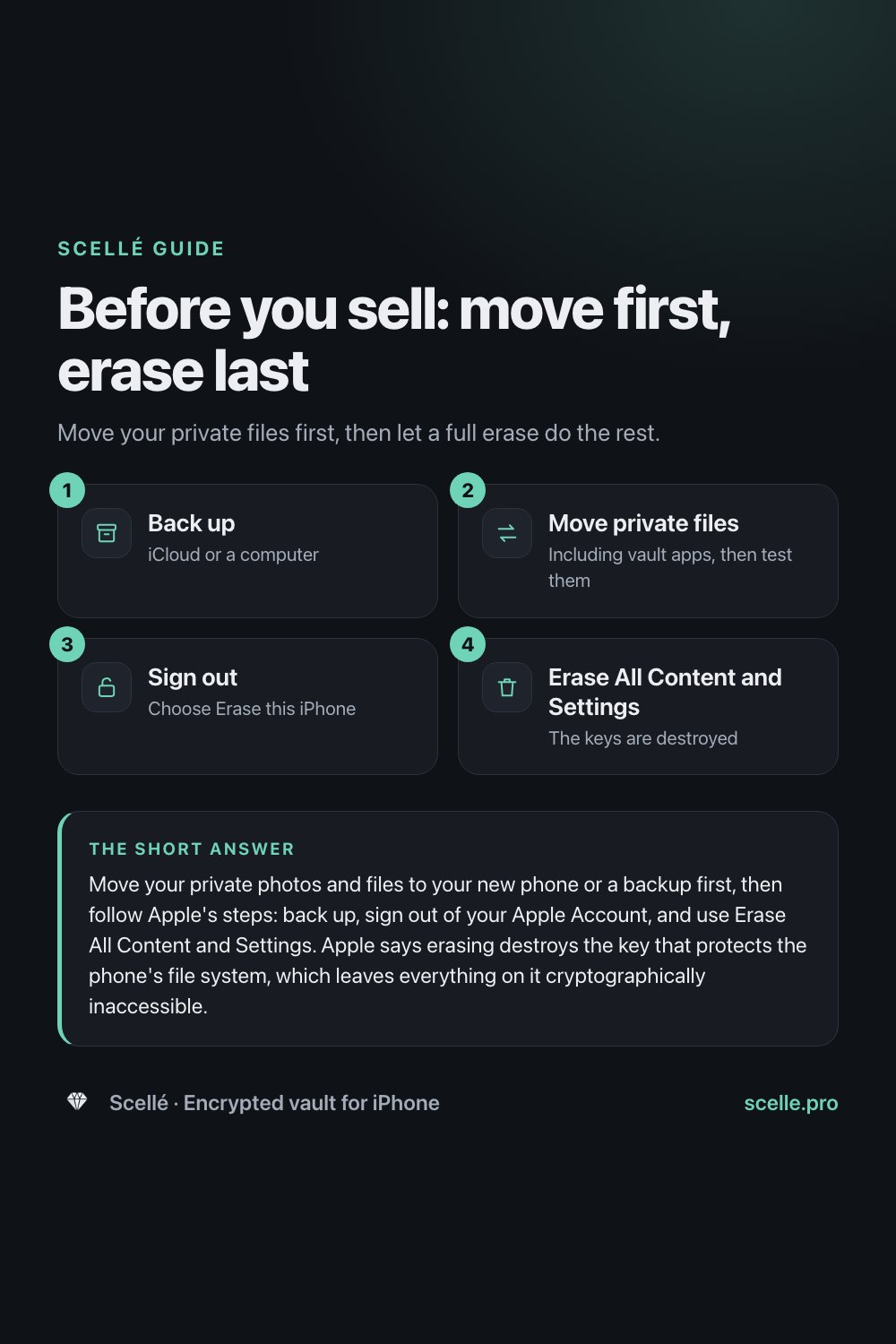
Move your private photos and files to your new phone or a backup first, then follow Apple's steps: back up, sign out of your Apple Account, and use Erase All Content and Settings. Apple says erasing destroys the key that protects the phone's file system, which leaves everything on it cryptographically inaccessible. Don't delete photos one by one beforehand: while you are signed in to iCloud, that removes them from iCloud and your other devices too.
Why the order matters
Selling or trading in an iPhone has two goals that pull in opposite directions. You want every private photo off the old phone, and you want every private photo safely on the new one. Do things in the wrong order and you get one without the other: either the buyer gets a phone with your pictures on it, or you erase something you never moved.
The good news is that iOS does the hard part. A full erase quickly makes the old phone's contents unreadable. Your job is to make sure everything you care about is somewhere else first, including the things that don't travel with an ordinary backup.
Don't clean up by hand
It feels natural to delete private photos one by one before selling. Apple warns that while you are signed in to iCloud, deleting items manually removes them permanently from iCloud's servers and all your connected devices. Let the erase step clear the phone instead.
Apple's steps, in order
This is the sequence on Apple's support page for selling, giving away or trading in an iPhone, with the paths as they appear on iOS 26 and later. Step 5 comes from Apple's Stolen Device Protection page.
- Create a backup to iCloud or a computer.
- Transfer your information to the new iPhone. Apple suggests Quick Start if the old phone has iOS 11 or later.
- If you are trading in, check Parts and Service History. Apple says a part marked Finish Repair has to be finished before a trade-in.
- If you paired an Apple Watch, unpair it. Cancel or transfer any AppleCare plan.
- If you use Stolen Device Protection, turn it off: Settings, Face ID & Passcode, enter your passcode, then Stolen Device Protection. Apple says to do this before selling.
- Sign out: open Settings, tap your name, scroll down and tap Sign Out, then choose Erase this iPhone. If asked which account, tap Sign out of iCloud and Store. On iOS 18 or earlier, enter your Apple Account password and tap Turn Off.
- If you are switching to a non-Apple phone, deregister iMessage.
- Open Settings, General, Transfer or Reset iPhone, tap Erase All Content and Settings, enter your passcode if asked, then tap Erase iPhone. With eSIM, choose to erase the eSIM too when asked.
- Remove the old phone from your Apple Account's list of trusted devices.
On iOS 26 and later, the sign-out screen also offers Sign Out But Don't Erase. Apple says that option keeps photos, documents, notes, passwords and apps on the device, because it is meant for a phone you are keeping. For a phone that is leaving your hands, always choose Erase.
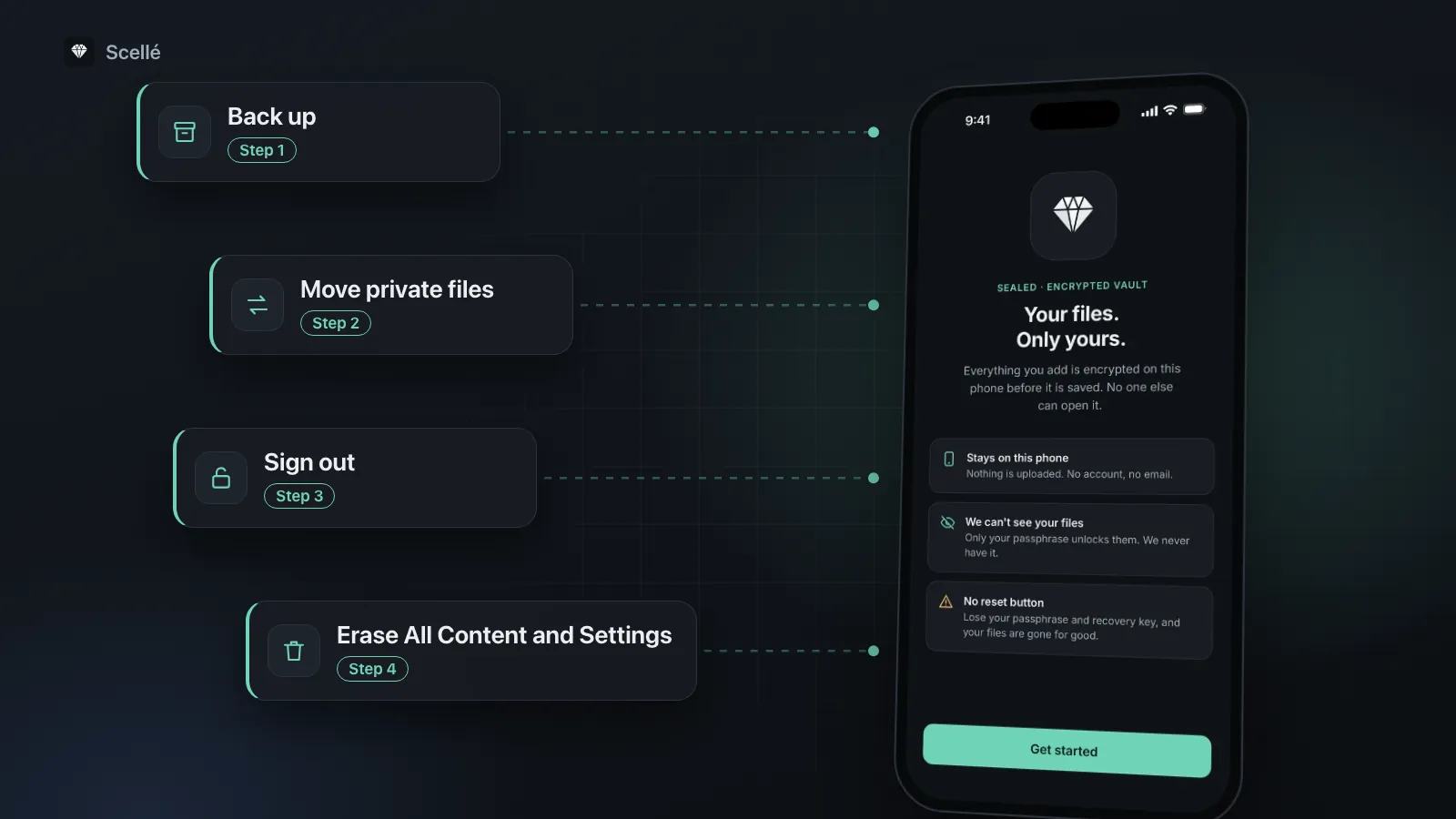
- 1Back upiCloud or a computer
- 2Move private filesIncluding vault apps, then test them
- 3Sign outChoose Erase this iPhone
- 4Erase All Content and SettingsThe keys are destroyed
What a full erase does to your photos
Apple's Platform Security guide explains how the erase works. An iPhone's file system is protected by a random key created when iOS is first installed or after an erase. That key is wrapped by another key kept in storage built to be wiped quickly on demand. Erase All Content and Settings wipes it, and Apple says this renders all files cryptographically inaccessible. Whatever is left in storage can't be read without the key, and the phone starts again with new keys.
Here is what that means for everything a private photo might be part of:
| Where the photo is | After Erase All Content and Settings |
|---|---|
| Photo library on the old phone, Hidden album included | Unreadable on that phone |
| Files inside apps, including vault apps | Unreadable on that phone |
| iCloud Photos and your other devices | Still there. Apple says erasing doesn't delete your content from iCloud |
| iCloud or computer backups you made | Still there, wherever you kept them |
| Photos you sent in Messages, Mail or shared albums | Still with the people you sent them to |
| Find My and Activation Lock on the old phone | Turned off, so the next owner can set it up |
So the erase is the right tool for the phone, and nothing else. If a photo should be gone from everywhere, deal with iCloud, backups and sent copies separately, after the new phone is set up. Our guide to where hidden photos still sync covers the iCloud side.
Move your private files first
Quick Start and iCloud backups carry most of your phone to the new one: your photo library, messages, and the data of most apps. A few things don't come along on their own, and private files are often among them.
Photos in your library, hidden or not
These move with iCloud Photos, Quick Start or a backup, hidden ones included. Still, open the Hidden album on the new phone and check it before you erase the old one.
Vault apps that stay off the cloud
Apps that keep files only on the phone often leave themselves out of backups on purpose, and some tie their key to a secret that Apple's keychain stores as "this device only". Apple's security guide says such items are protected with the old phone's own hardware key in a backup, which makes them useless on a different device. In practice, a vault like that arrives on the new phone empty unless you move it with the app's own export or backup feature. Do this before anything else, and open a few files on the new phone to prove it worked. Our guide to exporting photos from a vault app has a test you can run on any app.
Copies only the old phone has
Screenshots of documents in Files, attachments saved only on this iPhone, notes stored "On My iPhone" rather than in iCloud. If you're not sure, look in Files under On My iPhone before you erase.
Mistakes that leave photos behind, or lose them
- Choosing Sign Out But Don't Erase. The photos stay on the phone you are handing over.
- Erasing before testing the new phone. Once the old phone is erased, nothing on it comes back. Open your vault, your Hidden album and a few documents on the new phone first.
- Deleting photos by hand while signed in. Apple warns this removes them from iCloud and your other devices too.
- Forgetting Stolen Device Protection. Turning it off away from home starts a security delay. Do it before you meet the buyer.
- Leaving the phone on your trusted devices. Remove it from your Apple Account after the erase.
If the phone is already gone
Apple's advice is to ask the new owner to erase it using the steps above. If you can't reach them, or the phone was lost or stolen, erase it from Find Devices on iCloud.com, remove it from your trusted devices, and change your Apple Account password. Apple notes that a new password stops the new owner from deleting your iCloud data, but it doesn't remove anything stored on the phone itself.
Where Scellé fits
If you keep private photos in Scellé, here is what selling the old iPhone involves, checked against the app's code.
The vault doesn't move on its own. Scellé keeps its folder out of iCloud and computer backups, and its key depends on a secret stored in this iPhone's Keychain as a this-device-only item. Quick Start or an iCloud restore will bring the app to the new phone, but not the vault. The 24-word recovery key only works on the iPhone that made it.
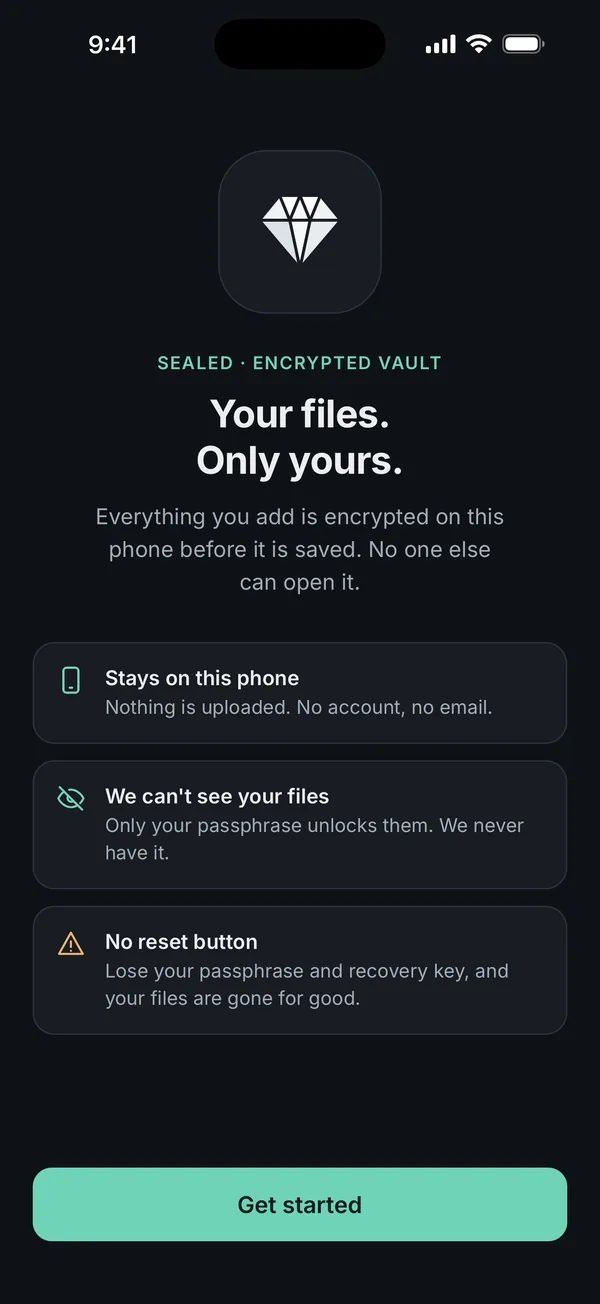
Two ways to take your files with you. To keep them in a vault, make an encrypted backup file in Settings, Backup, protected by a backup password, send it to the new iPhone and restore it there. The steps are in how to move the vault to a new iPhone. To take them out of the vault instead, export one file, a selection or a whole folder through the share sheet.
Then clear the old copy. Once everything opens on the new phone, use Erase everything in Scellé's Settings on the old one and type ERASE. Scellé destroys its keys first, then deletes the files, including a second vault if you set one up. After that, erase the whole phone with Apple's steps.
Your plan. A Lifetime purchase or a weekly plan comes back on the new phone with Restore on the plans screen, using the same Apple Account. If you are not moving the vault at all, note that a weekly plan keeps renewing until you cancel it in your App Store subscriptions. Erasing the app or the phone does not cancel it.
Scellé costs $1.49 a week or $49.99 once (US prices, local price shown in the app), works on iPhone only and has no cloud sync, which is why the move is a step you take yourself. More on how the files are protected is on the encryption page.
Frequently asked questions
Is Erase All Content and Settings enough to protect my photos?
For the phone itself, yes. Apple's security guide says erasing removes the key that protects the file system, which renders all files cryptographically inaccessible, and a new key is created after the erase. It does not touch copies outside the phone, such as iCloud Photos, computer backups or photos you already sent to someone.
Should I delete my photos before I erase the iPhone?
No. Apple warns that while you are signed in to iCloud, deleting items by hand permanently removes them from iCloud's servers and all your connected devices. Erasing the phone is what protects it from the next owner. Apple says your content is not deleted from iCloud when you erase the device.
Does erasing my iPhone delete my iCloud photos?
No. Apple says your content won't be deleted from iCloud when you erase your device. Your photos stay in iCloud Photos and on your other devices signed in to the same Apple Account. Only the copies stored on the phone you erased are gone.
What does Sign Out But Don't Erase leave on the phone?
Most of your data. On iOS 26 and later, Apple says that option keeps photos, documents, notes, passwords, contacts and apps on the device so you can sign back in faster. It is meant for a phone you are keeping. For one you are selling or giving away, choose Erase this iPhone instead.
What if I already sold the phone without erasing it?
Apple suggests asking the new owner to erase it. If you can't, or the phone was lost or stolen, erase it remotely in Find Devices on iCloud.com, remove it from your trusted devices, and change your Apple Account password. Apple notes that changing the password stops the new owner from deleting your iCloud data, but doesn't remove what is on the phone.
Do I need to turn off Stolen Device Protection before selling?
Apple says you should turn it off before you sell, give away or trade in your iPhone. If you try when you are away from a familiar location such as home, a security delay of an hour starts first. Doing it at home before you start the other steps avoids the wait.
Summary
- Move private files first, including any vault that stays off backups, and test them on the new phone.
- Don't delete photos by hand while signed in to iCloud. Sign out, choose Erase this iPhone, then use Erase All Content and Settings.
- Erasing destroys the phone's encryption keys, so its contents become unreadable. It doesn't touch iCloud, backups or copies you sent.
- Turn off Stolen Device Protection first, and remove the phone from your trusted devices afterwards.
Sources
- Apple Support: What to do before you sell, give away, or trade in your iPhone or iPad
- Apple Support: What happens after you choose Sign Out But Don't Erase
- Apple Platform Security: Data Protection in Apple devices
- Apple Platform Security: Keychain data protection
- Apple Support: About Stolen Device Protection for iPhone