How to Hide Photos on iPhone, and What Hiding Doesn't Do
Hide puts a photo in a locked album. Your passcode still opens it.
Published November 14, 2026

Open the photo in Photos, tap the More button, then tap Hide. The photo moves to the Hidden album, which iOS keeps locked behind Face ID, Touch ID or your passcode, and you can take the album out of view in Settings, then Apps, then Photos. Hiding keeps a photo out of sight, but your iPhone passcode still opens it and it still syncs with iCloud Photos.
What "hiding" a photo means on iPhone
When you hide a photo on iPhone, you're not deleting it, locking it with a new password or encrypting it. You're moving it out of the places people normally look. It's closer to putting a letter in a desk drawer than in a safe: out of sight, and in a drawer that has a lock, but the same key that opens your phone opens the drawer.
Often that's all you need: a photo out of the way when you hand someone your phone to show vacation pictures. This guide covers the exact steps on current iOS, what hiding protects, the other built-in options, and when it's worth using something stronger.
How to hide a photo in the Photos app
These steps follow Apple's iPhone User Guide for current iOS. Videos hide the same way.
- Open Photos and tap the photo or video you want to hide.
- Tap the More button, then tap Hide and confirm. You can also touch and hold the thumbnail in your library and tap Hide.
- To hide several at once, tap Select in your library or an album, tap each photo, tap the More button, then tap Hide.
- Go to Settings, tap Apps, then tap Photos, and check that Use Face ID (or Use Touch ID, or Use Passcode) is on, so the Hidden album stays locked.
- In the same screen, turn off Show Hidden Album if you'd rather the album not appear in Photos at all.
Finding hidden photos again
Open Photos, tap Collections, scroll down to Utilities and tap Hidden. Tap View Album and unlock it with Face ID, Touch ID or your passcode. If you turned off Show Hidden Album, the album isn't listed until you turn that setting back on. To put a photo back in your library, open it, tap the More button and tap Unhide.
What hiding protects, and what it leaves open
Apple says a hidden photo moves to the Hidden album and doesn't appear anywhere else in Photos: not in your library, not in other albums, and not in the Photos widget on your Home Screen. Since iOS 16 the Hidden album is locked by default. Apple's user guide says the Hidden and Recently Deleted collections unlock with Face ID, Touch ID or your passcode.
So hiding works well against someone scrolling through your pictures. It does much less against:
- Anyone who knows your iPhone passcode. The passcode opens the Hidden album. There is no second password.
- Your other devices. Apple says that with iCloud Photos on, photos you hide on one device are hidden on your other devices too. They are still on your iPad and Mac, behind each device's own unlock.
- Copies that already left. A photo you sent or shared before hiding it stays wherever it went.
- The lock being switched off. If Use Face ID is turned off in Photos settings, Apple says the Hidden and Recently Deleted collections are no longer locked.
The full breakdown of who can still reach a hidden photo is in is the Hidden album private, and where it travels with iCloud is in do hidden photos sync to iCloud.
Other built-in ways to keep photos out of view
The Hidden album isn't the only tool on your iPhone. Each of these does something slightly different, and none of them encrypts the photo separately from the rest of your library.
| Option | What it does | What opens it |
|---|---|---|
| Hide (Hidden album) | Removes the photo from your library, albums and the Photos widget | Face ID, Touch ID or your passcode |
| Turn off Show Hidden Album | Removes the Hidden album itself from Photos | Anyone who turns the setting back on |
| Don't Feature a Person, or Show Featured Content off | Keeps people, days or holidays out of memories, featured photos and the widget | Nothing to open: the photos stay in your library |
| Lock the Photos app (iOS 18 and later) | Asks for authentication every time Photos opens | Face ID, Touch ID or your passcode |
| Locked note with a custom password | Keeps a copy of the photo inside a locked note | Your Notes password, or Face ID if you turn it on |
Keep people and days out of memories
Photos builds memories and featured photos on its own, and they can show up in the Photos widget. Apple lets you open a photo of a person, tap the More button, then tap Don't Feature a Person and choose to feature them less or never. To stop featured content altogether, tap Collections, tap your account in the top-right corner, and turn off Show Featured Content.
Lock the whole Photos app
On iOS 18 and later you can touch and hold Photos on the Home Screen, tap Require Face ID, then tap Require Face ID again. Photos then asks for Face ID, Touch ID or your passcode each time it opens, and relocks after you quit it. Apple notes that apps that come installed can't be hidden, so Photos can only be locked. The lock still opens with your passcode, and it changes nothing about where your photos are stored.
Put the photo in a locked note
Apple's Notes app can lock a note with your device passcode or with a custom password that only opens Notes. A note with a photo in it can be locked, though notes with video, audio, PDF or file attachments can't. Two catches: the title of a locked note stays visible in the notes list, and the original photo stays in your library until you delete it. If you forget a custom Notes password, Apple says it can't help you get those notes back. Our comparison of Notes lock and a vault goes further.
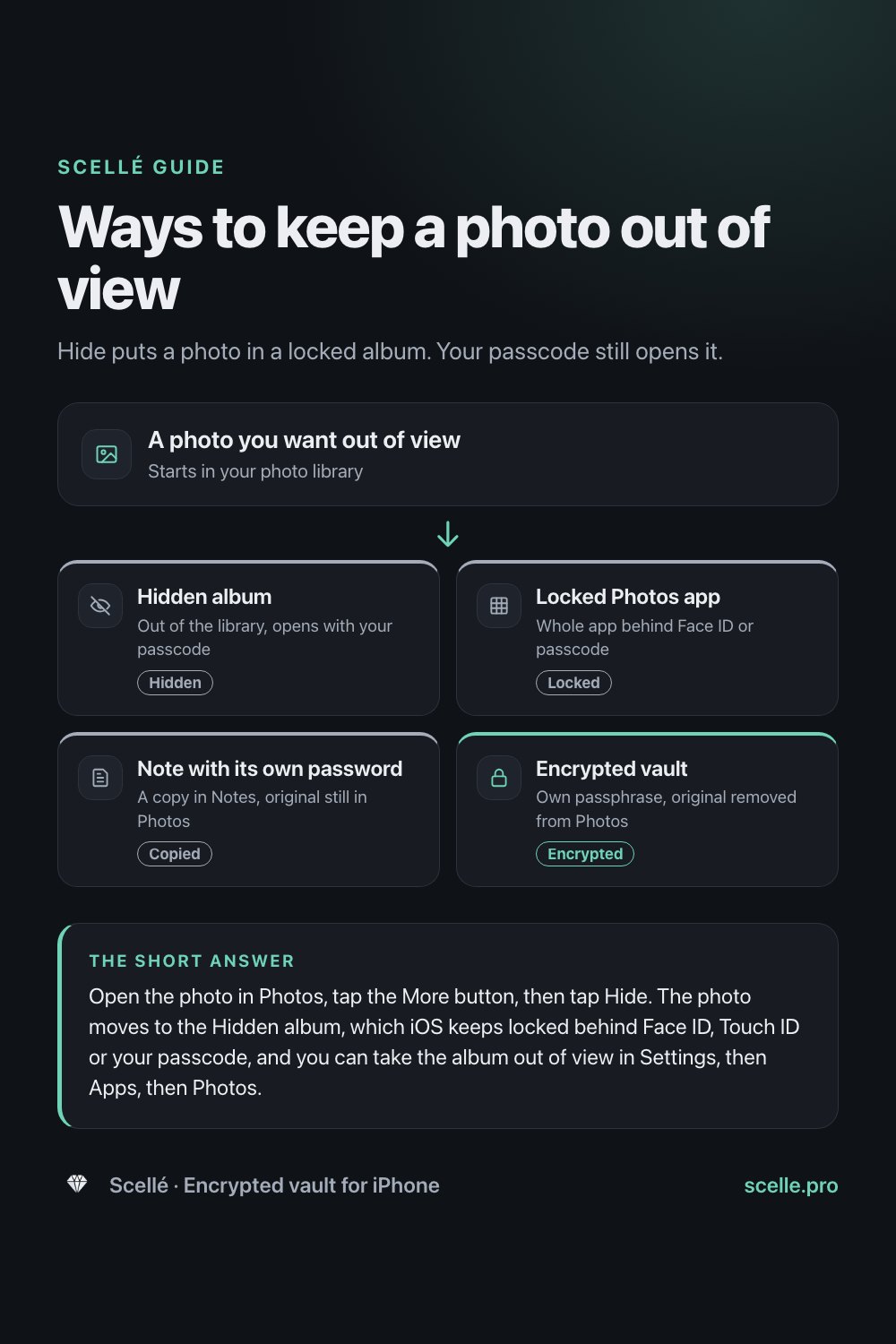
- Hidden albumOut of the library, opens with your passcodeHidden
- Locked Photos appWhole app behind Face ID or passcodeLocked
- Note with its own passwordA copy in Notes, original still in PhotosCopied
- Encrypted vaultOwn passphrase, original removed from PhotosEncrypted
Mistakes that undo hiding
- Deleting instead of hiding. A deleted photo sits in Recently Deleted for 30 days, behind the same lock as the Hidden album.
- Sharing the passcode. A partner, child or repair shop who knows it can open the Hidden album in seconds.
- Forgetting synced devices. A family iPad or a shared Mac signed in to your Apple Account gets your hidden photos too.
- Screenshots and edits. A screenshot of a hidden photo, or a copy saved from an editing app, is a new photo in your library and isn't hidden.
When hiding is enough, and when a vault fits better
Hiding is a good fit when you mainly want a photo out of your grid, nobody you're worried about knows your passcode, and you're fine with the photo staying in iCloud Photos with the rest of your library. It's free, built in and takes two taps.
An encrypted vault is a better fit when:
- The person you want to keep out knows your iPhone passcode, or might be handed it.
- The photo is something that would cause real harm if it leaked, such as an ID scan. Our guide to storing passport and ID scans covers those.
- You want the photo off iCloud and off your other devices, not just out of view.
A vault only helps if the photo actually leaves your library afterwards, including Recently Deleted. Our guide to moving photos to a vault and removing every copy walks through that, and our Hidden album comparison sets out both sides.
Where Scellé fits
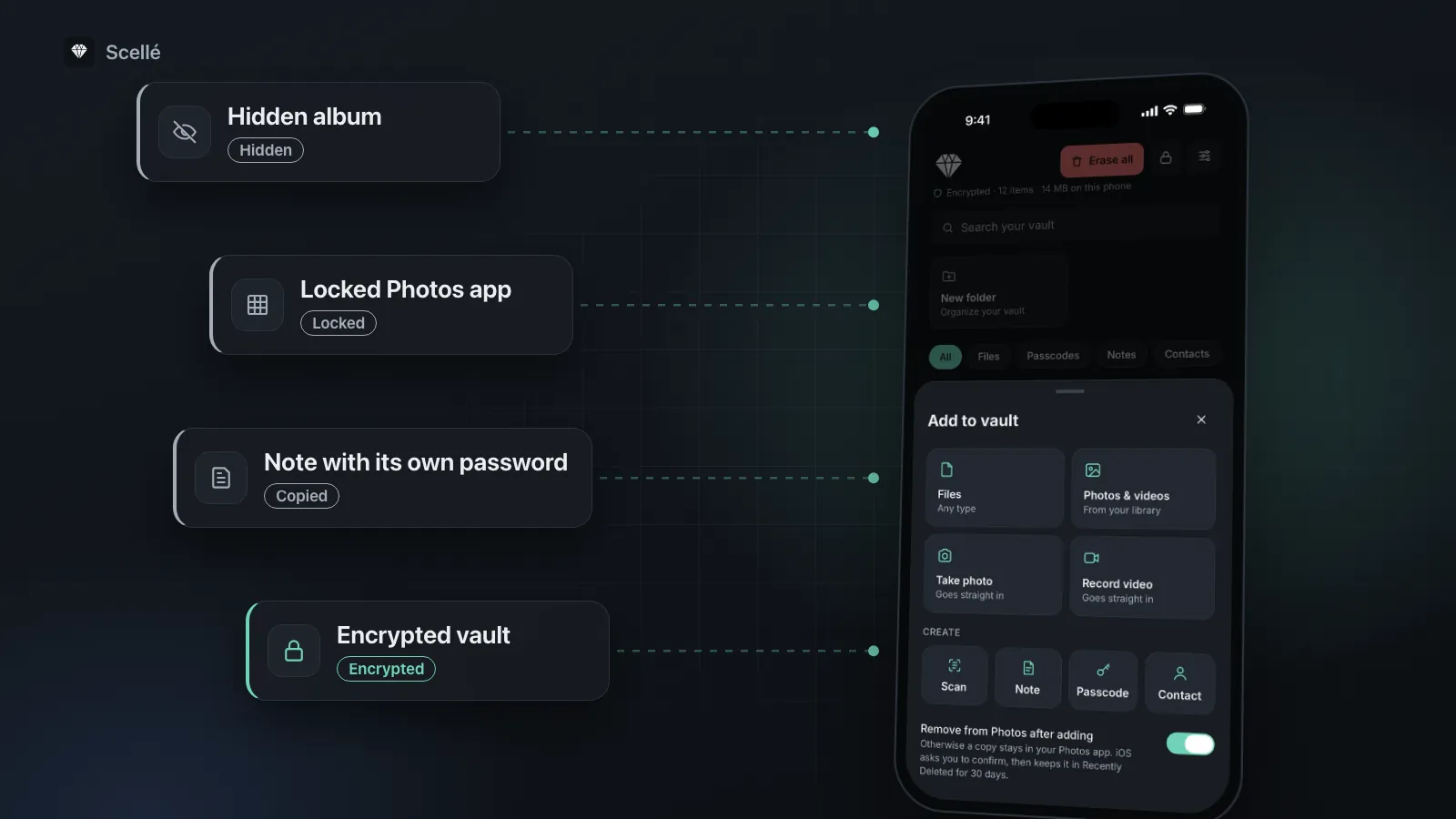
Scellé is an encrypted vault for iPhone, built for the cases where hiding falls short. You add photos and videos from your library, take photos straight into the vault, or add any file from the Files app. Each file is encrypted on the phone with its own key before it's saved, and the vault opens with its own passphrase of at least 12 characters, so your iPhone passcode doesn't open it.
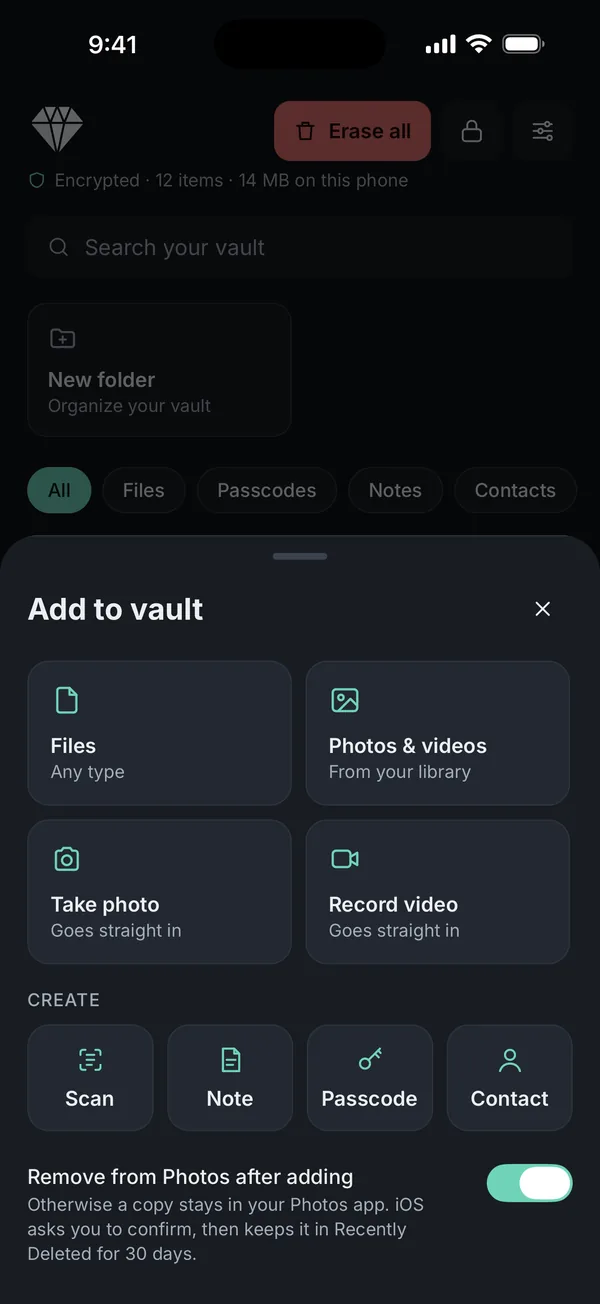
With Remove from Photos after adding turned on (it is by default), Scellé asks iOS to delete the originals once they're encrypted. iOS shows its own confirmation and keeps them in Recently Deleted for 30 days, so clear that too. Photos you take with the camera inside Scellé never go into your library at all. The vault's folder is kept out of iCloud and computer backups, and there's no account or server, so nothing is uploaded. More detail is on the encryption page.
What it does not do: it can't reach copies you already sent, or older backups made while the photo was in your library. It doesn't sync to an iPad or Mac, and a file you delete in Scellé is gone for good, with no Recently Deleted. Scellé is paid, at $1.49 a week or $49.99 once (US prices, local price shown in the app).
Frequently asked questions
How do I hide several photos at once on iPhone?
Open your library or an album in Photos, tap Select, then tap every photo and video you want to hide. Tap the More button, then tap Hide and confirm. They all move to the Hidden album together. To find them later, open Collections, scroll to Utilities, tap Hidden, then tap View Album and unlock it.
Can I hide photos without the Hidden album showing in Photos?
Yes. Go to Settings, tap Apps, tap Photos, then turn off Show Hidden Album. The album disappears from Utilities and hidden photos can't be seen anywhere in Photos until you turn the setting back on. Anyone holding your unlocked phone can switch it back on, so this only helps against a quick look.
Do hidden photos still show up in Memories or the Photos widget?
Apple says hidden photos don't appear in your library, other albums or the Photos widget on your Home Screen. To keep a person or a holiday out of memories and featured photos too, use Don't Feature a Person on one of their photos, or turn off Show Featured Content from your account in Collections.
Is there a way to put a password on the Hidden album?
Not a separate one. The Hidden album unlocks with Face ID, Touch ID or your iPhone passcode, and Apple gives no way to set a different password for it. If you want a photo behind a password your passcode doesn't open, use a note locked with a custom Notes password, or a vault app with its own passphrase.
If I hide a photo, will people I shared it with lose it?
No. Hiding changes only your own library. A photo you already sent in Messages, posted to a shared album or AirDropped stays wherever it went. To pull it from a shared album, delete it there. Copies other people saved to their own phones are theirs, and nothing on your iPhone can reach them.
How do I unhide a photo on iPhone?
Open Photos, tap Collections, scroll to Hidden under Utilities, tap View Album and unlock it with Face ID, Touch ID or your passcode. Open the photo, tap the More button, then tap Unhide. You can also touch and hold the thumbnail and tap Unhide. The photo goes back to your library and albums.
Summary
- To hide a photo, open it in Photos, tap the More button, then tap Hide.
- Keep Use Face ID on in Settings, then Apps, then Photos, or the Hidden album isn't locked.
- Hiding keeps a photo out of view. Your passcode still opens it, and it still syncs with iCloud Photos.
- For photos that need a lock your passcode can't open, use a vault with its own passphrase and remove the original from Photos.