Lost iPhone: What a Stranger Can See and What You Get Back
The passcode guards most of it. Files only on the phone need a copy.
Published November 15, 2026

Someone who finds your locked iPhone can see only what you allow on the Lock Screen: notification previews, widgets, Control Center and your Medical ID. Without the passcode, Apple encrypts the rest. Getting your files back is a separate question: whatever synced to iCloud or sits in a backup returns on a new phone, and anything that lived only on the lost phone is gone unless you made a copy.
Two questions, not one
When an iPhone goes missing, two worries arrive at once. The first is privacy: can the person who picks it up see your photos, messages or documents? The second is loss: when you get a new phone, which of your files come back, and which are gone for good?
They have different answers, and mixing them up leads to bad decisions, such as erasing a phone you might have found. This guide takes them one at a time, for a phone that was lost, left in a taxi or dropped in a park. If you think it was taken by someone who watched you type your passcode, the Stolen Device Protection guide covers that case.
Think of the phone as a locked house with a porch. The Lock Screen is the porch: anyone passing can see what you leave on it. The passcode guards everything behind the door.
What a finder can see on a locked iPhone
Without your passcode, Face ID or Touch ID, a finder gets the porch and nothing more. Apple says that setting a passcode turns on data protection, which encrypts your iPhone's data with 256-bit AES. Your photo library, files and messages are inside that encryption.
The porch is what you allow under Allow Access When Locked. Apple lists features such as Control Center, widgets and media controls, and you can also show a Medical ID that first responders and others can view while the phone is locked. Apple's own advice is plain: turning off Lock Screen access to a feature stops someone who has your iPhone from seeing personal information it might contain, such as an upcoming event in a Calendar widget.
Notification previews are the usual leak
The most common way private content reaches a stranger's eyes is a notification. A message preview can show the text, and sometimes a photo, on the Lock Screen of a phone nobody has unlocked. Apple lets you set Show Previews to Always, When Unlocked or Never, for all apps or one at a time. When Unlocked keeps the porch quiet while your own Face ID still shows you the content.
Guessing doesn't go far either. Apple says four wrong passcodes in a row lock the phone and show that it is disabled, and with Erase Data on, it wipes itself after 10 failed attempts.
What you get back, layer by layer
Recovery depends on where each kind of file actually lived. Apple separates two things here: syncing and backing up. Data that syncs, such as iCloud Photos, iCloud Drive and Notes, is already in the cloud and simply reappears when you sign in on another device. Data that doesn't sync goes into your iCloud Backup, if that is turned on. Anything in neither place existed only on the lost phone.
| Where it lived | Can a finder see it on the locked phone? | Do you get it back? |
|---|---|---|
| Photos with iCloud Photos on | No | Yes. Apple says they sync to iCloud and aren't in the daily backup |
| Photos with iCloud Photos off | No | Only if iCloud Backup or a computer backup includes them |
| Hidden album | No | Same as the rest of your library. Hidden photos sync with iCloud Photos too |
| Messages | Only previews, if you allow them | Yes, through Messages in iCloud or iCloud Backup |
| Files in iCloud Drive | No | Yes. They are already in iCloud |
| Files saved On My iPhone | No | Only from a backup |
| Apps that keep files out of backups | No | Only from a copy you made yourself, saved off the phone |
The last row surprises people. Apple says iCloud Backup includes data for the apps you downloaded, but some apps choose to keep their files out of it. Privacy-focused apps, Scellé among them, do exactly that so their files never reach a server. That is good for privacy and bad for recovery, unless the app gives you another way to make a copy. If you hide photos with the built-in album, the guide to what the Hidden album syncs explains where those copies end up.
What to do in the first hour
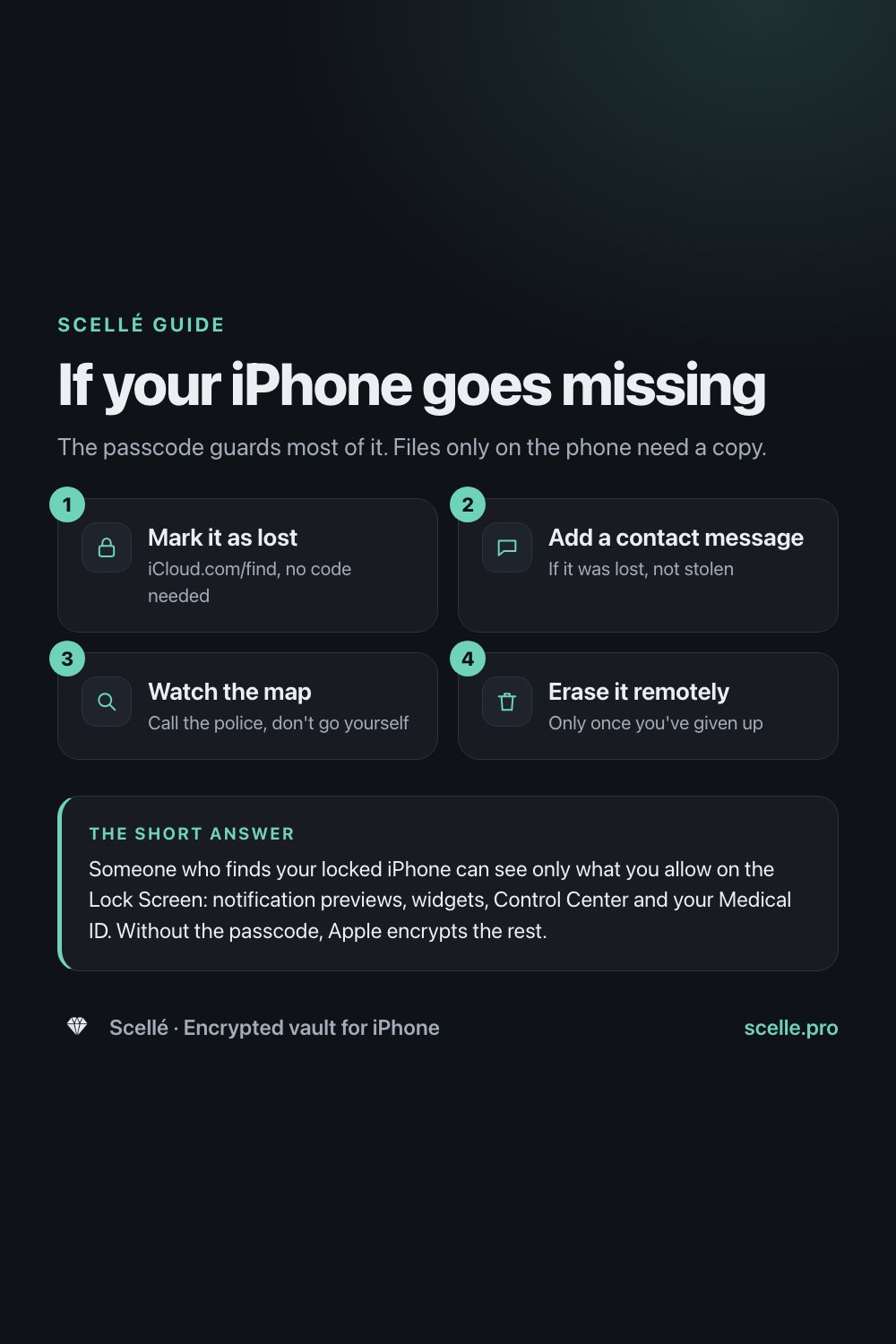
The order matters. Lock it, look for it, and erase it only when you have given up.
- On another device or a borrowed computer, go to iCloud.com/find and sign in. Apple says you don't need a verification code there, so it works even if your trusted device is the one that is missing.
- Under All Devices, select your iPhone and choose Mark As Lost. Apple says this locks the phone with its passcode, stops it showing alerts for messages and notifications, and suspends payment cards.
- Add a phone number and a short message if you think the phone was lost rather than stolen. Apple says they appear on the Lock Screen while the phone is online, which helps an honest finder return it.
- Watch the map. Apple shows the phone's current location and any changes. If it turns up somewhere you don't recognize, Apple advises contacting local police rather than going to get it yourself.
- Don't remove the phone from your Find My list. Apple says removing it lifts Activation Lock, which makes the phone easier to erase and resell.
- If Find My wasn't on, you can't lock or erase the phone remotely. Change your Apple Account password right away instead.
- When you are sure it is gone, erase it remotely from Find My or iCloud.com/find. Apple says erasing can't be undone, and anything that existed only on the phone goes with it.
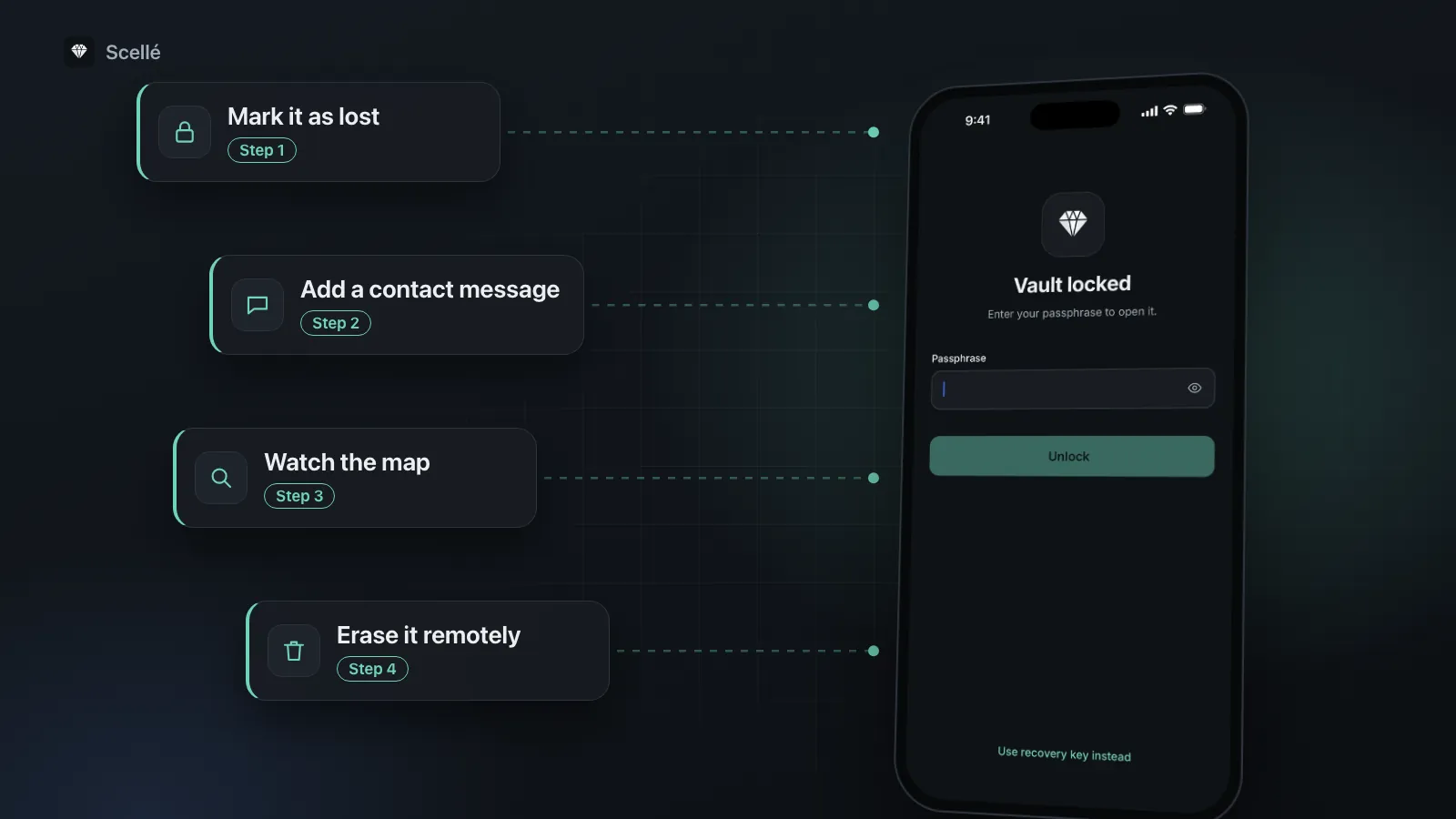
- 1Mark it as lostiCloud.com/find, no code needed
- 2Add a contact messageIf it was lost, not stolen
- 3Watch the mapCall the police, don't go yourself
- 4Erase it remotelyOnly once you've given up
Settings to check before it happens
Most of the outcome is decided before the phone goes missing:
- Find My. Without it you can't lock, locate or erase the phone remotely.
- A stronger passcode. In Settings, Face ID & Passcode, Change Passcode, Passcode Options, Apple calls Custom Alphanumeric Code and Custom Numeric Code the most secure choices.
- Lock Screen access. In the same screen, review the switches under Allow Access When Locked and turn off what you don't need.
- Notification previews. Settings, Notifications, Show Previews, When Unlocked. Override it for chat apps that show photos.
- Erase Data. At the bottom of Face ID & Passcode. Apple says that after the phone wipes you must restore from a backup or set it up as new, so turn it on only if your backups are current.
Worth checking today
List the apps whose files you would hate to lose, and find out where each one keeps them. If the answer is "only on this phone", make a copy and save it somewhere that isn't the phone.
Where a vault app fits, and its catch
A vault app with its own passphrase adds a second door behind the first. If the phone is lost while unlocked, or the finder somehow learns your iPhone passcode, the vault still asks for something they don't know.
The catch is the same feature seen from the other side. A vault that never uploads anything has no cloud copy to restore. If your private photos lived only in the vault, and you removed the originals from Photos, the vault may hold the only copy. Lose the phone without a backup of the vault, and those files are gone, however strong the encryption was. Before you trust any vault with your only copy, check that it can export your files or make a backup, and test it once.
How Scellé handles it
Scellé is an encrypted vault for iPhone. Here is what a lost phone means for it, checked against the app's code.
On the lost phone, it stays locked. The iPhone passcode doesn't open Scellé. It has its own passphrase of at least 12 characters, and after a few wrong attempts each new one adds a longer wait. By default the vault locks as soon as you leave the app. Scellé sends no notifications, so nothing from it appears on the Lock Screen.
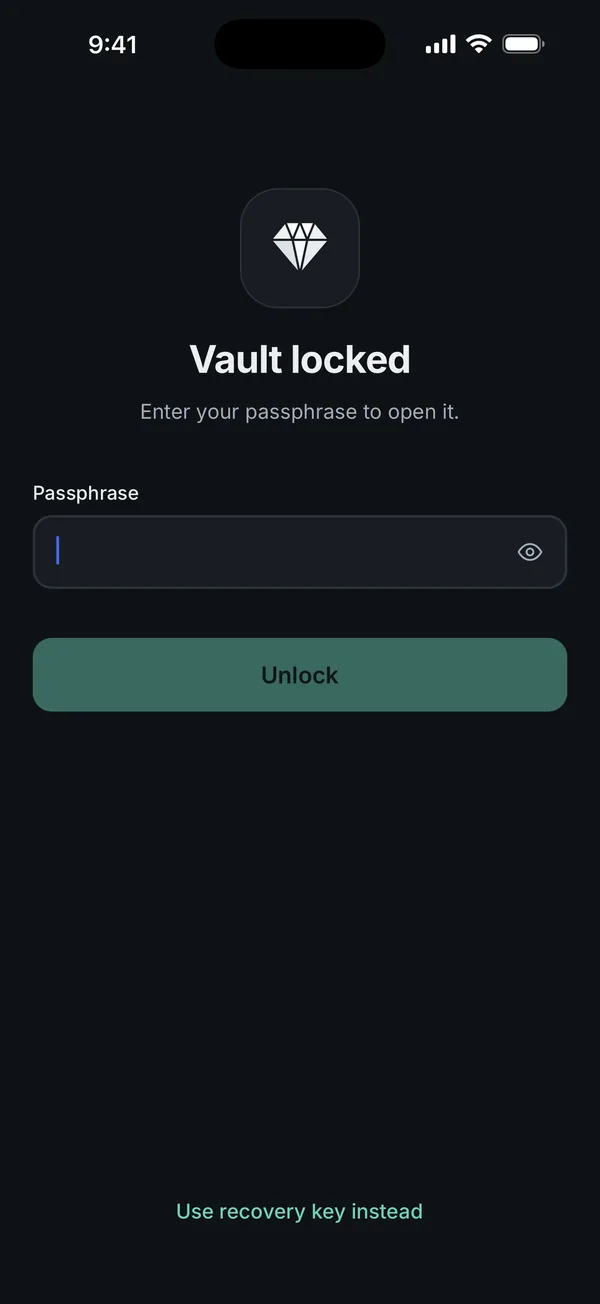
No cloud copy, by design. Scellé keeps the vault out of iCloud backups and has no server, so restoring an iPhone backup won't bring the vault back. Its key also depends on a secret kept in that iPhone's Keychain that never leaves the device. That is why the recovery key only works on the phone it was made on: it helps if you forget your passphrase, not if you lose the phone.
The backup file is your copy. In Settings, Backup, Scellé makes one encrypted file holding the whole vault, protected by a separate backup password. Save it off the phone, to iCloud Drive, a computer or another device, because a copy kept On My iPhone is lost with the phone. On a new iPhone, you create a vault and restore the file from the same screen. The steps are in moving the vault to a new iPhone.
Scellé costs $1.49 a week or $49.99 once (US prices, local price shown in the app) and works on iPhone only. More on the lock is on the lock protection page.
Frequently asked questions
Can someone see my photos if they find my locked iPhone?
Not without the passcode or your face or finger. Apple says setting a passcode turns on data protection, which encrypts the iPhone's data with 256-bit AES. A finder sees only what you allow on the Lock Screen, such as notification previews and widgets. A photo can still appear there if a message preview shows it, so set previews to When Unlocked.
Should I put my phone number on the Lost Mode message?
If the phone is lost rather than stolen, yes. Apple says the contact details help someone who finds the phone return it, and they appear on the Lock Screen while the phone is online. If you think it was stolen, Apple advises leaving your contact details off, because a thief might use them in a scam.
Will erasing my lost iPhone delete my iCloud photos?
No. A remote erase wipes the phone itself. Photos that synced through iCloud Photos stay in iCloud and come back when you sign in on another device. What is lost is anything that existed only on that phone, so erase it only after you have given up on finding it. Apple says the erase can't be undone.
Does iCloud Backup include files in vault apps?
It depends on the app. Apple says iCloud Backup includes app data for the apps you downloaded, but an app can keep its files out of the backup. Many vault apps do that on purpose, so their encrypted files never leave the phone. Check the app's own help pages, and test a restore before you rely on it.
What should I turn on now in case I lose my iPhone later?
Find My, a strong passcode, notification previews set to When Unlocked, and iCloud Backup or iCloud Photos for anything you can't lose. Apple also offers Erase Data, which wipes the phone after 10 failed passcode attempts, and a Find My alert that tells you when you leave your iPhone behind, if you have another Apple device with you.
Summary
- A finder sees only your Lock Screen. Set notification previews to When Unlocked and trim Allow Access When Locked.
- Mark the phone as lost first, add a contact message if it was lost rather than stolen, and erase it only once you have given up.
- What you get back is whatever synced to iCloud or sits in a backup. Files that lived only on the phone are gone.
- If you use a vault that never uploads, keep a backup of it somewhere other than the phone, and test it once.